
How to use copilot ai for beginners starts with one simple idea, give the tool enough context so it can help you move faster without guessing what you mean.
If you tried Copilot once and it felt underwhelming, you’re not alone, most “Copilot is bad” feedback comes from vague prompts, messy settings, or picking the wrong Copilot product for the job.
This guide walks through the practical setup, what to ask, what to avoid, and a few starter workflows you can copy, so you get useful output on day one, not week three.

What “Copilot AI” means (and which one you should use)
“Copilot” can mean different products, and beginners get tripped up right here. In the U.S., people usually mean one of these:
- Microsoft Copilot: built into Windows/Edge and Microsoft 365 apps, often used for search, summarizing, drafting, and light analysis.
- Copilot in Word/Excel/PowerPoint/Outlook: the work-focused assistant inside Microsoft 365 for writing, slides, email, and spreadsheet help.
- GitHub Copilot: code completion and coding chat inside IDEs like VS Code, aimed at developers.
Pick based on your primary job. If you write and present, Microsoft 365 Copilot tends to fit. If you code, GitHub Copilot usually makes the biggest difference. If you mainly “ask questions and summarize,” Microsoft Copilot in Edge or Windows can be enough.
According to Microsoft, Copilot is designed to work with your data and context inside Microsoft 365 apps, so it can draft and transform content where you already work.
Quick setup: accounts, access, and basic settings
Before you worry about prompts, make sure you’re actually set up to succeed. A surprising number of beginners test Copilot in the wrong place, then assume the tool is weak.
1) Confirm which Copilot you’re using
- If you’re in Word/Excel/PowerPoint, look for the Copilot button in the ribbon or side panel.
- If you’re in Edge/Windows, you’ll typically see a Copilot icon and a chat panel.
- If you’re in VS Code, GitHub Copilot shows as inline suggestions and a chat view.
2) Check permissions and data sources
For workplace use, Copilot quality depends on whether it can access the files you reference. If your company restricts SharePoint/OneDrive access, Copilot may respond generically. That’s not “you doing it wrong,” it’s access.
3) Set a few beginner-friendly defaults
- Turn on citation/source links when available, useful for checking accuracy.
- Choose a tone preset if your Copilot offers it, “clear” beats “creative” for most work docs.
- Decide your privacy line: what information you will not paste, such as customer PII or confidential financials.

The beginner prompt formula that actually works
Most beginner prompts fail because they ask for an output, not a result. You’ll get better responses if you include role + goal + context + constraints + next step.
- Role: who Copilot should act as.
- Goal: what “good” looks like.
- Context: audience, background, inputs you already have.
- Constraints: length, tone, format, must-include items.
- Next step: what you want after the draft, such as “ask me 5 questions” or “give 3 options.”
Copy-and-paste starter prompts
For writing: “Act as a project manager. Draft a 250-word update for stakeholders about [project], using a calm tone, include risks, decisions needed, and next milestones. End with 3 questions for me.”
For summarizing: “Summarize this into 7 bullets for an executive who has 30 seconds, call out deadlines and owners, and flag anything ambiguous.”
For planning: “Create a 2-week onboarding plan for a new sales rep, include daily goals, tools, and check-ins, keep it realistic for a busy team.”
For coding help (GitHub Copilot): “Explain what this function does, list edge cases, then suggest a safer version with input validation. Assume I’m a beginner.”
Self-check: why Copilot feels “wrong” (and how to diagnose it fast)
If you’re frustrated, you can usually trace it to one of these buckets:
- Not enough context: you asked for “a proposal” but didn’t provide the customer, goal, scope, or constraints.
- Too much trust, too soon: you used the first draft as final copy, then got burned by a confident mistake.
- Wrong tool: you wanted spreadsheet analysis but tested in a web chat, or you wanted coding suggestions but used a writing-focused Copilot.
- Messy input: long transcripts, mixed notes, unclear ownership, Copilot mirrors the mess.
- Policy/access limits: workplace settings block files or data, so answers stay generic.
A quick “beginner readiness” checklist
- Can you describe the task in one sentence without buzzwords?
- Do you have 2–3 concrete inputs to paste or reference?
- Did you specify audience, length, and format?
- Did you ask for options, not just one answer?
- Do you have a review step before sending/publishing?
If you answered “no” to two or more, your next attempt should focus on context and constraints, not on “smarter prompts.”
Beginner workflows you can use today (writing, email, slides, and code)
Below are practical ways to use Copilot without turning your day into an AI experiment. Think small wins.
Workflow 1: Turn messy notes into a clean doc
- Paste your notes, then ask for a one-page structure with headings.
- Ask Copilot to list missing info before drafting.
- Generate a draft, then request a “tighten and remove repetition” pass.
Workflow 2: Email triage without sounding like a robot
- Ask for 3 reply options: short, warm, and firm.
- Tell it your boundary, for example: “I can meet next week, not this week.”
- Request a final version that keeps two specific phrases you would actually say.
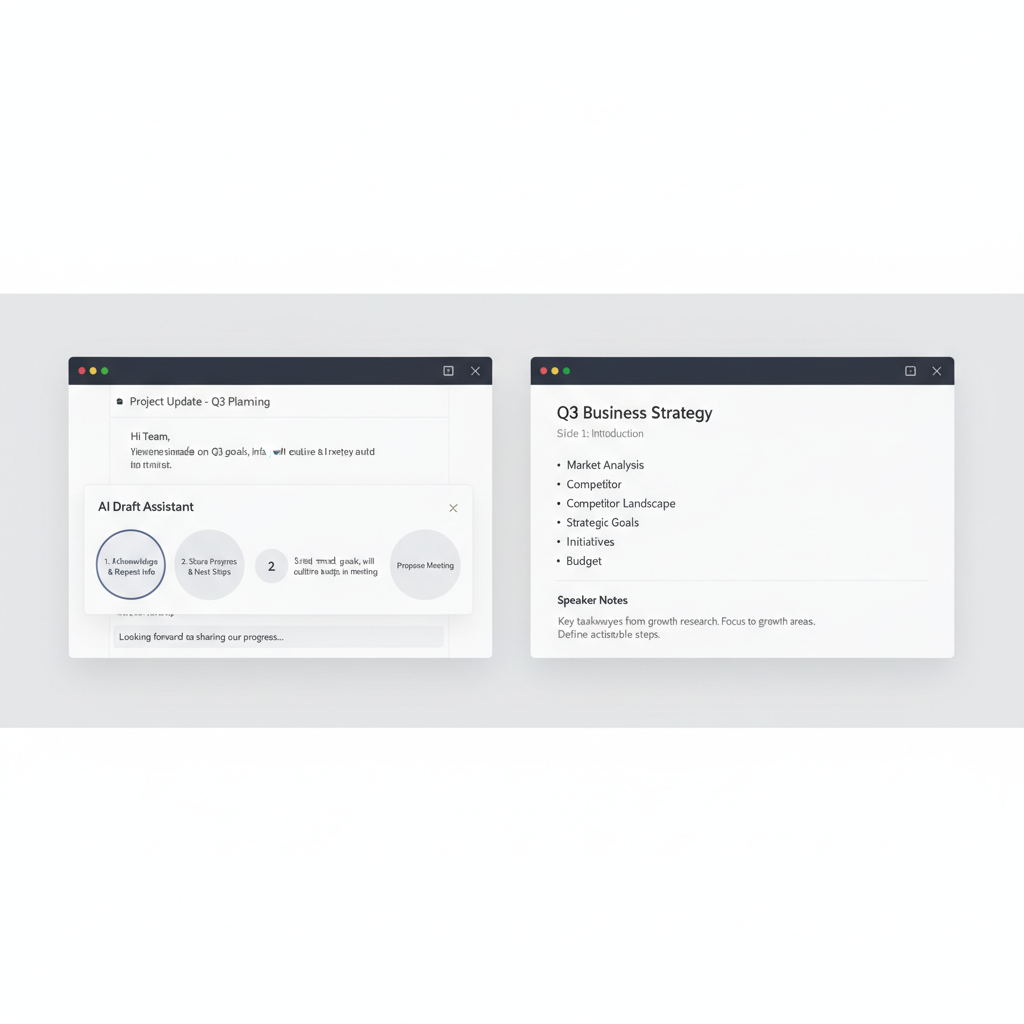
Workflow 3: From outline to slides
- Provide a goal and audience, then ask for a slide-by-slide outline.
- Request “speaker notes that sound natural,” not marketing copy.
- Ask for 2 alternative storylines if the topic is sensitive or complex.
Workflow 4: Beginner-friendly coding help
- Ask Copilot to explain code line by line, then to rewrite with comments.
- Request tests: “Write 5 unit tests, including edge cases.”
- When debugging, share the error message and the expected behavior, then ask for a minimal fix.
A practical “what to use Copilot for” table (beginner view)
If you’re deciding where to start, this is the simplest mental model: let Copilot handle structure and first drafts, keep judgment and final edits with you.
| Task | Good Copilot use | What you still do |
|---|---|---|
| Writing a doc | Outline, first draft, tighten language | Facts, decisions, approvals, final tone |
| Email replies | 3 variants, summarize long threads | Commitments, promises, sensitive wording |
| Meetings | Agenda draft, action-item extraction | Assign owners, confirm accuracy |
| Excel analysis | Explain formulas, suggest pivots, clean-up steps | Validate numbers, choose business logic |
| Coding | Autocomplete, refactors, test scaffolds | Security review, architecture, final merge |
Common mistakes beginners make (and what to do instead)
Most fixes are small, but they matter more than another “magic prompt.”
- Mistake: asking for a perfect final draft. Do this instead: ask for a rough draft plus 5 questions it needs answered.
- Mistake: dumping content with no direction. Do this instead: say “turn this into an outline,” then “draft section 1 only.”
- Mistake: treating outputs as facts. Do this instead: request sources where possible and verify key claims, especially names, dates, and totals.
- Mistake: ignoring tone. Do this instead: add “friendly but direct, no hype, short sentences.”
- Mistake: re-prompting randomly when it’s wrong. Do this instead: tell it what’s wrong and what to keep, “keep bullets 2 and 4, rewrite the rest for a CFO.”
According to NIST, organizations should manage AI risk by considering accuracy, security, and transparency, which maps nicely to personal use too: check, protect, and explain.
Key takeaways and a simple 15-minute practice plan
You don’t need to “learn AI,” you need repeatable moves that make work easier. If you only remember a few things, remember these:
- Context beats clever wording, give audience, goal, and constraints.
- Ask for options, then pick and refine.
- Use Copilot for structure, keep final judgment with you.
- Review before sharing, especially anything customer-facing or financial.
A quick practice routine
- 5 minutes: take one messy note, ask Copilot for a clean outline.
- 5 minutes: ask it to draft one section, then tighten it to half the length.
- 5 minutes: ask for 3 versions for different audiences, teammate, manager, customer.
If you’re learning how to use copilot ai for beginners, the fastest path is picking one workflow you repeat every week, then improving your prompts based on what actually went wrong, not what sounded good in theory.
Try one small task today, save the prompt that worked, and build your own mini prompt library. If you want, start with email triage or turning notes into a one-page doc, those tend to feel useful immediately.