
Free photo editing apps in 2026 are good enough for most everyday needs, brightening a dim photo, cleaning up clutter, making a carousel look consistent, or prepping a profile pic without paying for a subscription.
The problem is not finding an editor, it’s finding one that fits how you actually shoot. Some apps are great for quick “one-tap” fixes, others shine when you want layers, masks, or more control over color, and a few hide the best features behind confusing paywalls.
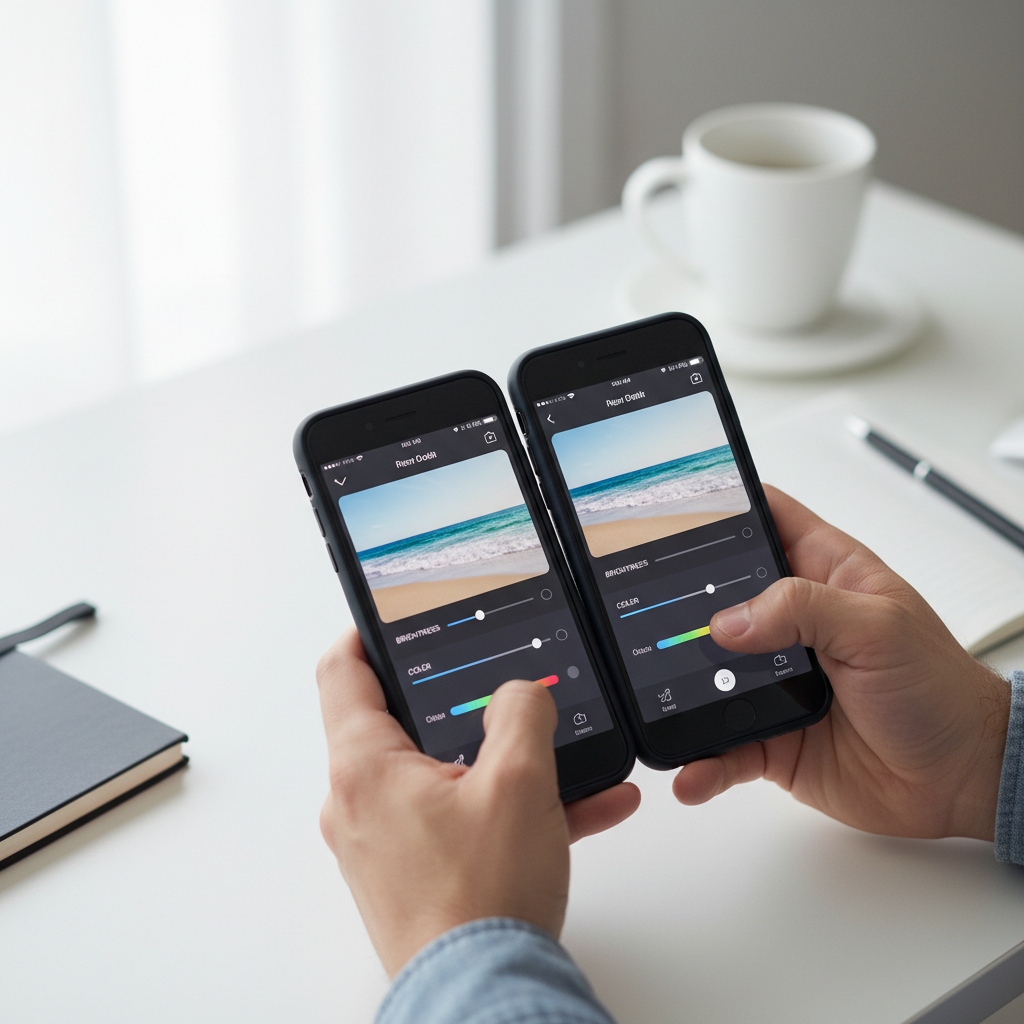
This guide breaks down the best free options by real use cases, not marketing claims, plus a quick checklist to match an app to your workflow. You’ll also get a comparison table, setup tips, and a few gotchas that trip people up.
What “free” really means in photo editing apps
Most apps in this category run on a freemium model: the download is free, core tools work, and “extras” cost money. That’s not automatically bad, but you should know what commonly sits behind a paywall.
- Export quality: some apps cap resolution or add watermarks unless you subscribe.
- Selective edits: masking, brushing, and local adjustments may be premium.
- AI tools: background removal, object removal, or generative features often cost credits.
- Cloud sync: handy, but frequently bundled into paid tiers.
One more thing people miss: “free” can still cost you time. An app with aggressive ads or confusing feature gates can be more frustrating than it’s worth.
Key takeaway: pick an app where the free tier covers your most frequent edits, then treat premium as optional, not required.
Best free photo editing apps for phones in 2026 (quick comparison)
These picks are widely available in the U.S. and tend to cover the most common needs. Features change over time, so think of this as a practical starting shortlist rather than a permanent ranking.
| App | Best for | Strength in the free tier | Likely limitations |
|---|---|---|---|
| Snapseed | Fast, high-quality edits | Strong core tools, selective adjustments | Fewer trendy templates, no built-in social publishing |
| Adobe Lightroom Mobile | Color and consistency | Excellent basic color, exposure, crop | Some masking and advanced features may be paid |
| Google Photos (Editor) | Everyday quick fixes | Convenient, easy enhancements, organization | More limited manual control than dedicated editors |
| Apple Photos (iPhone) | Zero-friction iOS workflow | Surprisingly strong built-in adjustments | iOS-only, fewer creative effects |
| Canva | Social posts and layouts | Templates, text, simple retouching | Some templates/assets are premium |
| PicsArt | Creative edits, stickers | Big toolbox, playful effects | Ads and feature gates can feel heavy |
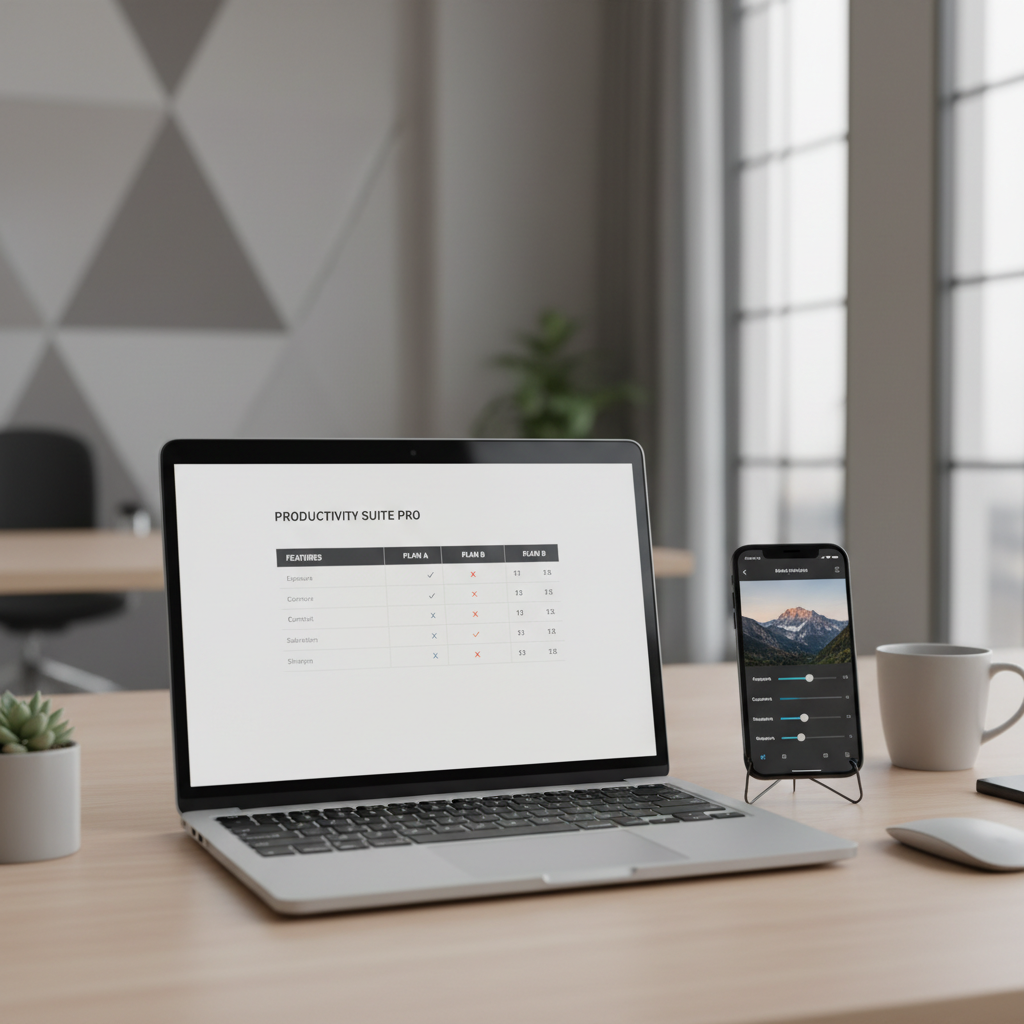
Quick recommendations: if you want “edit once, done,” start with Snapseed or Apple Photos. If you want your whole feed to match, Lightroom Mobile is usually the calmer long-term choice.
How to choose the right app (a quick self-check)
Before you download five editors and abandon them, answer these honestly. Your “best” app is usually the one you’ll actually open twice a week.
- Are you editing single photos or batches? If you need consistent looks across multiple shots, presets and copy/paste settings matter.
- Do you care about natural results? Some apps push heavy smoothing or dramatic HDR by default.
- Do you edit people, products, or scenery? Portrait retouching, background cleanup, and landscape color work are different jobs.
- Do you need text and sizing for social? That’s more design tool than photo editor.
- What annoys you more: ads or paywalls? Your patience level is part of the decision.
If you’re stuck, choose one “serious” editor (Snapseed or Lightroom Mobile) plus one “layout” tool (Canva). Two apps usually beats six.
Top picks by scenario (what each app is actually good at)
For clean, natural edits: Snapseed
Snapseed is still one of the most capable free photo editing apps for getting a photo to look “right” without looking filtered. The selective tool is the standout, it lets you brighten a face or tame a hot highlight without wrecking the whole frame.
- Use it for: exposure fixes, selective brightness, subtle sharpening, straightening.
- Skip it for: heavy templates, trendy social effects, fast brand-kit layouts.
For consistent color across a feed: Adobe Lightroom Mobile
Lightroom is built for repeatable results. If you post regularly, being able to reuse the same look across photos matters more than fancy stickers.
- Use it for: color grading, recovering highlights, tuning skin tones, syncing a style.
- Watch for: advanced masking or certain premium tools, which may be restricted depending on current plan and platform.
According to Adobe, Lightroom’s editing workflow is designed to keep original files intact through non-destructive edits, which is a practical safety net when you’re experimenting.
For “just fix it” speed: Apple Photos or Google Photos
The built-in editors are underrated. If you’re not trying to become a color nerd, they get you 80% of the way with minimal friction, and they play nicely with your camera roll.
- Use it for: quick crop, straighten, light balance, basic filters, sharing.
- Trade-off: fewer pro controls and fewer ways to create a signature look.
For posts, flyers, and thumbnails: Canva
Canva is a design-first tool, but it solves a real problem: getting the right dimensions, adding readable text, and producing a clean graphic that looks intentional.
- Use it for: Instagram stories, YouTube thumbnails, simple product promos.
- Watch for: premium templates and assets that look “free” until you export.
For playful edits and trends: PicsArt
PicsArt can be fun, especially if you like collages, sticker packs, and effect-driven edits. It’s also one of the apps where the free experience can vary a lot depending on current ad load and feature prompts.
- Use it for: collages, quick creative effects, meme-style content.
- Tip: if the interface feels noisy, treat it as a “sometimes app,” not your main editor.
A simple workflow you can copy (15 minutes per batch)
If you edit casually but want results that look consistent, this workflow is realistic on a phone and doesn’t require paid features.
- Pick one hero app: Snapseed or Lightroom Mobile for your “main” edits.
- Start with light: exposure, contrast, highlights, shadows. Avoid pushing sliders to extremes.
- Fix composition: crop and straighten early, it changes how everything else feels.
- Color last: warmth and saturation in small moves, then stop.
- Do one selective fix: brighten faces or tone down a hotspot, then export.
- Optional layout: open Canva only if you need text, borders, or a specific size.
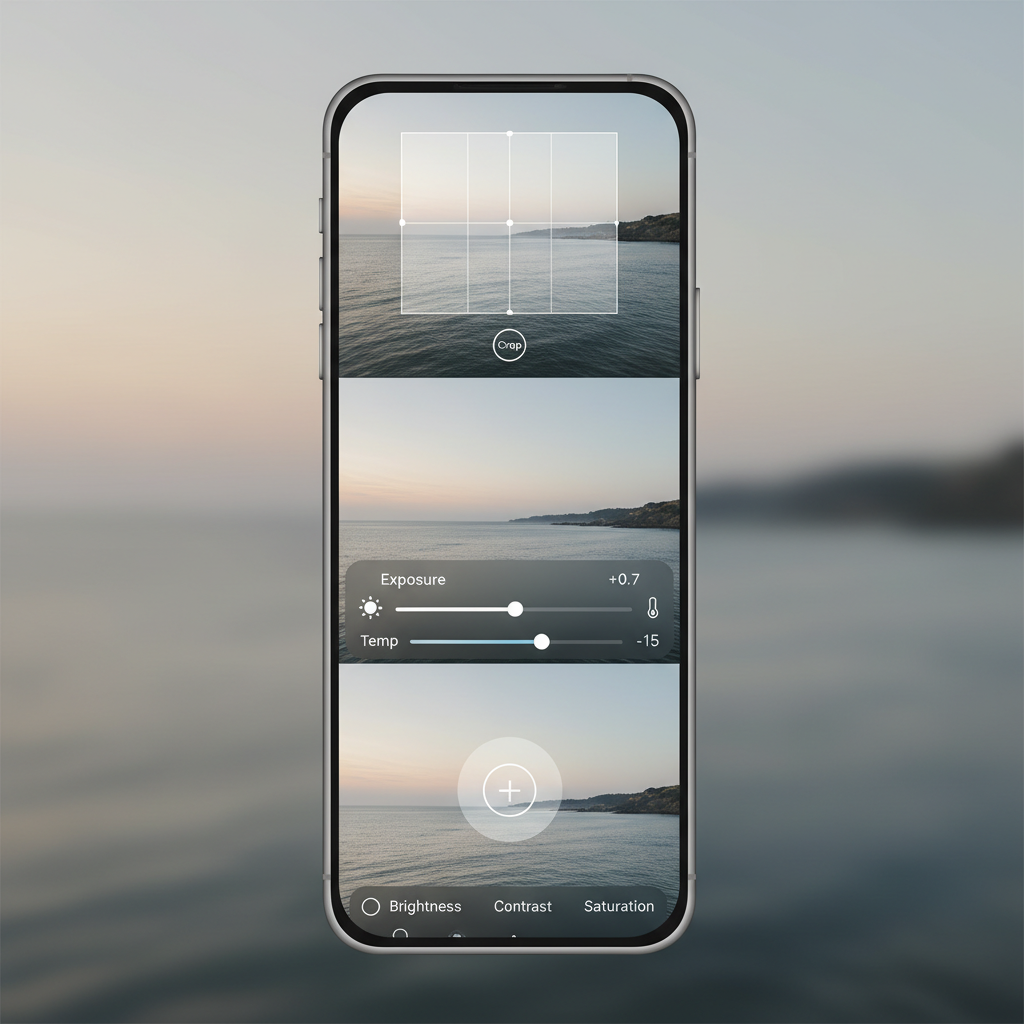
Small habit that pays off: save one “reference” photo you love, and compare new edits to it. It helps you avoid over-editing when you’re tired.
Common mistakes that make “free” edits look cheap
Most bad edits come from the same few moves, and they happen in every app, paid or free.
- Over-sharpening: creates crunchy edges and noisy skin, especially in indoor photos.
- Too much HDR: shadows get lifted until the image looks flat and gray.
- Over-smoothing faces: removes texture and can look uncanny fast.
- Editing on max brightness: your screen lies to you, then the photo looks dark everywhere else.
- Exporting the wrong file: some apps default to smaller sizes or more compression.
If you only remember one rule: move sliders less than you want to, then walk away for a minute and look again.
Privacy, permissions, and when to be cautious
Photo editors often request access to your library, camera, and sometimes network services for syncing or AI features. Read the permission prompts and keep it simple: if an app asks for something that doesn’t match its function, that’s a reason to pause.
According to Apple, iOS offers photo access controls that can limit apps to selected photos instead of your entire library, which is worth using when you’re testing new tools.
If you’re editing sensitive images for work, clients, or minors, consider staying with well-known providers and local-only workflows, and if policies feel unclear, it may be worth asking a professional photographer or IT team for guidance.
Conclusion: the “best” free app depends on your editing personality
The strongest free photo editing apps don’t all try to do the same thing, and that’s the point. Snapseed is a reliable everyday editor, Lightroom Mobile is great when you care about consistent color, Apple Photos and Google Photos win on convenience, and Canva fills the design gap when you need text and sizes.
If you want one practical next step, pick a single main editor today and commit to it for two weeks, then add a second app only if you can name the exact missing feature you keep bumping into.
FAQ
What are the best free photo editing apps for iPhone in 2026?
For many people, Apple Photos plus Snapseed covers most needs. If you want a consistent “look” across posts, Lightroom Mobile is often worth adding even if you stay on the free tier.
What are the best free photo editing apps for Android in 2026?
Snapseed and Google Photos are a strong baseline on Android. If you care about color control and repeatability, Lightroom Mobile is a solid upgrade without forcing you to subscribe immediately.
Do free apps reduce photo quality when exporting?
Some can, depending on export settings and whether the app defaults to compressed files. After your first edit, check export size or quality options and do a quick zoom-in test on details like hair or text.
Which free app is best for removing objects or backgrounds?
Many object-removal and background tools are now AI-driven and may be limited in free tiers or run on credits. If you only need it occasionally, test a couple apps and see whether the free result is clean enough for your use case.
Is Snapseed still good in 2026?
Yes for core editing. It’s not the trendiest app, but the fundamentals hold up, and that’s why it stays on a lot of shortlists.
Is Lightroom Mobile free enough for beginners?
Usually, yes. You can do strong basic edits with exposure and color tools, and beginners often benefit from keeping the workflow simple rather than chasing every advanced feature.
How can I make my Instagram photos look consistent without paying?
Pick one editor, save a small set of repeatable settings, and shoot with similar lighting when you can. Consistency comes more from restraint than from expensive effects.
Are free photo editors safe to use?
Safety varies by app and how it handles permissions and data. Stick to reputable developers when possible, limit photo access on your phone, and avoid editors that push unusual permission requests.
If you’re trying to choose between a few free photo editing apps and want a faster decision, make a short list based on your scenario, then test the same three photos in each app, indoor low light, a portrait, and an outdoor scene, you’ll learn more in 10 minutes than from feature lists.