
how to fix printer not connecting windows is usually less about the printer “dying” and more about Windows 11 picking the wrong connection, driver, or print service at the wrong time.
If you just need to print and Windows keeps saying “Driver is unavailable,” “Offline,” or the device never shows up, the fastest path is to confirm the connection type, clear the print queue, then re-add the printer the right way for your setup.
I’m going to walk you through a practical sequence you can follow in 15–30 minutes, plus a quick triage table so you don’t waste time on fixes that won’t apply to your case.
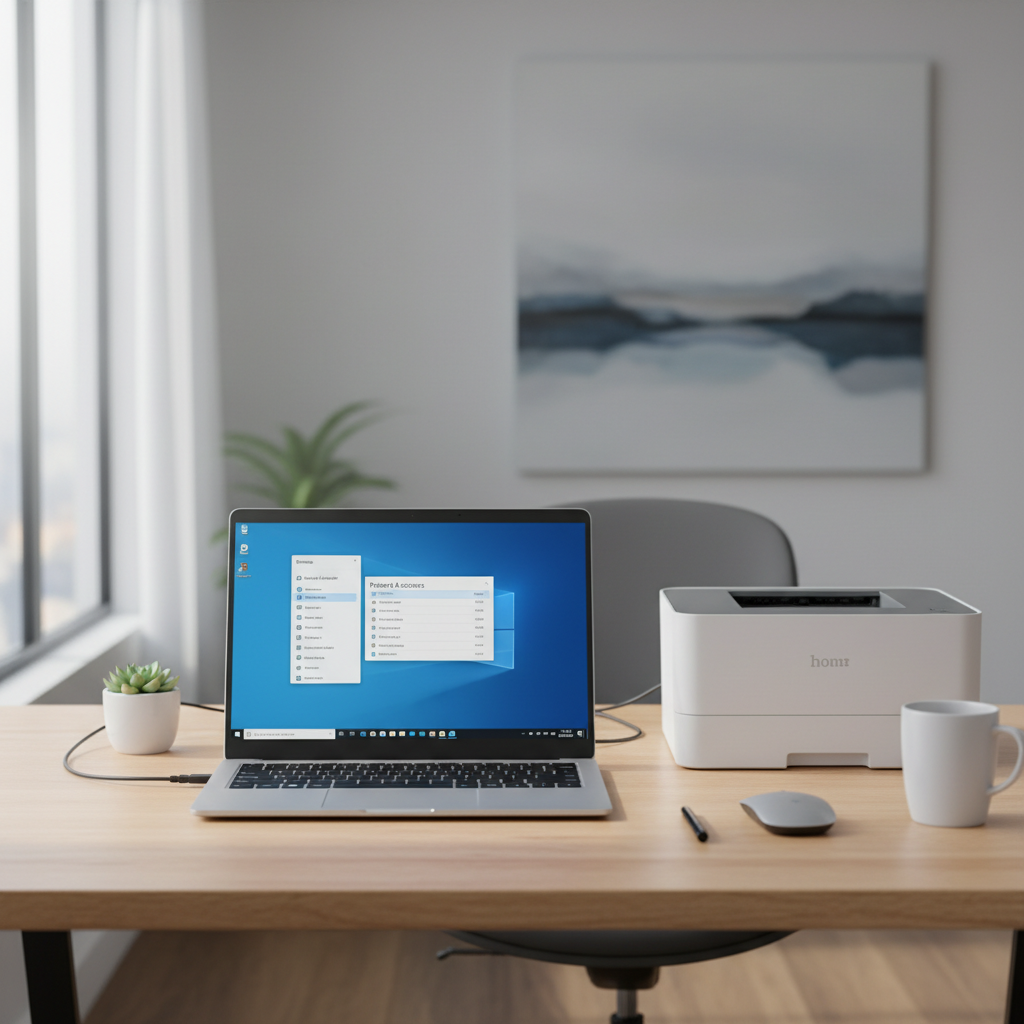
Quick diagnosis: match the symptom to the likely cause
Before you change settings, pin down what Windows is actually doing. “Not connecting” can mean discovery fails, the printer shows but won’t print, or it prints to the wrong device.
Use this table as a shortcut, it helps you choose the next step with fewer guesses.
| What you see in Windows 11 | Most common cause | What to try first |
|---|---|---|
| Printer not found during Add device | Different Wi‑Fi network, discovery blocked, printer in sleep | Confirm same Wi‑Fi, reboot printer/router, add by IP |
| Printer shows as Offline | Stale port, DHCP IP changed, Windows using wrong driver | Set correct port/IP, remove and re-add printer |
| Jobs stuck in queue, nothing prints | Print Spooler jam, corrupted queue, paused printer | Clear queue, restart Print Spooler |
| USB printer not recognized | Cable/port issue, power saving, driver mismatch | Try another USB port/cable, reinstall driver |
| Prints to wrong printer or old “copy” | Multiple instances installed, default printer confusion | Remove duplicates, set default printer |
Start with the basics that actually matter (Wi‑Fi, USB, power)
When people search how to fix printer not connecting windows, they often skip the boring checks, then spend an hour reinstalling drivers for a problem that was simply the wrong network.
For wireless printers
- Same network: confirm your PC and printer are on the same Wi‑Fi name (SSID). Guest networks commonly block device discovery.
- Printer IP changed: after a router reboot, the printer might get a new address, Windows can keep pointing at the old one.
- Sleep mode: wake the printer, some models stop responding to discovery when idle.
For USB printers
- Use a different USB port on the PC, avoid unpowered hubs during testing.
- Try a different cable if you see intermittent connects or “Unknown USB Device.”
- Power cycle: turn printer off, unplug for 10 seconds, plug back in, then reconnect USB.
Key point: don’t mix methods during troubleshooting. If you’re fixing Wi‑Fi printing, unplug USB. If you’re fixing USB, temporarily disable Wi‑Fi printing for that device to reduce confusion.
Windows 11 steps: remove, re-add, and set the right default
If the printer exists in Windows but behaves oddly, a clean re-add is often faster than chasing individual toggles.
1) Remove the printer (and duplicates)
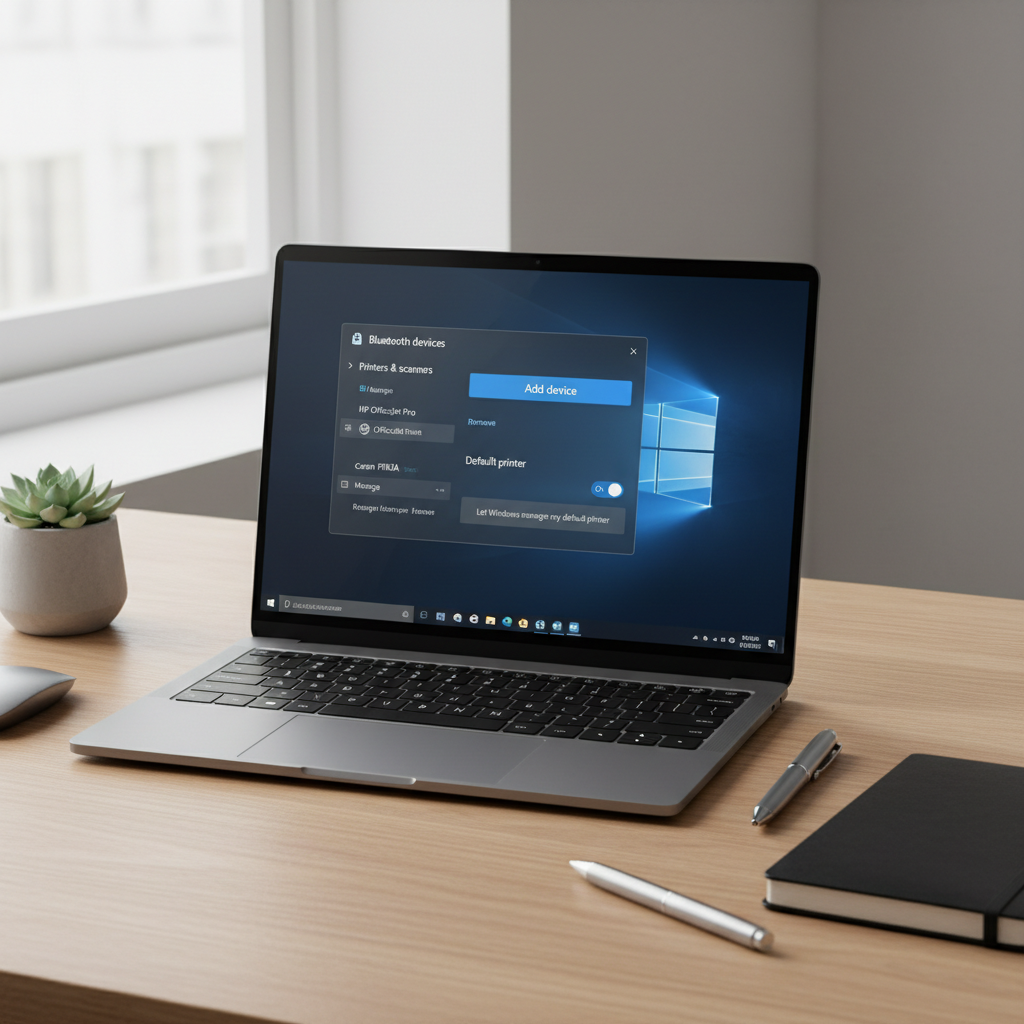
- Go to Settings → Bluetooth & devices → Printers & scanners.
- Select the printer → Remove.
- If you see multiple copies (same name with “Copy 1/2”), remove them too, keep only the one you truly use.
2) Add it back the right way
- In Printers & scanners, choose Add device.
- If it appears, add it, then print a test page.
- If it does not appear, pick Add manually, then choose the method that matches your setup (by IP, hostname, or shared printer).
3) Set a stable default printer
- In Printers & scanners, open the printer → set as Default.
- Optional but helpful: turn off Let Windows manage my default printer if you keep bouncing between office and home printers.
Fix stuck jobs: clear the queue and restart Print Spooler
A “connected” printer that refuses to print often has a clogged queue or a print service that needs a reset. According to Microsoft Support, the Print Spooler is the Windows service that manages print jobs, when it hangs, printing can stall even if the device looks fine.
Clear the print queue
- Settings → Bluetooth & devices → Printers & scanners → select printer → Open print queue.
- Cancel any pending jobs, then try printing a simple one-page test.
Restart Print Spooler (built-in Windows tool)
- Press Windows key, type services, open Services.
- Find Print Spooler → Restart.
If jobs keep reappearing, remove the printer from Windows, restart the PC, then add it again, it’s a cleaner reset than repeating restarts.
Driver and Windows Update: when “driver unavailable” keeps showing
Driver problems show up as “Driver is unavailable,” missing printer options, or the printer printing gibberish. This is the part where how to fix printer not connecting windows becomes very model-specific, but you still have a few reliable moves.
What to do
- Run Windows Update: Settings → Windows Update → check for updates, install optional driver updates if available.
- Install the manufacturer driver: get the Windows 11 driver package from your printer brand’s official support page, not a third-party download site.
- Remove old driver packages if you upgraded printers: older packages can leave “ghost” printers and ports behind.
According to CISA (Cybersecurity and Infrastructure Security Agency), keeping software updated reduces security risk; printer drivers count here too, especially if you use network printing.
Network printing issues: add by IP and avoid discovery traps
Discovery is convenient when it works, but many home routers, mesh systems, and “guest” SSIDs make printers invisible to PCs. Adding by IP is less elegant, more dependable.
Find the printer IP address
- Check the printer screen for network status, or print a network configuration page.
- Look in your router client list for the printer name.
Add the printer by IP in Windows 11
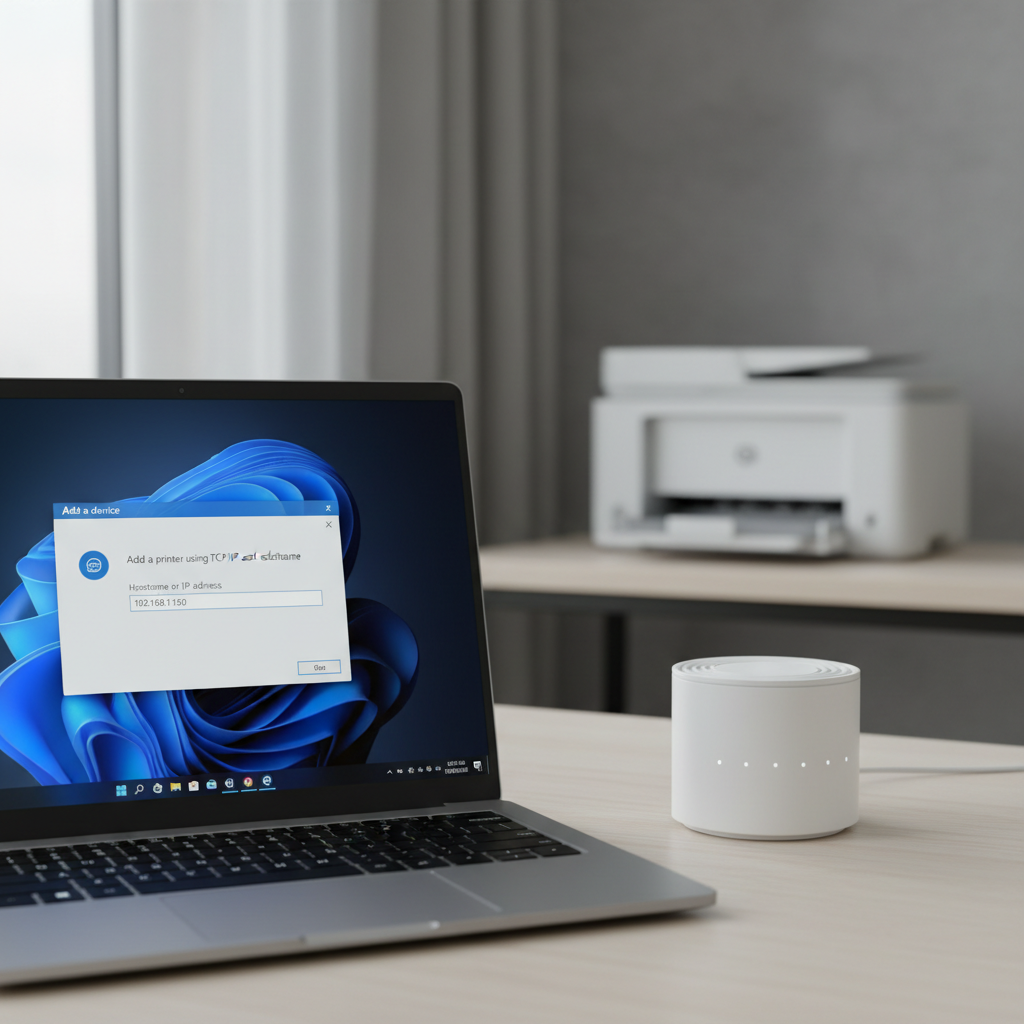
- Settings → Printers & scanners → Add device → Add manually.
- Choose Add a printer using a TCP/IP address or hostname.
- Enter the IP, finish the wizard, then print a test page.
Tip: if the IP keeps changing, consider setting a DHCP reservation in your router so the printer stays at one address, many households find this ends repeat disconnects.
Self-check checklist: what to confirm before you blame the printer
If you’re still stuck, this quick checklist catches the “hidden” issues that waste the most time.
- Connection type: are you using USB, Wi‑Fi, or Ethernet, and does Windows show the same one?
- Wrong default printer: do you have a PDF printer or old device set as default?
- Firewall/VPN: VPN clients sometimes block local discovery; pause VPN and retry.
- Shared printer: if it’s shared from another PC, confirm that PC is on and logged in, and sharing stays enabled.
- Router isolation: guest Wi‑Fi often isolates devices, move printer and PC to the main network.
Key takeaways for most Windows 11 setups:
- Clear queue and restart Print Spooler when jobs freeze.
- Remove and re-add the printer to wipe bad ports and duplicates.
- Add by IP when discovery fails, it’s usually faster than chasing Wi‑Fi “visibility.”
When to get more help (and what to ask for)
There are cases where DIY turns into a loop: corporate devices managed by IT, printer firmware bugs, or repeated network drops from older routers. If you’ve tried re-adding, spooler restart, and IP setup, it may be time to escalate.
- Work laptop: contact IT, managed security policies can block printer installs.
- Firmware update needed: check the printer brand’s support page, a firmware update can fix Wi‑Fi stability on some models.
- Hardware signs: repeated USB disconnect sounds, random power cycling, or error lights that persist after reboot, a technician can confirm hardware faults.
When you ask for support, have these ready: Windows 11 version, printer model, connection type, and the exact error text from Settings or the print queue.
Practical “do this now” plan (15 minutes)
If you want a simple sequence and you’re tired of hopping around menus, run this mini-playbook in order.
- Power cycle printer and PC, confirm printer is ready (no error lights).
- Confirm network: PC and printer on same SSID, no guest Wi‑Fi.
- Remove printer in Windows 11, delete duplicates.
- Restart Print Spooler, then add the printer again.
- If discovery fails, add by IP, then print a test page.
If you follow that and it still won’t connect, the problem is usually driver-specific, router isolation, or a device-side error, and that’s where model support or IT help becomes the efficient next step.
Conclusion: how to fix printer not connecting windows on Windows 11 comes down to choosing the correct connection path, clearing spooler/queue issues, and re-adding the device in a way that matches your network reality, not the “ideal” auto-discovery flow. Pick the symptom from the table, run the 15-minute plan, and you’ll usually get printing back without a full reset.
If you want the lowest-friction setup long term, consider reserving the printer IP in your router and keeping one clean printer instance in Windows, those two changes prevent a lot of repeat “offline” surprises.