
how to fix black screen windows 11 usually comes down to three buckets: the display path (monitor/cable/GPU), Windows boot/login (Explorer not loading), or a bad driver/update that prevents a normal desktop from showing.
If you’re staring at a black screen, the frustrating part is not knowing whether your PC is “on but not showing,” “booting but stuck,” or “crashed and restarting.” The right fix depends on which one you’re in, so this guide starts with quick, low-risk checks and only escalates to deeper steps when you have a clearer signal.

I’ll also call out the common traps, like repeatedly power-cycling without learning anything from the symptoms, or reinstalling Windows before trying Startup Repair. You’ll get a practical checklist, a decision table, and step-by-step actions you can actually follow.
Quick diagnosis: what kind of “black screen” is it?
Before you change settings or uninstall anything, take 60 seconds to categorize the black screen. It saves a lot of guesswork.
Fast self-check list
- Do you see a mouse cursor? If yes, Windows may be running but the shell (Explorer) or display driver is failing.
- Can you hear Windows sounds (login chime, notifications, fan ramping like it’s working)? That often points to a display path problem.
- Any signal on the monitor? “No signal” suggests cable/port/GPU/monitor input.
- Does Ctrl + Alt + Del work? If it brings up options, you’re likely past boot.
- Is it black after an update or after installing a GPU driver? That’s a strong clue.
Use this table to pick the next move
| What you see | Most likely cause | Best first steps |
|---|---|---|
| Black screen + “No signal” on monitor | Cable/port/input/GPU output | Check input source, swap cable/port, try another display |
| Black screen but cursor visible | Explorer crash, driver issue | Restart Explorer, run Task Manager, safe mode |
| Black screen after Windows logo/spinning dots | Boot issue, update/driver conflict | WinRE, Startup Repair, rollback update/driver |
| Black screen after login | Profile/shell startup, display scaling/driver | Ctrl+Alt+Del, start Explorer, disable startup apps |
Rule out display and hardware basics (low risk, high payoff)
When people search how to fix black screen windows 11, they often jump straight into Windows repair. But if the monitor input is wrong or the cable is flaky, software steps can’t help.
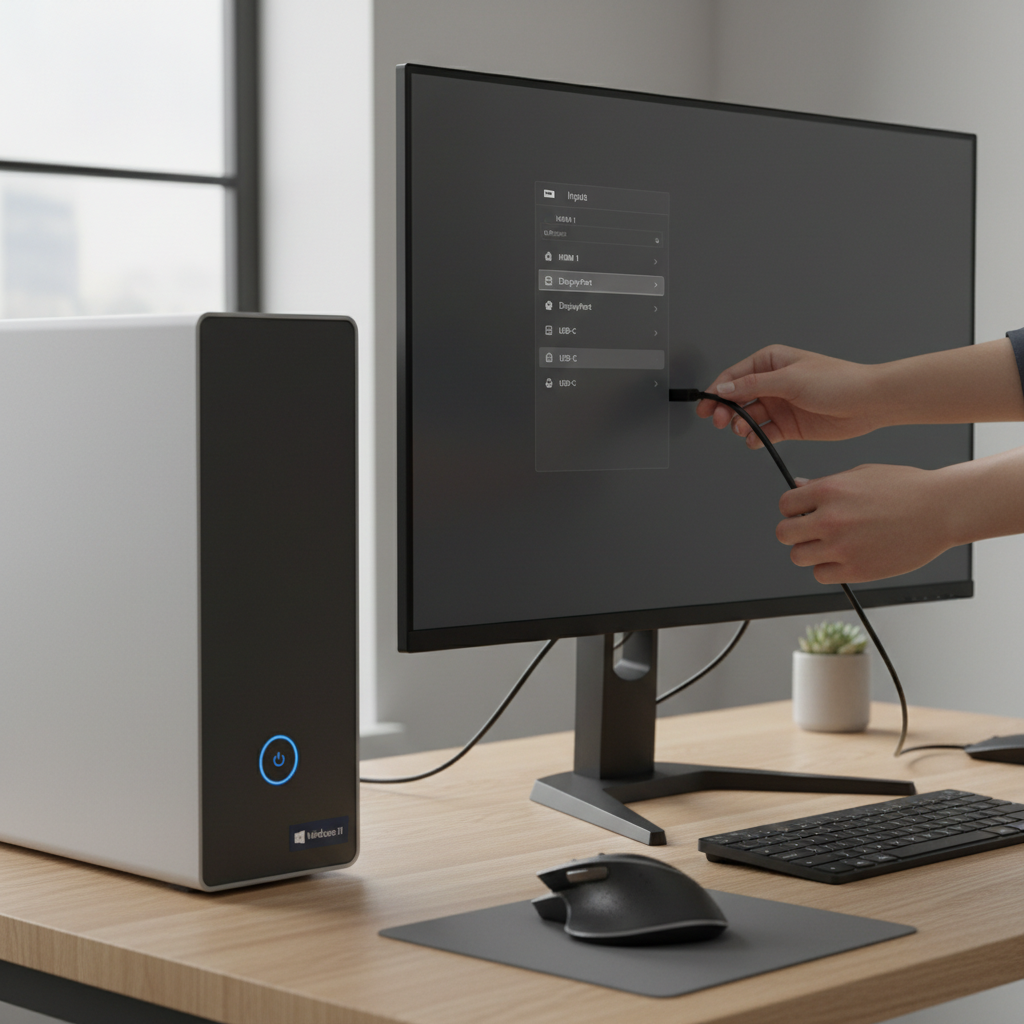
- Confirm the monitor input: HDMI/DisplayPort can be on the wrong source, especially after docking.
- Reseat and swap: unplug/replug the cable, try a different port, try a different cable if you have one.
- Disconnect non-essential peripherals: external drives, hubs, extra monitors. Boot with keyboard/mouse only.
- For laptops: try an external monitor. If the external works but the internal stays black, it may be display panel/backlight or a driver/display mode issue.
- Hard reset power: shut down, unplug power, hold the power button ~10 seconds, then boot again.
Key point: If you consistently get “No signal,” focus on the display chain first. If you get a cursor or Ctrl+Alt+Del, shift to Windows-level fixes.
Try the safe “wake up” shortcuts and shell restart
These steps are quick and reversible, and they often fix the version of black screen where Windows is running but not drawing the desktop.
1) Reset the graphics driver
Press Win + Ctrl + Shift + B. The screen may flicker or beep. If a driver hang caused the black display, this can bring it back.
2) Toggle projection modes
Press Win + P, then use arrow keys and Enter to switch between Duplicate/Extend/Second screen only. This helps when the system outputs to a “ghost” display.
3) Bring up security options
Press Ctrl + Alt + Del. If the screen appears, pick Task Manager.
4) Restart Explorer (desktop shell)
- In Task Manager, look for Windows Explorer → right-click → Restart.
- If you don’t see it: File → Run new task → type explorer.exe → OK.
If the desktop returns, you’re not done yet, you still want to prevent it from happening again. Jump to the driver/update section below.
Boot into Windows Recovery (WinRE) and Safe Mode
If the black screen appears before you can log in, WinRE is usually the cleanest next step. According to Microsoft Support, Windows Recovery Environment provides repair tools like Startup Repair and Safe Mode access when normal boot fails.
How to open WinRE when the screen stays black
- Power on, and when you see the Windows logo (or the device starts), hold the power button to force off.
- Repeat 2–3 times until you see Preparing Automatic Repair.
- Go to Troubleshoot → Advanced options.
Safe Mode (recommended for driver issues)
- In WinRE: Startup Settings → Restart
- Press 4 for Safe Mode, or 5 for Safe Mode with Networking
If you can boot in Safe Mode, it strongly suggests a third-party driver, startup app, or recent update triggered the black screen.
Fix driver and update problems (common Windows 11 black screen causes)
This is the section that resolves a big chunk of how to fix black screen windows 11 cases, especially after NVIDIA/AMD/Intel updates or Windows patches.
Roll back or reinstall the display driver
In Safe Mode (or normal mode if you can reach it):
- Right-click Start → Device Manager → Display adapters
- Open your GPU → Driver tab
- Try Roll Back Driver if available
- If rollback is unavailable or doesn’t help: Uninstall device (check “attempt to remove driver” if shown), then reboot
Windows may load a basic display driver after reboot. Once stable, install the latest stable GPU driver from your device maker.
Remove a problematic Windows update
- WinRE → Troubleshoot → Advanced options → Uninstall Updates
- Pick Uninstall latest quality update first (smaller, more frequent)
- If the issue started after a major upgrade, try Uninstall latest feature update
Disable Fast Startup (helps in some boot/display handoff bugs)
If you can boot at least sometimes:
- Control Panel → Power Options → Choose what the power buttons do
- Change settings that are currently unavailable
- Uncheck Turn on fast startup

Repair Windows system files and boot components
If the system tries to boot and fails into a black screen, corrupted system files or boot configuration can be in the mix. These tools are built in and generally safe, though they can take time.
Run Startup Repair
- WinRE → Troubleshoot → Advanced options → Startup Repair
Run system checks from Command Prompt
WinRE → Advanced options → Command Prompt, then run:
- sfc /scannow (repairs protected system files)
- chkdsk c: /f (checks disk errors, may request reboot)
If you can boot into Windows at least once, run these in an elevated Command Prompt too. According to Microsoft Support, SFC helps repair missing or corrupted system files that can prevent Windows from working normally.
Prevent the black screen from coming back
Getting the desktop back is one win, keeping it stable is the next. A few small moves reduce repeat episodes.
- Pause optional driver updates: Windows Update can offer driver updates; if you just stabilized things, wait a bit before taking new drivers.
- Trim startup apps: Task Manager → Startup apps, disable anything you don’t recognize or don’t need at boot.
- Check display settings: mismatched refresh rate or odd scaling can cause weird behavior on some monitor setups.
- Create a restore point: after you confirm stability, create one so rollback stays easy next time.
When to seek professional help (and what to back up first)
If you’ve worked through display checks, Safe Mode, driver rollback, and WinRE repair tools and the screen still stays black, hardware faults become more plausible, or Windows may need a repair install. At that point, it’s reasonable to involve a qualified technician, especially if you suspect a failing SSD, GPU, or laptop display assembly.
Before handing it off, try to protect your data. If you can reach Safe Mode with Networking, back up critical files to an external drive or cloud storage. If you can’t boot at all, a technician may use a recovery environment to copy data; if you’re not comfortable with that process, getting help early can reduce the chance of accidental data loss.
Conclusion: a practical order that works in real life
Most black screens on Windows 11 clear up when you stop guessing and follow a sensible order: confirm the display path, use the quick keyboard fixes, then use WinRE and Safe Mode to roll back drivers or updates. If you’re still stuck after repair tools, it’s not “you missed a secret setting,” it may be time to treat it as a deeper software corruption or a hardware issue.
If you want one action today, start with the diagnosis checklist, then do Win + Ctrl + Shift + B and WinRE Safe Mode in that order. You’ll usually learn enough from those steps to choose the right repair without making things worse.