
How to use gemini ai for beginners usually comes down to two things: knowing where to access it, and learning a prompt style that gets clean, reliable results instead of vague “AI fluff.”
If you tried Gemini once and felt underwhelmed, you’re not alone, many beginners type a short question, get a generic reply, then assume the tool is “not that smart.” In practice, the difference is almost always how you frame the task, what context you provide, and how you verify anything that matters.

This guide keeps it practical: how to start, what to click, what to ask, and how to avoid common mistakes. You’ll also get a few ready-to-copy prompts and small workflows you can reuse for work, school, or personal projects.
What Gemini AI is (and what it’s not)
Gemini is Google’s family of AI models and products that can help with writing, summarizing, brainstorming, coding help, planning, and Q&A. Depending on where you use it, it can also work across Google apps.
But it’s not a fact oracle, and it’s not a substitute for professional advice. It can be wrong, too confident, or out of date, especially on fast-changing topics. According to NIST, AI risk management should include evaluation and monitoring because outputs can be unreliable in some contexts.
- Great for: drafting, outlining, explaining concepts, organizing notes, generating options, rewriting in different tones.
- Risky for: medical, legal, financial decisions, or anything where mistakes have real consequences.
- Best mindset: treat it like a fast assistant, then you review like an editor.
How to access Gemini and get your first useful result
Most beginners get stuck before prompting because they’re not sure which Gemini “entry point” to use. In the U.S., the most common starting place is the Gemini web experience (signed in with a Google account), and on mobile via the Gemini app where available.
For your first win, pick a simple task with a clear end state, like “turn these bullets into a polite email” or “summarize this article into five takeaways.” Then add context.
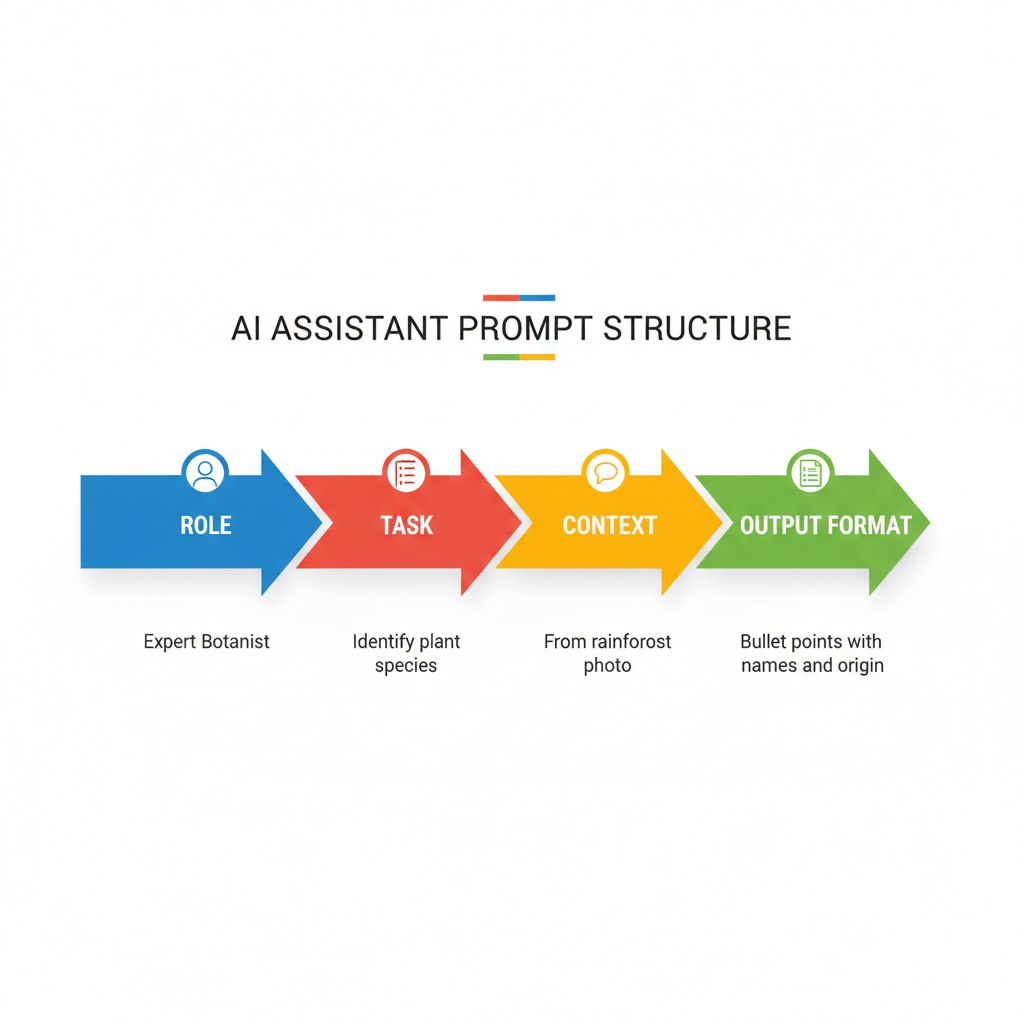
A beginner-friendly first prompt template
- Role: “You’re my concise assistant editor.”
- Task: “Rewrite this message to be friendly and direct.”
- Context: audience, tone, constraints, what you already tried.
- Output format: bullets, table, email draft, steps.
Example: “You’re my assistant editor. Rewrite the email below to a client, friendly but firm, under 140 words. Keep the key dates and ask for a reply by Friday. Email: [paste].”
Prompting basics that actually change the output
If you remember one thing about how to use gemini ai for beginners, make it this: “more specific” beats “more words.” One crisp paragraph of context often outperforms a page of rambling.
Here are prompt “moves” that tend to improve results quickly.
- Ask for clarifying questions: “Before you answer, ask me 3 questions to remove ambiguity.”
- Give examples of what you like: “Match this tone: [short sample].”
- Set boundaries: “If you’re unsure, say so and suggest how to verify.”
- Force structure: “Return as: 1) summary, 2) options, 3) recommendation, 4) risks.”
- Make it checkable: “List assumptions you made.”
Quick self-check: why Gemini feels “bad” for some beginners
Before you blame the tool, it helps to diagnose the situation. A lot of “Gemini isn’t working” is really “my task is underspecified” or “I’m asking for something the model can’t confidently know.”
- Your prompt is too broad: “Help me market my business” tends to produce generic advice.
- You didn’t share constraints: budget, audience, channel, deadline, word count.
- You need sources: AI can summarize sources you provide, but it may hallucinate citations if you don’t.
- You want a final answer too soon: many tasks work better as a 2–3 turn conversation.
- You’re mixing tasks: ideation + writing + compliance checks in one message can muddy output.
A practical fix is to split the job: first ask for a plan, then ask for the draft, then ask for an edit pass.
Beginner workflows you can copy (with example prompts)
Below are a few “low drama” workflows that make Gemini feel useful fast. They also keep you in control, which matters when you’re still learning what to trust.
Workflow 1: Write a better email in 3 steps
- Step 1: “Ask me what you need to know to write this email.”
- Step 2: Provide details and paste your rough draft.
- Step 3: “Give me 2 versions: friendly and firm. Keep under 120 words.”
Workflow 2: Turn messy notes into a clean outline
- Prompt: “Organize these notes into an outline with H2/H3 headings, then list 5 missing points I should research. Notes: [paste].”
- Follow-up: “Draft the intro in a friendly tone, 120–160 words.”
Workflow 3: Learn a topic without getting lost
- Prompt: “Teach me [topic] like I’m new. Start with a 10-line explanation, then a glossary of 8 terms, then 5 practice questions with answers.”
- Safety add-on: “If any part is uncertain, label it and suggest a reliable source type to confirm.”
Using Gemini with Google Workspace: what beginners should know
Some Gemini features are available inside Google products (like Gmail, Docs, or Sheets) depending on your account type and plan. If you see built-in suggestions, the best use case is “first draft” work: rewrites, summaries, and converting content into structured formats.
Two practical tips help you avoid frustration:
- Paste only what’s necessary for the task, especially if the content includes sensitive info.
- Ask for an output you can verify, like a checklist, a table, or a set of assumptions.
A beginner’s table: common tasks, best prompt style, what to watch for
| Task | Prompt style that works | What to watch for |
|---|---|---|
| Summarize a doc | “Summarize in 7 bullets, then 3 action items” | May miss nuance, add your priorities |
| Write marketing copy | “Audience + offer + tone + examples + word limit” | Generic claims, keep it specific and honest |
| Brainstorm ideas | “Give 20 options, group by theme, pick top 5” | Repetitive ideas, push for constraints |
| Spreadsheet help | “Explain the formula, then show an example” | Small syntax errors, test in your sheet |
| Code assistance | “My goal, my environment, error message, minimal snippet” | Security and correctness, review carefully |
Safety, privacy, and reliability: avoid the beginner traps
This is the part many beginners skip, then regret later. If you use Gemini for anything beyond casual writing, build simple guardrails.

- Don’t paste sensitive data unless you understand your account settings and your organization’s policy.
- Verify important claims using primary sources, official documentation, or trusted publications. According to FTC, misleading or unverified claims in marketing can create legal risk, so keep copy grounded in what you can support.
- Ask for uncertainty labeling: “Mark anything you’re not confident about.”
- Watch for confident errors: if the answer seems too smooth, it still might be wrong.
If your question touches medical symptoms, legal disputes, or personal financial decisions, it’s usually smarter to treat AI output as brainstorming and bring a qualified professional into the loop.
Key takeaways (save these)
- Give context and constraints, you’ll get less generic output.
- Use a 2–3 step workflow instead of demanding a perfect first response.
- Force structure with checklists, tables, or specific formats.
- Verify anything consequential, especially claims that sound absolute.
- how to use gemini ai for beginners is mostly about prompt habits, not hidden features.
Conclusion: a simple way to start today
If you want Gemini to feel helpful fast, pick one real task you already need to do today, write a prompt with a role, a clear goal, and a strict output format, then run one follow-up asking it to improve the draft based on your preferences. That loop tends to beat “one big prompt” almost every time.
If you’re still unsure where to begin, start with rewriting and summarizing, those are low risk, high payoff, and they teach you the prompting basics that transfer to bigger projects.
Action step: Copy one workflow above, paste your content, and ask Gemini to produce two versions so you can compare tone and clarity in seconds.