
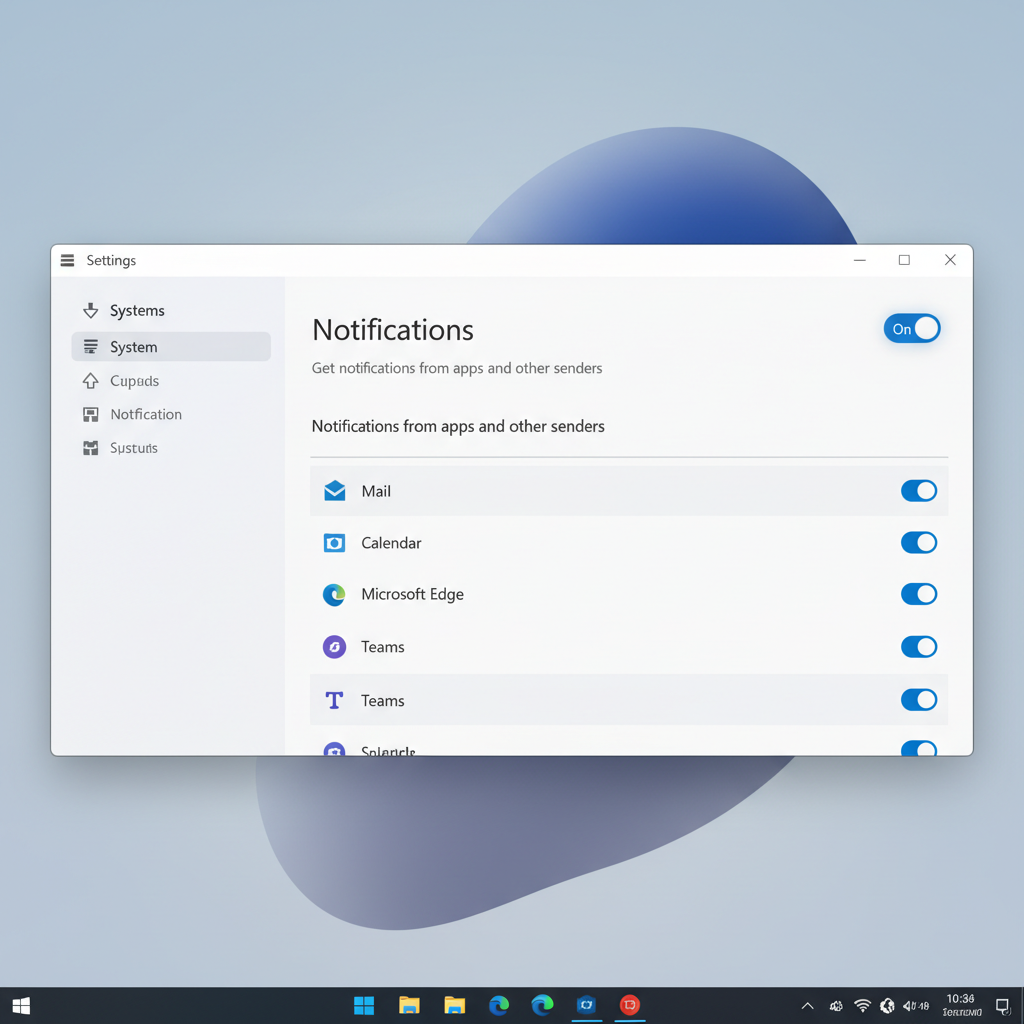
If you’re searching how to turn off notifications on windows 11, the quickest path is Settings > System > Notifications, then toggle Notifications off or fine-tune which apps can interrupt you.
That sounds simple, but Windows 11 notifications come from a few different places: apps, system alerts, browsers, and even background services. If you only switch off one spot, you may still see pop-ups, sounds, or a crowded Notification Center.
This guide helps you pick the right “quiet” level, from turning everything off, to muting only noisy apps, to using Focus so you still get the important stuff at the right time.
Quick choices: what “turn off notifications” can mean
Before changing settings, decide what you actually want. Many people say “turn them off,” but they really mean “stop the interruptions.” Here are the common options and what you get.
| Goal | Best Windows 11 feature | What changes |
|---|---|---|
| No notifications at all | Global Notifications toggle | Stops banners and Notification Center entries |
| Only block specific apps | Per-app notification settings | Quiet for noisy apps, keep important apps active |
| Quiet during work or meetings | Focus / Do not disturb | Temporary silence with schedules and exceptions |
| Stop sound, keep visual | Notification behavior toggles | Reduces annoyance while keeping logs |
- Key point: If you share a PC, you may want per-app tweaks instead of turning everything off for every use case.
Turn off all notifications (the global switch)
This is the cleanest answer to how to turn off notifications on windows 11 when you want true silence.
Steps
- Open Settings
- Go to System > Notifications
- Switch Notifications to Off
With the global switch off, Windows typically stops showing banners and stops adding new items to Notification Center, though some urgent system prompts can still appear depending on the scenario.
Turn off notifications for specific apps (the most practical fix)
Most people don’t need a total shutdown, they need to stop the top 2–3 offenders: chat apps, browsers, game launchers, and “helpful” utilities.
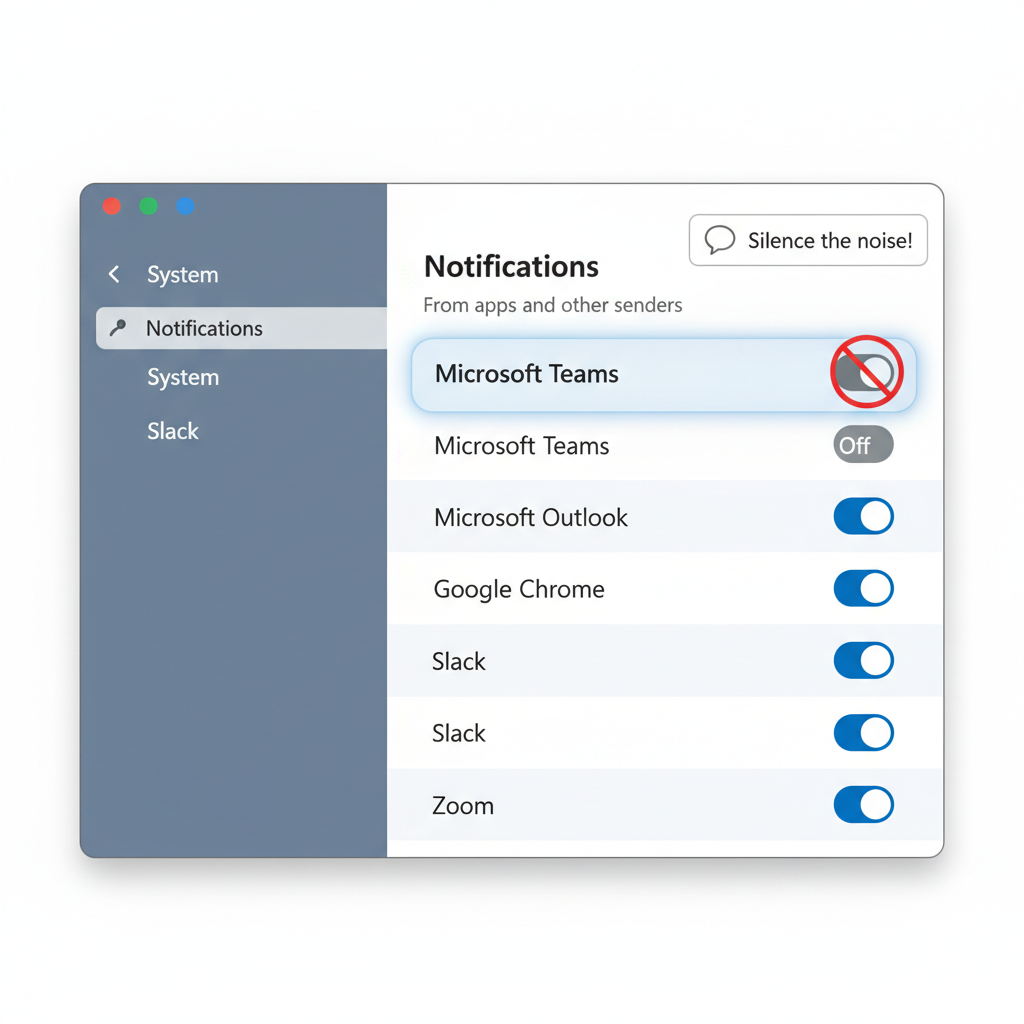
Steps
- Open Settings > System > Notifications
- Find the app under Notifications from apps and other senders
- Toggle that app Off
Go deeper: reduce noise without fully disabling
Click the app name (not just the toggle) to see more controls. Depending on the app, you may see options like:
- Show notification banners: turn off pop-ups while keeping Notification Center history
- Play a sound: keep visual alerts but ditch the audio
- Priority: make key apps more visible and push low-value apps down
If you’re trying to keep messaging apps active but less disruptive, switching off banners and sounds tends to deliver the biggest quality-of-life improvement.
Use Do not disturb and Focus for quiet hours (without missing critical alerts)
When the goal is “not right now,” Focus tools are usually a better fit than permanently disabling everything.
According to Microsoft Support, Windows includes Do not disturb and Focus features to reduce distractions by limiting notification interruptions during selected times or activities.
Turn on Do not disturb
- Open Settings > System > Notifications
- Toggle Do not disturb on
Set up Focus sessions and schedules
- Go to Settings > System > Focus
- Start a Focus session when you need a timed block
- Adjust what gets silenced and whether timers, sounds, or app behaviors change
In many cases, this is the most “adult” solution: you keep notifications available, but you choose when you’ll deal with them.
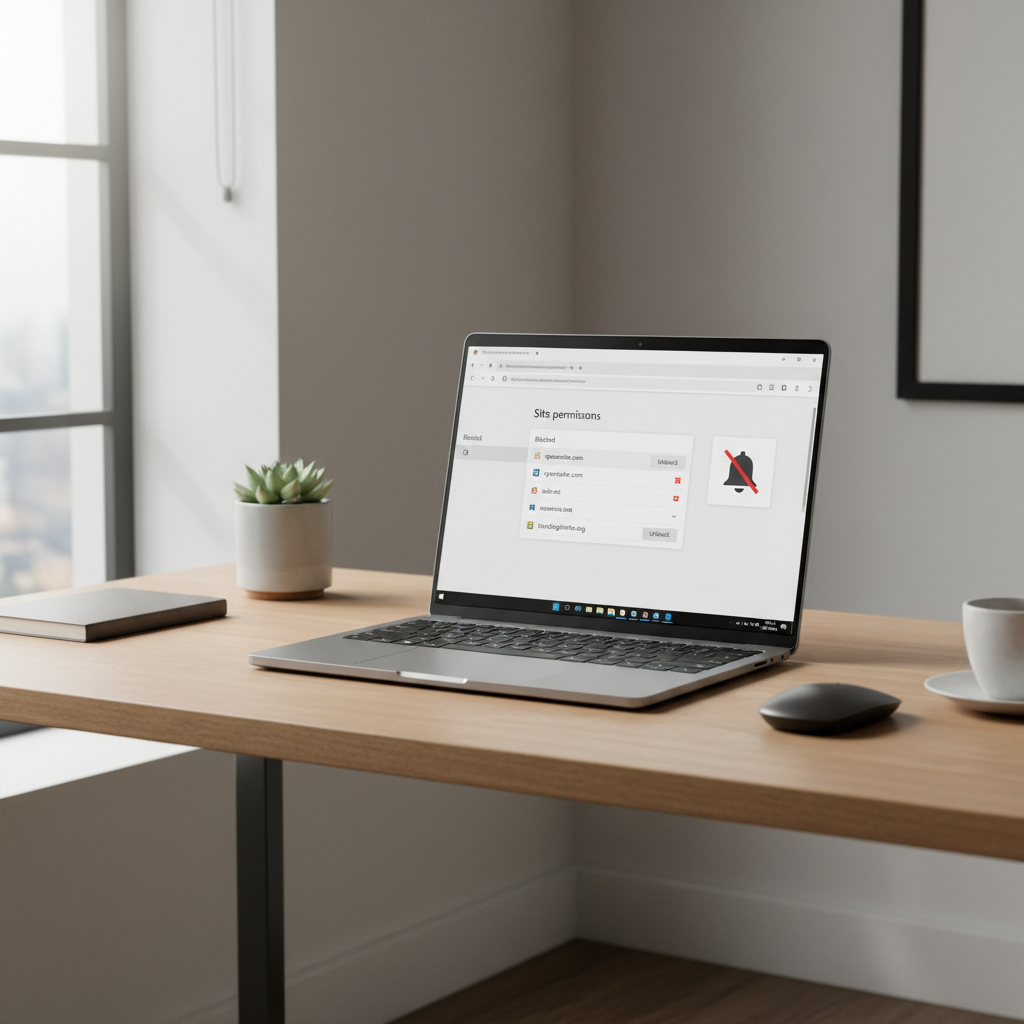
Stop browser and website notifications (Chrome, Edge, and others)
If you turned off notifications in Windows but still see website pop-ups, the browser may be the source. This is extremely common with shopping sites, news sites, and random “Allow notifications” prompts.
What to check
- Browser site permissions for notifications
- Extension notifications (some add-ons generate their own alerts)
- Windows notification entry for the browser itself
Practical approach
- In your browser settings, find Privacy/Site settings > Notifications
- Remove or block sites you don’t recognize
- Consider setting the browser to Ask (or block) rather than allowing by default
Once you clean up website permissions, the overall “spammy” feel of Windows alerts usually drops a lot.
Troubleshooting: why notifications still show up
You followed the steps, but something still breaks through. Usually it’s one of these situations.
- You changed the wrong profile or device: some apps sync notification settings across accounts, others don’t.
- An app has its own internal notification setting: Slack, Teams, and many security tools can alert inside the app even when Windows is quiet.
- Critical system prompts: security prompts or sign-in requests may still appear because Windows treats them differently.
- Multiple browsers: you fixed Edge, but Chrome is still allowed, or the other way around.
- Notification banners off, history on: you might not see pop-ups, but Notification Center still fills up.
Fast self-check
- Open Settings > System > Notifications and confirm the global toggle status
- Scan the app list for any app you forgot, especially browsers and communication tools
- Open the specific app and look for in-app notification preferences
Practical “quiet setup” you can copy (balanced, not extreme)
If you want a setup that works for most work-from-home or school days, try this pattern.
- Keep on: calendar, email, password manager, backup/security alerts you trust
- Turn off banners: chat apps that you check often anyway
- Turn off entirely: game launchers, retail apps, “tips,” and anything you never act on
- Use Focus: meetings, deep work, exams, presentations
When people ask how to turn off notifications on windows 11, what they usually want is control, not silence. Getting selective gives you that control without creating a new problem: missing something you actually needed.
When it’s worth asking IT or a pro for help
If your PC belongs to an employer or school, some notification behavior may be controlled by policies. Also, security tools can generate alerts that you shouldn’t suppress without understanding the risk.
- If notifications come from device management tools, ask IT before disabling them
- If the alerts relate to security, updates, or sign-in prompts, consider leaving them on or asking a technician what’s safe to mute
- If you suspect malware because of relentless pop-ups, it’s safer to consult a professional or use reputable security guidance rather than randomly clicking prompts
Conclusion: a quieter Windows 11 without breaking what matters
You can turn everything off in one switch, but most people get better results by muting specific apps, cleaning up browser permissions, and using Do not disturb or Focus during the hours that matter. Pick a setup you can maintain, then revisit it once a month, notification creep is real.
Action step: open Settings > System > Notifications now, turn off your noisiest app first, then decide whether Focus schedules fit your day.
FAQ
- How do I turn off notification pop-ups but keep them in Notification Center?
Go to Settings > System > Notifications, select the app, then switch off Show notification banners. This keeps a record without the interruption. - How to turn off notifications on windows 11 for only one user account?
Notification settings are per Windows user. Sign into the account you want to change, then adjust Settings > System > Notifications from that profile. - Why am I still getting notifications after turning them off?
Often it’s browser site permissions, in-app alerts, or a second browser. Double-check the app list in Windows notifications, then check browser notification permissions. - Will turning off notifications stop Windows security alerts?
Some security-related prompts may still appear depending on severity. If you’re not sure what an alert means, it’s usually smarter to verify with IT or a trusted technician. - How do I stop notification sounds but keep visual alerts?
In the Notifications settings for a specific app, disable Play a sound while leaving banners on. If the app lacks this option, check the app’s own settings. - How do I block website notifications in Windows 11?
Blocking is done in the browser: remove allowed sites under Notifications permissions. Then confirm Windows isn’t allowing the browser to push alerts you don’t want. - Is Focus the same as turning off notifications?
Not really. Focus is more like a schedule-based filter. It’s better when you want quiet during certain times but still want notifications available later.
If you’re trying to keep Windows 11 quiet across multiple PCs, or you want a repeatable setup for a team, it can be easier to document your preferred notification rules and apply them consistently, rather than tweaking the same settings every few weeks.