
How to upgrade ram on desktop pc easily comes down to three things: buying the right sticks, installing them safely, and confirming your system actually uses the new memory.
If your desktop feels fine until you open a few Chrome tabs, a game, or a big spreadsheet, RAM is often the bottleneck. The good news is that RAM upgrades are one of the most approachable PC upgrades, even for beginners, as long as you slow down and verify compatibility.
This guide focuses on the real-world parts people get stuck on: figuring out what your motherboard supports, deciding between adding vs replacing RAM, and avoiding the two common mistakes that cause “no boot” after installation.
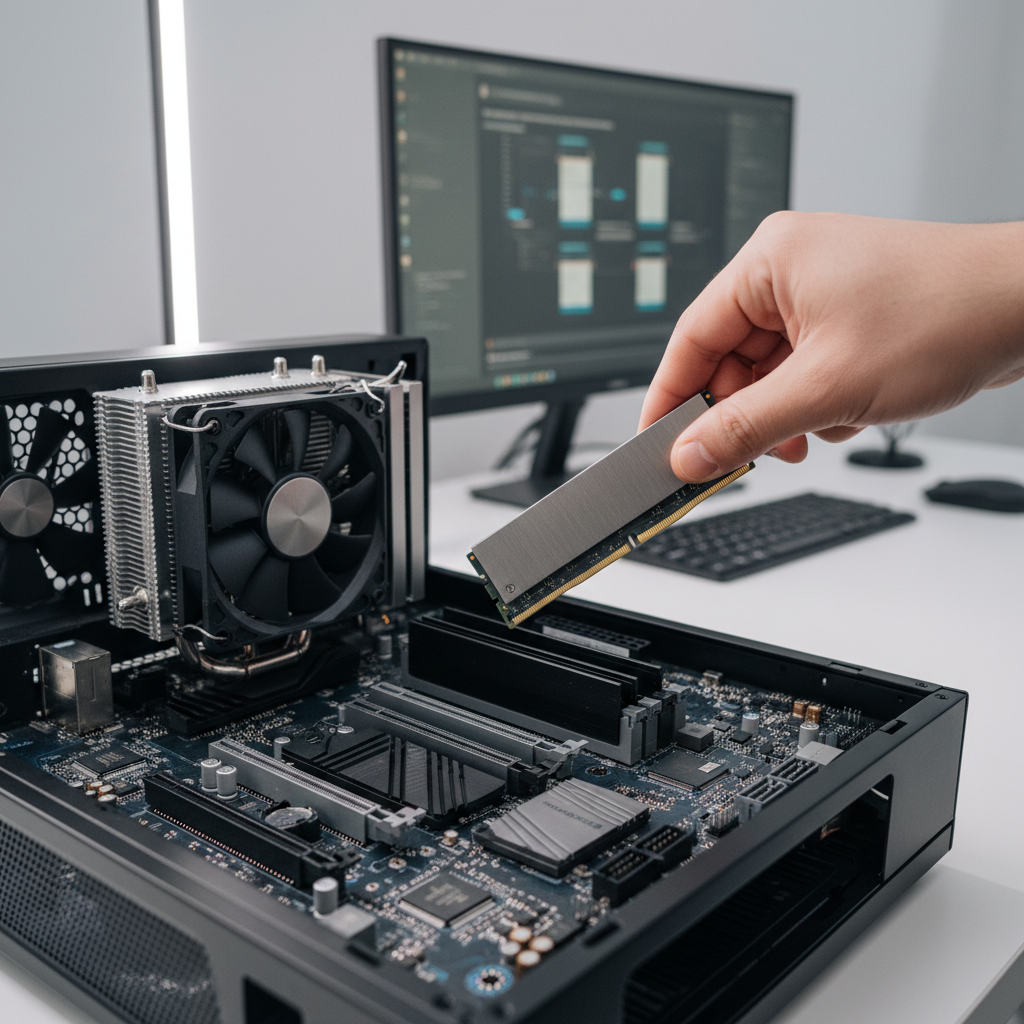
Why your desktop feels slow (and when RAM is the real issue)
More RAM helps when your PC runs out of “fast working space” and starts leaning on the storage drive as backup memory. That fallback can feel like stuttering, long app switches, and browser slowdowns.
- Multitasking overload: lots of tabs, Discord, Spotify, and a game at the same time.
- Content creation workloads: photo batches, video timelines, large design files.
- Integrated graphics: many budget systems share system memory with the GPU, so RAM capacity and speed matter more.
When RAM is not the primary fix: if you’re waiting on long file copies, boot times are awful, or everything lags even with one app open, storage (SSD) or CPU limits might be the bigger story. According to Microsoft support documentation, Windows uses virtual memory when physical RAM is insufficient, which can reduce performance when paging becomes heavy.
Quick self-check: do you need more RAM, faster RAM, or both?
You don’t need fancy tools for a first pass. Use built-in Windows checks and a little common sense about your workload.
Fast Windows check (2 minutes)
- Open Task Manager → Performance → Memory.
- If memory usage sits near 80–95% during your normal work, more capacity usually helps.
- If usage is moderate but your apps still feel laggy, capacity might be fine and other parts may be limiting.
Also look at what you already have: if you’re on 8GB today, moving to 16GB is a common quality-of-life jump for typical home use. If you do heavier work, 32GB is often where people stop feeling cramped, though needs vary a lot.

Compatibility first: what RAM your desktop can actually use
Most “RAM upgrade failures” aren’t because RAM is hard, they’re because the stick doesn’t match the platform. You’re checking four things: DDR generation, speed support, capacity support, and slot layout.
- DDR type: DDR3, DDR4, and DDR5 are physically different. If you’re on DDR4, DDR5 won’t fit, and vice versa.
- Motherboard + CPU support: boards list supported speeds and max capacity per slot and total.
- Number of slots: 2-slot boards limit your “add another pair later” options.
- Form factor: desktops use DIMM, not laptop SO-DIMM.
Where to verify: your motherboard manual, the manufacturer’s support page, or a system info tool. According to Intel and AMD product specifications pages, the CPU’s memory controller also influences supported memory types and speeds, so board marketing claims and real support can differ by platform.
Adding RAM vs replacing RAM (a practical way to choose)
- Add if you have open slots and your current RAM is worth keeping (same DDR type, decent speed, stable system).
- Replace if all slots are full, or you’re mixing very different kits, or you want a clean matched set for fewer headaches.
Beginner-friendly RAM upgrade planning (with a quick table)
Before you click “Buy,” decide your target capacity and the simplest configuration that gets you there. For most desktops, running two sticks (dual-channel) is the sweet spot for stability and performance.
| Use case | Common RAM target | Practical config | Notes |
|---|---|---|---|
| Basic home + office | 16GB | 2×8GB | Good baseline for browsing, Office, light gaming |
| Gaming + streaming + lots of tabs | 32GB | 2×16GB | More headroom, fewer background hiccups |
| Video editing / heavy creative | 32–64GB | 2×16GB or 2×32GB | Project size matters more than “rules” |
| Older DDR3 systems | 8–16GB | 2×4GB or 2×8GB | Don’t overspend if CPU/SSD is bigger limit |
Key point: Mixing different brands or speeds sometimes works, but it’s less predictable. Many builders prefer a single matched kit for fewer compatibility surprises.
Step-by-step: how to install RAM in a desktop PC (without drama)
If you’re nervous, that’s normal. The physical install is quick, but you want a calm, static-safe process so you don’t bend anything or seat the sticks halfway.
Tools and prep
- Phillips screwdriver (for the case panel, if needed)
- Clean, non-carpeted surface if possible
- Good lighting
- Your motherboard manual (slot order matters)
Install steps
- Shut down Windows, switch the PSU to off (if it has a switch), and unplug power.
- Discharge by pressing the power button for a few seconds after unplugging.
- Open the side panel, then touch bare metal on the case to reduce static risk.
- Locate RAM slots. If you have 4 slots and 2 sticks, the “correct” pair is often A2/B2, but check the manual.
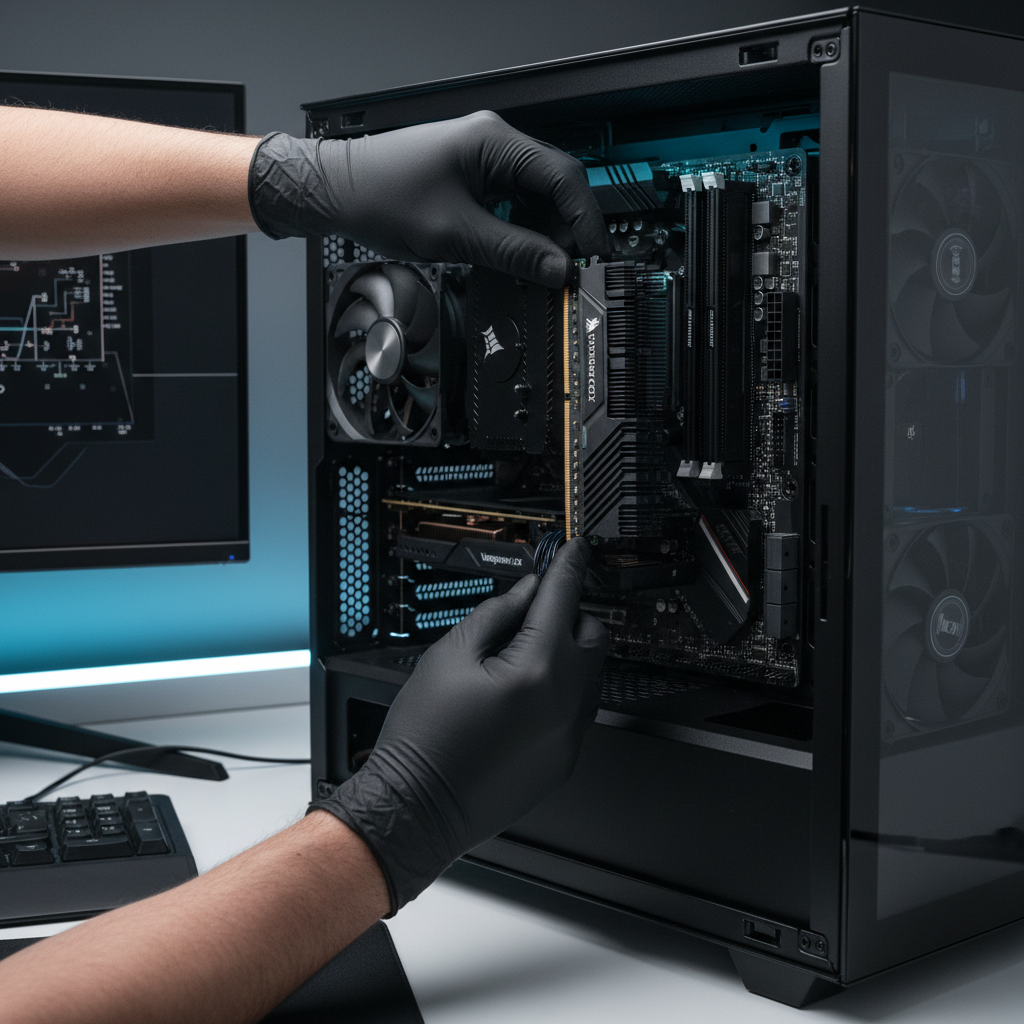
- Open the slot latches, align the notch on the RAM with the slot key.
- Press firmly until it clicks. If it doesn’t click, stop and re-check alignment rather than forcing it.
- Close the case, reconnect power, boot up.
If you want the conservative approach: install one stick, confirm boot, then install the second. It adds a few minutes but can simplify troubleshooting.
After the upgrade: verify it works and enable the right settings
Your job isn’t done when the PC turns on. You want to confirm Windows recognizes the full capacity and that the memory runs at the intended speed.
- In Windows: Task Manager → Performance → Memory, confirm total capacity.
- In BIOS/UEFI: check detected RAM and frequency.
- If you bought faster RAM, you may need to enable XMP (Intel platforms) or EXPO (many AMD DDR5 kits) so it runs at the rated profile.
Important nuance: enabling XMP/EXPO is technically an overclock profile in many cases, even when it’s “normal” behavior for enthusiasts. If your system becomes unstable after enabling it, backing off to a lower profile is a reasonable move.
Common mistakes that cause no-boot or instability (and how to fix them)
- RAM not fully seated: this is the big one. Reseat both sticks until the latches lock.
- Wrong slots: move sticks to the recommended pair per your manual.
- Mixed kits acting weird: try only the new kit, then only the old kit, then decide what’s worth keeping.
- XMP/EXPO too aggressive: disable it to test stability, then try a milder profile.
- Dirty contacts or dust: power down and reinsert. Avoid liquids; if you suspect damage, consider professional help.
According to Corsair support guidance, memory issues commonly trace back to seating, slot choice, or profile settings. It’s not a guarantee, but it’s a helpful troubleshooting order.
Key takeaways (so you don’t overthink it)
- Compatibility beats everything: DDR generation and motherboard support come first.
- Two sticks is a simple win for most desktops (dual-channel behavior in many systems).
- Install is easy when you go slow and seat the modules fully.
- Verify in Windows + BIOS, and treat XMP/EXPO as “optional performance,” not mandatory.
Once you’ve confirmed the new total RAM, try your normal workload again. If the same slowdowns remain and memory usage stays low, you’ve learned something useful: the next upgrade might be storage or CPU, not more memory.
FAQ
How do I know what RAM my desktop supports before buying?
Check the motherboard model and read its memory support section, then confirm your CPU’s supported memory type. If you can’t find the board model, Windows tools and system info apps often show it, but the manual/spec page is still the most reliable source.
Can I mix different RAM brands or sizes?
Sometimes, yes, especially within the same DDR generation, but stability varies. If you mix sizes, the system may still run dual-channel on the matched portion and single-channel on the rest, depending on platform. If you want the least troubleshooting, use a matched kit.
My PC turns on but shows less RAM than I installed—what happened?
Reseating is the first fix, because one stick might not be fully locked in. Next, test each stick individually in the same slot to rule out a bad module or a bad slot, then confirm BIOS settings and that the system isn’t reserving unusual amounts for hardware.
Do I need to enable XMP/EXPO after I upgrade?
You don’t have to, but without it many kits run at a default speed. If you enable it and the system becomes unstable, it’s reasonable to disable it or pick a lower profile; stability matters more than a small speed gain for many users.
Is 16GB RAM enough for gaming in 2026?
For many games it still can be, but if you keep a browser, voice chat, and launchers open, 32GB often feels smoother. The “right” answer depends on your actual multitasking habits more than the year.
What’s the safest way to avoid static damage during installation?
Unplug the PC, work on a hard surface if possible, and touch bare metal on the case before handling components. If you’re in a very dry environment or you feel unsure, an anti-static wrist strap is a low-cost extra precaution.
Will upgrading RAM fix slow boot times?
Usually not by much. Slow boot is more commonly tied to storage speed, startup programs, or system health. RAM helps most when you’re already in Windows and juggling multiple memory-hungry tasks.
If you’re trying to upgrade but feel stuck on compatibility, or you’d rather avoid the “bought the wrong kit” loop, a quick parts check against your exact motherboard and CPU can save time and returns, especially when you want a straightforward, install-and-go RAM kit.