
pc startup programs disable is one of the quickest ways to cut boot time, reduce background clutter, and make your PC feel less sluggish right after you sign in.
If your computer takes forever to get usable, fans spin up for no obvious reason, or you keep seeing surprise popups the moment Windows loads, startup apps are often the culprit. Many programs add themselves to startup during install, some for convenience, others mainly because they can.
This guide walks you through the practical options on Windows 10 and Windows 11, how to tell what’s safe to turn off, and what to do if an app keeps coming back.
Why unwanted startup programs happen (and why it matters)
Unwanted startup items usually come from normal installs, driver suites, “helper” apps, chat tools, game launchers, and update schedulers. Windows allows several different startup entry points, so even if you disable one, another method might still launch it.
- Slower boot and sign-in: too many apps competing for CPU and disk during the first minutes after login.
- Higher memory use: background utilities sit in RAM all day even if you rarely open them.
- More notifications and popups: auto-launch tends to mean auto-notify.
- Security and privacy risk: more always-on processes means more surface area, especially with unknown publishers.
According to Microsoft Support, you can manage which apps run at startup using tools like Task Manager and Windows Settings, which is typically the safest starting point.
Quick self-check: which startup apps should you disable?
If you’re unsure where to begin, don’t try to “clean everything.” Start by identifying items that create friction without real benefit.
A simple keep/disable checklist
- Usually safe to disable: chat apps you don’t need immediately, game launchers, “quick start” helpers, vendor promos, coupon tools, meeting apps you use occasionally.
- Be cautious: touchpad gestures utilities, audio control panels, GPU control apps, VPN clients, password managers (depends on your workflow).
- Usually keep enabled: security software, core driver utilities (if you rely on special keys/gestures), accessibility tools you need at sign-in.
Rule of thumb: if you don’t recognize it, don’t disable it blindly. Instead, check the publisher and file location first, then decide.
Best method for most people: disable startup apps in Windows Settings
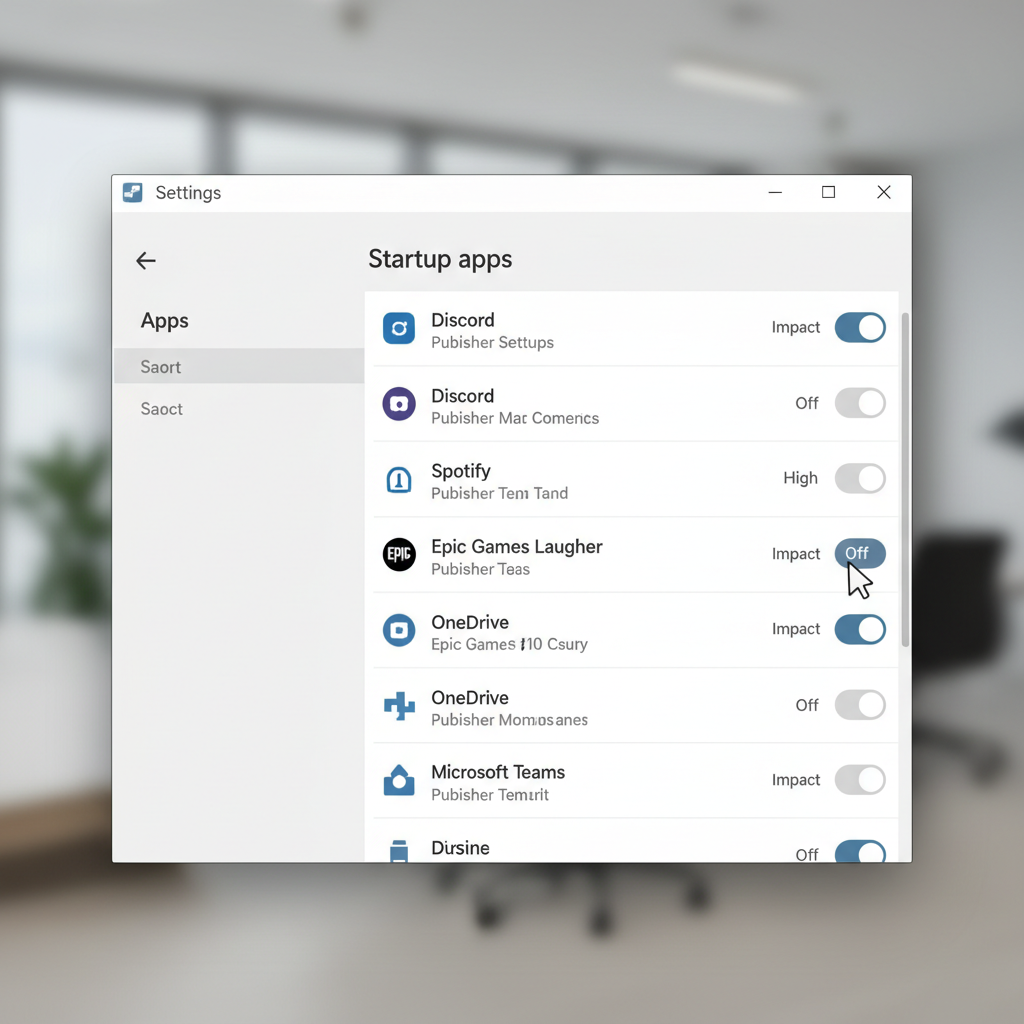
For Windows 11 (and many Windows 10 setups), Settings gives the cleanest view with on/off toggles.
Windows 11 / Windows 10 steps
- Open Settings → Apps → Startup.
- Sort or scan for apps marked as higher impact.
- Toggle off anything you don’t want launching at sign-in.
This approach is ideal when your goal is straightforward: pc startup programs disable without touching deeper system areas.
More control: use Task Manager to disable startup entries
Task Manager is where you go when Settings feels vague, or when you want quick details like “Startup impact.”
Steps (Windows 10/11)
- Press Ctrl + Shift + Esc to open Task Manager.
- If you see a simplified view, click More details.
- Open the Startup apps tab (or Startup tab on some builds).
- Right-click the app → Disable.
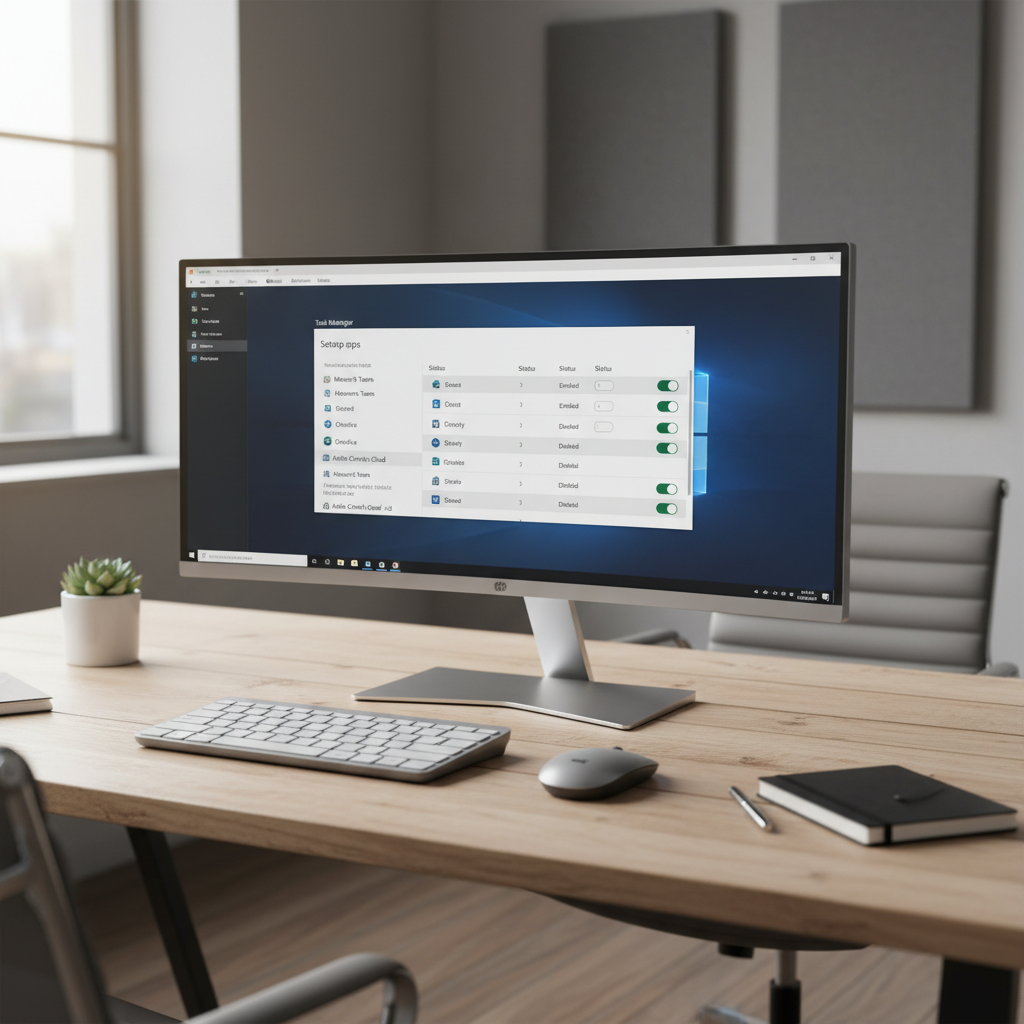
What the columns actually mean
- Publisher: missing/unknown publisher deserves extra scrutiny.
- Startup impact: a rough estimate; “High” items are good first candidates.
- Status: Enabled vs Disabled, this is your confirmation.
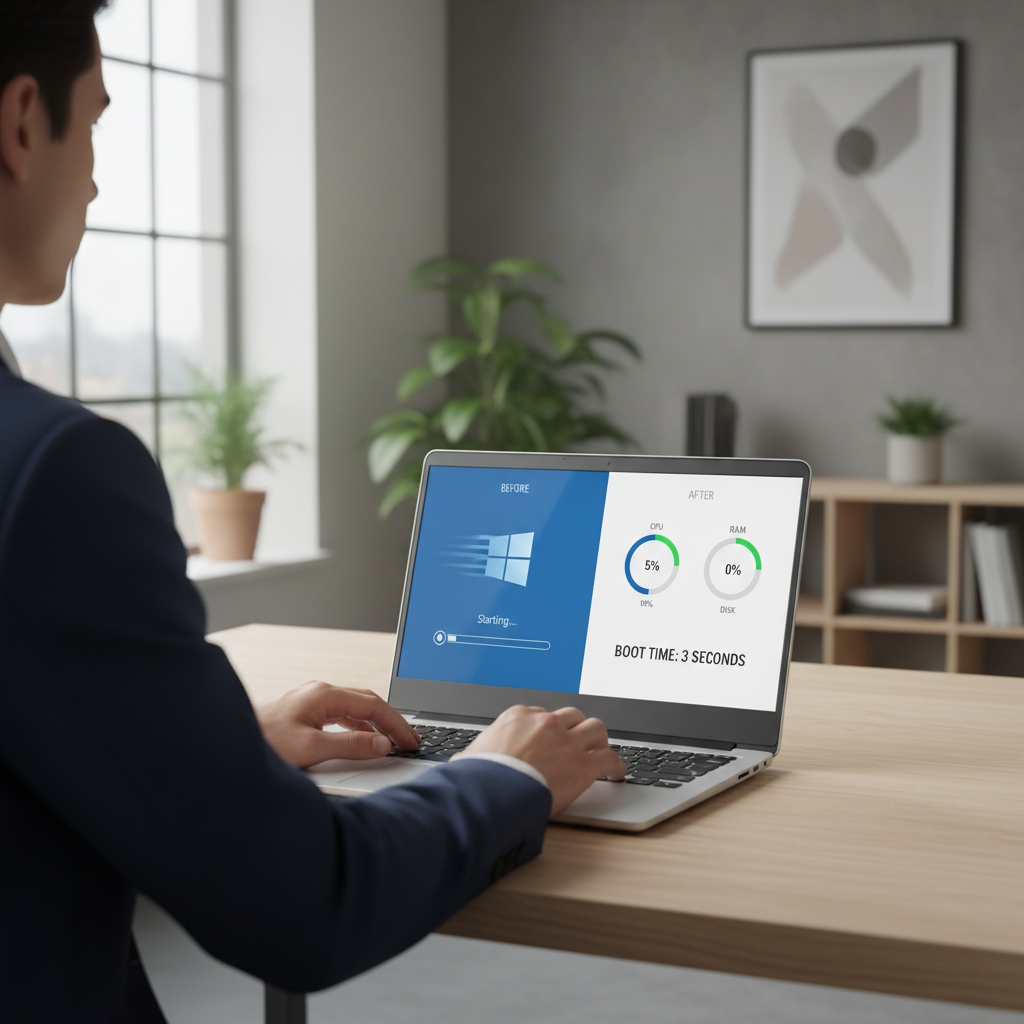
If your main goal is speed, it’s common to start with high-impact items you don’t actively need, reboot, and re-check how the system feels.
When apps don’t show up: other startup locations (and how to handle them)
Some programs launch via scheduled tasks, services, or the Startup folder. That’s why people sometimes swear they did a pc startup programs disable pass, but the same app still appears.
Startup folder (simple, user-level)
- Press Win + R, type shell:startup, press Enter.
- If you see shortcuts you don’t want, delete the shortcut (not the app).
Task Scheduler (common for updaters)
- Search Task Scheduler in Start.
- Look under Task Scheduler Library for tasks that trigger “At log on” or “At startup.”
- If you’re confident it’s unnecessary, disable the task rather than deleting it.
Services (be conservative here)
- Press Win + R, type services.msc, press Enter.
- Only change services if you recognize the vendor and purpose; disabling the wrong one can break networking, audio, or hardware features.
According to Microsoft Learn documentation on Windows services and startup behavior, services are core to system functionality, so changes should be made carefully and ideally reversed if issues appear.
What to disable first: a practical priority table
If you want a sane order of operations, this is the “editor’s pick” approach: start with low-risk annoyances, then move toward deeper items only if needed.
| Startup item type | Common examples | Disable priority | Risk level |
|---|---|---|---|
| Tray apps you rarely use | Chat tools, meeting apps, game launchers | High | Low |
| “Helper” / quick launch tools | Adobe/Apple helpers, vendor quick starters | High | Low to medium |
| Updaters | Auto-update schedulers | Medium | Medium (missed updates) |
| Driver control panels | Touchpad, audio suite, GPU tools | Low to medium | Medium (lost features) |
| Services / scheduled tasks | Background components | Only if necessary | Medium to high |
Common mistakes that waste time (or cause new problems)
- Disabling security software: if you’re not sure what it is, verify first. When in doubt, leave it enabled.
- Confusing “disable” with “uninstall”: disabling startup stops auto-launch; it does not remove the program.
- Turning off everything at once: if something breaks, you won’t know what caused it. Change a few items, reboot, then continue.
- Ignoring “unknown” entries: unknown publisher + weird file location can be a red flag. Consider running a reputable antivirus scan and reviewing installed apps.
One more thing people miss: some apps will re-enable startup after an update. If that happens repeatedly, check the app’s own settings for “launch at startup,” and disable it there too.
When to get extra help (IT, repair shop, or security professional)
Most startup cleanup is low-stakes, but a few situations deserve a more careful approach.
- You see unknown entries launching from odd folders (not Program Files, not Windows).
- Disabling items causes system instability, missing network adapters, or repeated crashes.
- Popups persist even after you disable startup apps, which might suggest adware or a browser hijacker.
If you suspect malware, it’s usually better to pause experimentation and consult a qualified technician or security professional, especially on a work device with company policies.
Key takeaways and a simple action plan
The fastest wins come from disabling obvious nonessential apps in Settings or Task Manager, then testing changes in small batches. If something keeps relaunching, that’s your cue to check Task Scheduler or the app’s own “start with Windows” setting.
- Do this today: open Settings → Apps → Startup and toggle off 3–5 items you don’t need right away.
- Do this next: use Task Manager to review high-impact entries and disable only what you recognize.
If you want your PC to feel snappier without major upgrades, this is one of the most reliable maintenance habits to keep around.
FAQ
How do I know which startup apps are safe to disable?
Look for apps you don’t actively need at sign-in (launchers, chat tools, updaters). If it’s tied to hardware functions (touchpad gestures, audio suite) or security, be cautious and disable one at a time.
Will disabling startup programs make my computer faster?
Often, yes, especially in the first few minutes after login. It mainly reduces boot-time CPU/disk competition and background memory use; it won’t magically fix every performance issue.
Is it better to disable or uninstall unwanted startup apps?
Disable when you still want the app occasionally. Uninstall when you never use it or don’t trust it. If the app is bundled or questionable, uninstalling can be the cleaner move.
Why do disabled apps keep re-enabling themselves?
Updates sometimes reset preferences, or the app has its own “start at login” toggle separate from Windows. Check the app settings and also look for scheduled tasks that launch it.
How can I pc startup programs disable on Windows 11 specifically?
Use Settings → Apps → Startup for quick toggles, then Task Manager → Startup apps for more detail like publisher and impact. Most users won’t need to go beyond those two tools.
Should I disable startup impact “High” apps automatically?
Not automatically. “High” is a useful hint, but verify what the app does and whether you rely on it. Some legitimate tools are high impact but important for your workflow.
What if I disable something and Windows starts acting weird?
Re-enable the last item you changed, reboot, and confirm the issue disappears. If you changed several things, roll back in reverse order. When problems persist, consider getting help rather than guessing.
If you’re trying to keep startup lean on multiple PCs, or you want a more hands-off way to audit what’s launching at boot, it can help to use a trusted PC maintenance or endpoint management tool that clearly lists startup entries and publishers so you spend less time chasing mystery processes.