
Top free online file converters no download tools are usually the fastest way to turn a PDF into Word, a PNG into JPG, or an MP4 into MP3 when you just need it done and you don’t want to install anything.
The catch is that “free” and “online” can hide tradeoffs: file size limits, watermarks, slow queues, or privacy terms that feel a little vague. If you’re converting a resume, a client doc, or anything sensitive, those details matter more than people expect.
This guide keeps it practical: what to look for, which converter categories tend to be reliable, and a quick way to choose based on your file type and privacy needs. You’ll also get a lightweight workflow so you don’t keep re-uploading the same file five times to five different sites.
What “no download” really means (and what still gets installed)
Most browser-based converters run on a remote server: you upload a file, the site processes it, you download the output. That’s the basic promise behind top free online file converters no download.
Two things still surprise people. One, some sites push browser extensions or “helper” apps after you upload. Two, even without installs, you’re still sharing the file with a third party for processing, which can be fine for public content but questionable for private material.
- True no-download: upload → convert → download, no extension prompts, no installer buttons.
- Soft download pressure: works online, but nags for a desktop app or extension.
- Not really free: conversion starts, then a paywall blocks the download.
Quick comparison table: common converter types and typical tradeoffs
Instead of chasing “the one best converter,” start with the format category. In many cases, PDF conversions behave very differently from media conversions, even on the same site.
| Conversion need | Typical use cases | What to watch | Best quick pick criteria |
|---|---|---|---|
| PDF ↔ Word/Excel | Resumes, contracts, reports | Layout breaks, font substitutions, OCR quality | Preview before download, OCR toggle, no watermark |
| Image (PNG/JPG/WebP) | Web uploads, thumbnails | Quality loss, metadata stripping | Quality slider, output size control, batch option |
| Audio (MP3/WAV/M4A) | Podcast clips, voice memos | Bitrate caps, long processing time | Bitrate selection, time trimming, clear limits shown |
| Video (MP4/MOV/WebM) | Social uploads, quick edits | File size limits, queues, quality drop | Max size acceptable, stable download link, no fake buttons |
| Office formats (DOCX/PPTX) | Compatibility, older systems | Broken charts, lost animations | Maintains formatting, exports to PDF cleanly |
How to choose a safe converter (privacy, ads, and “free” traps)
When people say a converter “worked,” they usually mean “it produced a file.” The better question is whether it produced the right file, without unwanted extras or uncomfortable terms.
According to FTC (Federal Trade Commission)... you should be cautious about misleading ads and look for clear disclosures when a service is funded by advertising or upsells. In practice, converter sites can be a magnet for confusing download buttons, so it pays to slow down for 10 seconds.
- Check the page for multiple “Download” buttons: the real one is usually near the conversion result, not in the sidebar.
- Look for retention language: “files deleted automatically” is common, but the timeline varies by provider.
- Prefer HTTPS and a clear privacy policy: it doesn’t guarantee safety, but it’s a basic baseline.
- Avoid sensitive uploads when possible: IDs, tax forms, medical records, unpublished legal docs, and anything under NDA.
- Test with a non-sensitive file first: especially if you’re evaluating a new tool for work.
Top free online file converters no download: what to look for (instead of chasing brand names)
There are lots of well-known sites in this space, but they change limits, add ads, or shift features behind paywalls. So rather than a brittle “top 10 list,” here’s what consistently separates the better top free online file converters no download from the sketchy ones.
For documents and PDFs
- Preview or sample output: a quick view catches layout issues before you save.
- OCR option for scanned PDFs: without OCR, you often get a non-editable image inside a DOCX.
- Font handling: if your output looks “off,” it’s often missing fonts, not “bad conversion.”
For images
- Quality control: a slider or “high/medium/low” matters if the image will be reused.
- Web-friendly formats: WebP support is a good sign for modern workflows.
- Batch conversion: even 10 files at once saves a lot of time.
For audio and video
- Transparent limits: file size and length caps should be visible before upload.
- Bitrate and resolution settings: otherwise you risk a big quality drop.
- Queue clarity: “processing…” without a timer can mean the site is overloaded.
A quick self-check: which converter workflow fits your situation?
If you pick the workflow first, the tool choice becomes easier. Here’s a simple checklist I’d use when helping someone troubleshoot “why does this keep failing.”
- File size: under 25–100MB usually works on many free tiers, but it varies a lot.
- Sensitivity: public content vs. confidential work material.
- Format complexity: scanned PDFs, layered images, long videos, and slide decks with animations tend to break.
- Output requirements: do you need editable text, or just a readable view?
- Time pressure: if you’re rushing, choose the most “boring” conversion path (PDF export, standard codecs).
Key takeaway: If the file is sensitive or the layout must stay perfect, avoid random converters and consider an offline option from a trusted vendor, even if it means a one-time install.
Practical step-by-step: convert cleanly without retries
This is the “don’t make it harder than it is” workflow. It works for most top free online file converters no download, regardless of the site.
Step 1: Make a safe copy and simplify the filename
- Duplicate the file first, so you don’t overwrite your only copy.
- Rename to something simple like project-v1.pdf to avoid weird character issues.
Step 2: Choose output settings before uploading (when possible)
- Images: set output format and quality target.
- Audio: pick bitrate (for voice, you may not need the highest).
- PDF: decide whether you need OCR.
Step 3: Verify the output like you mean it
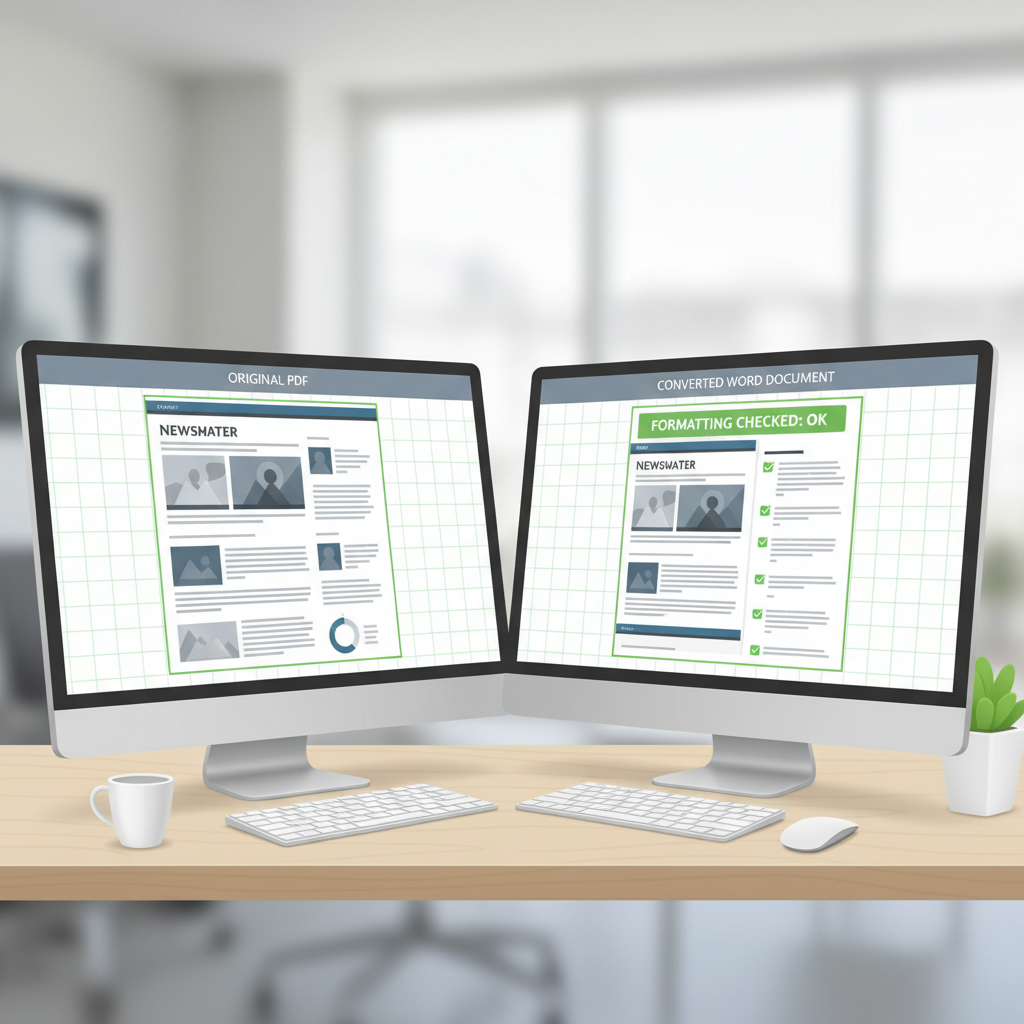
- Open the converted file and check 3 spots: first page, a middle section, last page.
- For Word/PDF conversions, search for a known word to confirm text is selectable.
- For media, scrub near the end to ensure it didn’t cut off early.
Common mistakes that waste time (and how to avoid them)
A lot of “converter problems” are really expectation problems. The tool did what it could, but the input file or the desired output wasn’t realistic for a free browser workflow.
- Expecting a perfect PDF→Word layout: multi-column PDFs, tables, and embedded fonts often need cleanup.
- Uploading scanned PDFs without OCR: you’ll get uneditable text, then wonder why copy/paste fails.
- Confusing a compressor with a converter: shrinking a PDF isn’t the same as making it editable.
- Clicking the wrong download button: if it downloads an EXE or a “setup” file, stop and delete it.
- Ignoring output settings: default quality can be too low for printing, too high for email.
When you should stop and use a professional or offline tool
Online conversion is convenient, but it’s not always the right call. If any of these apply, it’s usually smarter to use a reputable desktop app, a built-in export feature, or an IT-approved tool at work.
- Confidential information: legal, HR, finance, healthcare, client data, internal roadmaps.
- Strict compliance rules: your employer or client might prohibit third-party uploads.
- High-stakes formatting: court filings, official forms, final print layouts.
- Very large files: long videos and huge PDFs hit free limits quickly.
If you’re unsure, it can be worth asking IT or a compliance contact. That small pause can prevent a bigger headache later.
Conclusion: pick the converter based on risk and format, not hype
Top free online file converters no download are great for quick, everyday tasks, especially images and simple documents. Where people get burned is using the same casual approach for sensitive or complex files, then spending an hour fixing what should have been a five-minute job.
Action you can take today: keep one trusted converter for low-risk files, and keep one offline option in your back pocket for anything you wouldn’t feel comfortable emailing to a stranger.
FAQ
- What are the safest top free online file converters no download options?
Safety depends more on behavior than a name: clear privacy policy, no fake download buttons, and no surprise installers. For sensitive files, consider an offline workflow. - Why does PDF to Word conversion mess up formatting?
PDFs are designed for fixed layout, not editing. Columns, tables, and embedded fonts often translate imperfectly, so expect some cleanup for complex pages. - Can I convert files online without uploading them to a server?
Some tools run locally in the browser, but many common converters process on servers. If “no upload” is a requirement, look for language like “client-side” or use a desktop tool. - Do free converters keep my files?
Many say they delete files after a short window, but retention rules vary. If the file is confidential, assume it may be stored temporarily and avoid uploading. - Why did the converter download an EXE file?
That’s often an ad or a misleading button. A real conversion result should download your target format like .docx, .pdf, .jpg, or .mp3, not an installer. - What’s the easiest way to convert images for websites?
Convert to WebP or optimized JPG/PNG, set a reasonable quality level, and double-check dimensions. Batch conversion saves time if you have multiple images. - How do I convert a scanned PDF into editable text?
You’ll need OCR. If the converter offers an OCR toggle, enable it, then verify the output by selecting text or searching for a word you can see on the page.
If you’re trying to set a smoother workflow for your team, or you keep bouncing between converters for PDFs, images, and media, it may help to standardize a small “approved tools” list and a basic privacy rule so people stop guessing under deadline pressure.