
how to fix failed windows updates errors usually comes down to two things: finding what is blocking the update pipeline, and then resetting or repairing the Windows components that handle downloads, verification, and installs.
If you are seeing messages like “Update failed,” error codes such as 0x80070002 or 0x800f081f, or an update that loops forever, you are not alone, Windows Update can break for very ordinary reasons like low disk space, corrupt cache files, a flaky network, or a third-party security tool getting in the way.
This guide keeps it practical, you will learn how to identify the most likely cause, run a short checklist, and apply fixes in an order that avoids risky changes too early, with notes on when it is smarter to stop and get professional help.

Why Windows updates fail (what is usually happening)
Failed updates are rarely “random,” most errors map to a handful of patterns, and once you know the pattern, the fix becomes less of a guessing game.
- Corrupted update cache: Windows stores temporary update files, if those files mismatch or partially download, installs can fail repeatedly.
- System file corruption: Core Windows files that updates rely on can be damaged after crashes, forced restarts, or disk issues.
- Insufficient disk space: Feature updates in particular need room to unpack and stage files, not just download them.
- Network or proxy/VPN interference: Unstable Wi‑Fi, corporate proxies, or VPNs can break download integrity.
- Driver or firmware conflicts: Some updates fail because an old storage, chipset, or display driver blocks the install.
- Third-party security tools: Antivirus or endpoint protection can block file changes during servicing.
According to Microsoft Support, the built-in Windows Update troubleshooter and repair tools like DISM and SFC are common first steps when updates fail, because they target the underlying servicing stack issues rather than only the visible error message.
Fast self-check: figure out which fix path you should start with
Before you start resetting services, take two minutes and answer these, it saves time and reduces the chance you “fix” the wrong thing.
- Is your device low on storage? If your system drive is under ~15–20 GB free, handle storage first.
- Is it a quality update or a feature update? Feature updates are bigger and fail more often due to drivers and space.
- Is the error code consistent? Same code each attempt suggests a stable root cause, changing codes suggests instability.
- Are you on VPN, proxy, or a managed work device? IT policies can block update sources or require WSUS settings.
- Did this start after new security software? Temporarily disabling may be a clean test, but do it cautiously.
If you want a simple decision rule, start with “low risk, high return” actions: free space, reboot, run troubleshooters, then move into component resets and file repairs.
Quick fixes that solve a surprising amount of failed updates
These steps look basic, but they address the most common real-world blockers, and they are reversible.
1) Reboot properly and try once more
Do a full restart, not sleep/wake, then retry Windows Update one time. If an update is stuck “pending” after a power loss, this alone can clear it.
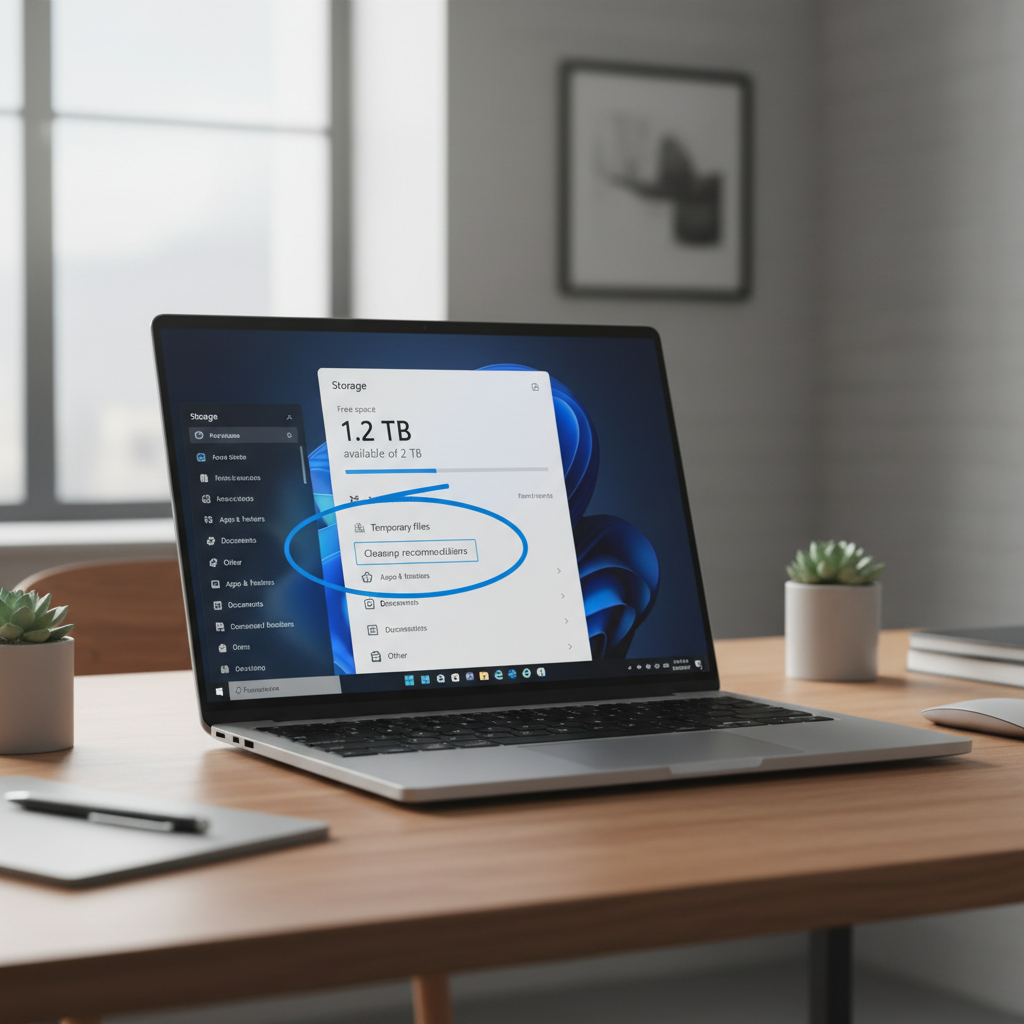
2) Check disk space and clean safely
- Go to Settings → System → Storage, remove temporary files and empty Recycle Bin.
- If you use OneDrive, consider “online-only” for large folders temporarily.
- Avoid random “registry cleaners,” they rarely help update servicing and can introduce new problems.
3) Pause VPN/proxy and switch networks
If you are on VPN, pause it briefly and retry. If you can, test a different network, a captive portal or restrictive router can break downloads in ways that look like Windows issues.
Use Windows built-in troubleshooters and logs (without going too deep)
When people search how to fix failed windows updates errors, they often skip Windows’ own diagnostics because they assume it is “too generic,” but it can reveal obvious blockers like misconfigured services.
Run the Windows Update troubleshooter
- Windows 11: Settings → System → Troubleshoot → Other troubleshooters → Windows Update
- Windows 10: Settings → Update & Security → Troubleshoot → Additional troubleshooters → Windows Update
Apply suggested fixes, then reboot and retry the update.
Check update history for clues
Go to Settings → Windows Update → Update history. Note the KB number and the error code. If a specific KB fails repeatedly, you can target it later via the Microsoft Update Catalog.
Reset Windows Update components (the “stuck cache” fix)
If retries keep failing with the same error, resetting update components is often the turning point because it rebuilds the download and servicing state.
What this does: stops update services, renames the download cache folders, then restarts services so Windows rebuilds clean copies.
Steps (Command Prompt as Administrator)
Open Start, type cmd, choose Run as administrator, then run:
- net stop wuauserv
- net stop bits
- net stop cryptsvc
- net stop msiserver
- ren C:\Windows\SoftwareDistribution SoftwareDistribution.old
- ren C:\Windows\System32\catroot2 catroot2.old
- net start wuauserv
- net start bits
- net start cryptsvc
- net start msiserver
Reboot, then try Windows Update again. If this works, you can delete the .old folders later to reclaim space, but only after you confirm updates install normally.
Repair system files with DISM and SFC (when updates fail mid-install)
If the update downloads but fails during “installing” or “undoing changes,” system file repair is a rational next step. According to Microsoft Support, DISM can repair the Windows image that SFC relies on, so the usual order is DISM first, then SFC.
Run DISM
Open Command Prompt as Administrator and run:
- DISM /Online /Cleanup-Image /RestoreHealth
This can take a while and may look “stuck,” give it time. If it fails due to network restrictions, that can be a clue your environment blocks the required sources.
Run SFC
- sfc /scannow
Reboot and retry the update. If SFC reports it repaired files, an update that previously failed often succeeds on the next attempt.

Pick the right fix for your error type (quick reference table)
Error codes vary, and the same code can have multiple causes, but in practice, the mapping below helps you choose a starting point without overthinking it.
| Error symptom or code | What it often means | Fixes to try first |
|---|---|---|
| 0x80070002 / 0x80070003 | Missing or corrupted update files | Reset update components, retry, then DISM/SFC |
| 0x800f081f | Component store or servicing source issue | DISM RestoreHealth, check network/proxy, then reset components |
| Stuck on “Downloading” | Network, BITS, cache, or VPN/proxy interference | Change network, pause VPN, run troubleshooter, reset components |
| Stuck on “Installing” or “Undoing changes” | System file corruption or driver conflict | DISM/SFC, update drivers, try again |
| 0x80070643 | Installer or .NET/servicing issue (varies) | DISM/SFC, retry, then install specific KB manually |
If one update keeps failing: manual install and driver sanity checks
When a specific KB keeps failing, brute-forcing Windows Update rarely helps. Narrow the scope, and deal with that one update.
Manually install a specific KB
- From Update history, copy the KB number.
- Download it from the Microsoft Update Catalog and run the installer.
This is especially useful when the UI loops but the standalone installer works. If the manual install fails with a more detailed message, that message is usually more actionable than the Windows Update screen.
Basic driver checks (don’t overdo it)
- Update chipset and storage drivers from your PC maker (Dell, HP, Lenovo) if you are on a branded laptop/desktop.
- If you recently installed a “driver booster,” consider rolling that back, those tools can introduce unstable driver versions.
- For feature updates, check BIOS/UEFI updates cautiously, follow the vendor instructions, and do not do it during storms or on low battery.
Common mistakes that waste time (or make things worse)
- Disabling security tools without a plan: A short test is fine, but do not leave protection off, and avoid unknown “fixers.”
- Deleting random folders in C:\Windows: Only reset the specific update cache folders as shown above.
- Repeating the same retry loop: If you tried the same update 5 times, stop and switch tactics, logs and targeted repairs become more useful.
- Ignoring storage health: If your drive has errors, updates fail in unpredictable ways, run disk checks before you blame Windows Update.
Key takeaway: the safest path is troubleshoot → reset update components → repair system files → target the failing KB, then consider deeper remediation.
When it’s time to get help (or consider a repair install)
Most update failures are fixable at home, but some situations deserve a more careful approach.
- Work or school device: Policies, WSUS settings, or endpoint protection can block updates, your IT team may need to adjust configuration.
- Repeated blue screens or disk warnings: That points to hardware or driver instability, consider a technician if you are not comfortable testing components.
- DISM cannot restore health and SFC cannot repair files: a repair install (in-place upgrade) using Microsoft’s Windows installation media often fixes servicing without wiping personal files, but it still carries risk, back up first.
According to Microsoft Support, using official installation media and supported repair options is preferable to third-party “Windows repair” utilities, especially when system integrity is already questionable.
Practical action plan (do this in order)
- Step 1: Reboot, confirm stable internet, free disk space.
- Step 2: Run Windows Update troubleshooter, check Update history for the failing KB and error code.
- Step 3: Reset Windows Update components, reboot, try again.
- Step 4: Run DISM then SFC, reboot, try again.
- Step 5: If one KB keeps failing, install it manually, then re-check Windows Update.
If you follow that sequence, you usually avoid the two big traps: doing advanced changes too early, and re-trying the same broken state over and over.
Conclusion: get Windows updating again without guessing
how to fix failed windows updates errors is less about a single magic command and more about clearing the update pipeline, then repairing Windows servicing when it is genuinely damaged. Start with the quick wins, move into a component reset, and only then spend time on file repairs or manual KB installs.
If you want one simple next move, run the troubleshooter and check free disk space, then, if the failure repeats, reset the Windows Update components and reboot, those two steps cover a large share of stubborn cases.
FAQ
Why do Windows updates keep failing even after I restart?
A restart only helps if the failure was caused by a temporary lock or a pending install state. If the update cache is corrupted or system files are damaged, you usually need a component reset or DISM/SFC to make progress.
Is it safe to delete the SoftwareDistribution folder?
Renaming it is the safer move because it is reversible. Windows rebuilds the folder automatically, and renaming avoids accidental deletion mistakes if you later need to roll back and compare behavior.
What if Windows Update is stuck at 0% or 100%?
At 0%, network, VPN/proxy, or BITS service issues are common. At 100%, the download may be complete but verification or install is failing, resetting components and running DISM/SFC tends to be more effective than waiting for hours.
How long should DISM and SFC take?
It varies by device speed and drive health. It is normal for DISM to pause at certain percentages, but if it fails repeatedly with source errors, your network environment or system image may need a different repair approach.
Can antivirus cause failed Windows updates?
It can, especially if it blocks system file modifications during servicing. A brief test with real-time scanning paused may help confirm, but do not leave your system unprotected, and re-enable it right after testing.
Should I use third-party “Windows repair” tools?
In many cases, no. When Windows servicing is unstable, adding more unknown tooling increases risk. Sticking to built-in troubleshooters, DISM/SFC, and Microsoft installation media is usually more predictable.
When should I do an in-place upgrade repair install?
If DISM/SFC cannot repair corruption and multiple updates fail consistently, a repair install becomes a reasonable next step. Back up important files first, and if the PC is managed by work or school, check with IT before making changes.
If you are dealing with repeat update failures on multiple PCs, or you would rather not run command-line resets yourself, a managed IT support or Windows maintenance service can be a calmer option, especially when you need updates for security compliance and downtime matters.