
how to fix steam not opening windows is usually a mix of simple blockers: a stuck Steam background process, a corrupted cache, a Windows permission issue, or a third‑party overlay that Steam doesn’t like.
If you’re on Windows 11, it can feel extra confusing because Steam may “not open” in a few different ways, nothing shows up, it flashes then disappears, or it opens but stays on a blank window. The good news is you can usually narrow it down in 10–20 minutes if you follow a clean order.
This guide focuses on practical fixes that don’t risk your game library, plus a few “last resort” steps when the basics don’t move the needle. I’ll also point out the situations where it’s smarter to stop guessing and look at logs or system conflicts.
Quick diagnosis: what “Steam not opening” really means
Before changing settings, pin down the symptom. Different symptoms often point to different fixes, and this saves time.
- Nothing happens: you click Steam, no window, maybe the cursor spins briefly.
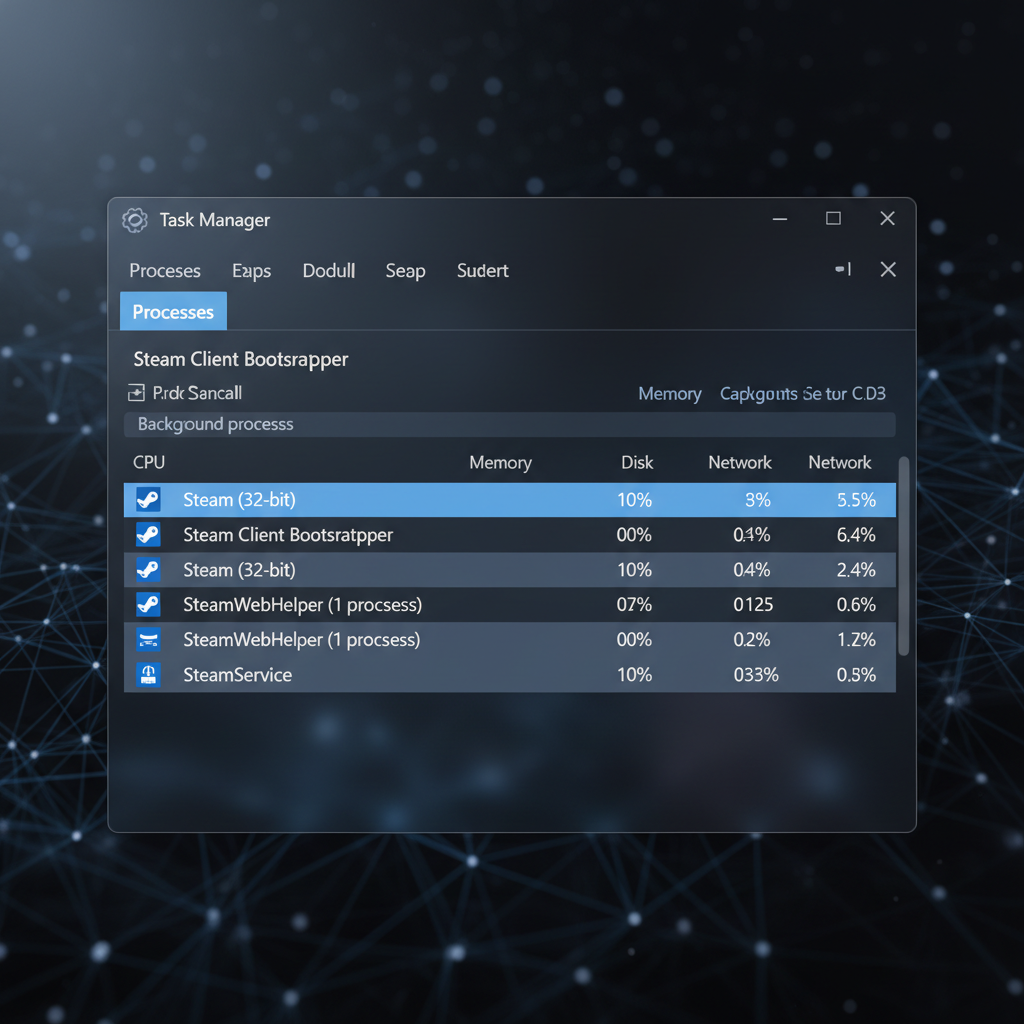
- Steam appears in Task Manager only: background process runs but UI never shows.
- Steam flashes then closes: common with broken webview cache, GPU/driver conflicts, or security software interference.
- Blank/black Steam window: often GPU acceleration or web cache issues.
- “Updating Steam” loop: permissions, network filtering, or a damaged install.
Key point: in many cases you’re not dealing with “Steam is down,” you’re dealing with Windows 11 blocking the UI layer or Steam’s embedded browser components.
Start here: end stuck processes, then run as admin
This is the fastest “no-risk” reset. Steam frequently gets stuck after a crash or sleep/wake cycle, and reopening just re-triggers the stuck state.
1) Fully exit Steam (including background)
- Press Ctrl + Shift + Esc to open Task Manager.
- Find Steam or steam.exe, also look for Steam Client WebHelper.
- Select each Steam-related item and choose End task.
2) Launch Steam with elevated permission
- Right-click the Steam shortcut, choose Run as administrator.
- If this works, it’s a hint you may have a permissions, folder access, or security-policy conflict.
If you want a quick sanity check, rebooting Windows 11 after ending tasks can also clear handles locked by drivers or overlays.
Fix the most common culprit: Steam cache and WebHelper issues
If Steam shows a blank window, flashes, or never renders the UI, the embedded web components can be the real problem. Clearing cache sounds basic, but it’s one of the highest hit-rate fixes.
Clear Steam download cache (safe)
If Steam opens partially:
- Go to Steam > Settings > Downloads
- Select Clear Download Cache
- Sign in again when prompted
If Steam won’t open at all, move to the next step.
Clear Steam web cache folders (still safe)
This targets UI-related corruption. You might get logged out; installed games stay installed in most setups.
- Make sure Steam is closed in Task Manager.
- Press Win + R, paste: %localappdata%\Steam
- Look for folders such as htmlcache (and sometimes webcache under the Steam install folder).
- Rename the cache folder(s), for example: htmlcache_old, then launch Steam.
If you’re cautious, renaming is better than deleting because you can restore it if nothing changes.
Compatibility, overlays, and GPU acceleration: the “blank window” bundle
A lot of “Steam not opening” reports on Windows 11 aren’t Steam itself, it’s Steam plus something else: overlays, capture tools, unusual DPI settings, or GPU acceleration behaving badly.
Try disabling fullscreen optimizations
- Right-click steam.exe (usually in C:\Program Files (x86)\Steam)
- Properties > Compatibility
- Check Disable fullscreen optimizations
- Optionally check Run this program as an administrator
Temporarily disable overlays and hook tools
Close apps that inject overlays or hooks, then try Steam again:
- Discord overlay
- GeForce Experience / ShadowPlay overlay
- Xbox Game Bar capture features
- MSI Afterburner / RivaTuner Statistics Server
- Third-party FPS counters or screen recorders
This step feels annoying, but it quickly confirms whether the problem is a conflict rather than a broken Steam install.
Windows 11 security and network settings that can block Steam
Steam needs to write to its folders, update itself, and reach Steam services. On Windows 11, controlled folder access, antivirus behavior monitoring, or a strict firewall rule can quietly break startup.
Check Windows Security protections that may interfere
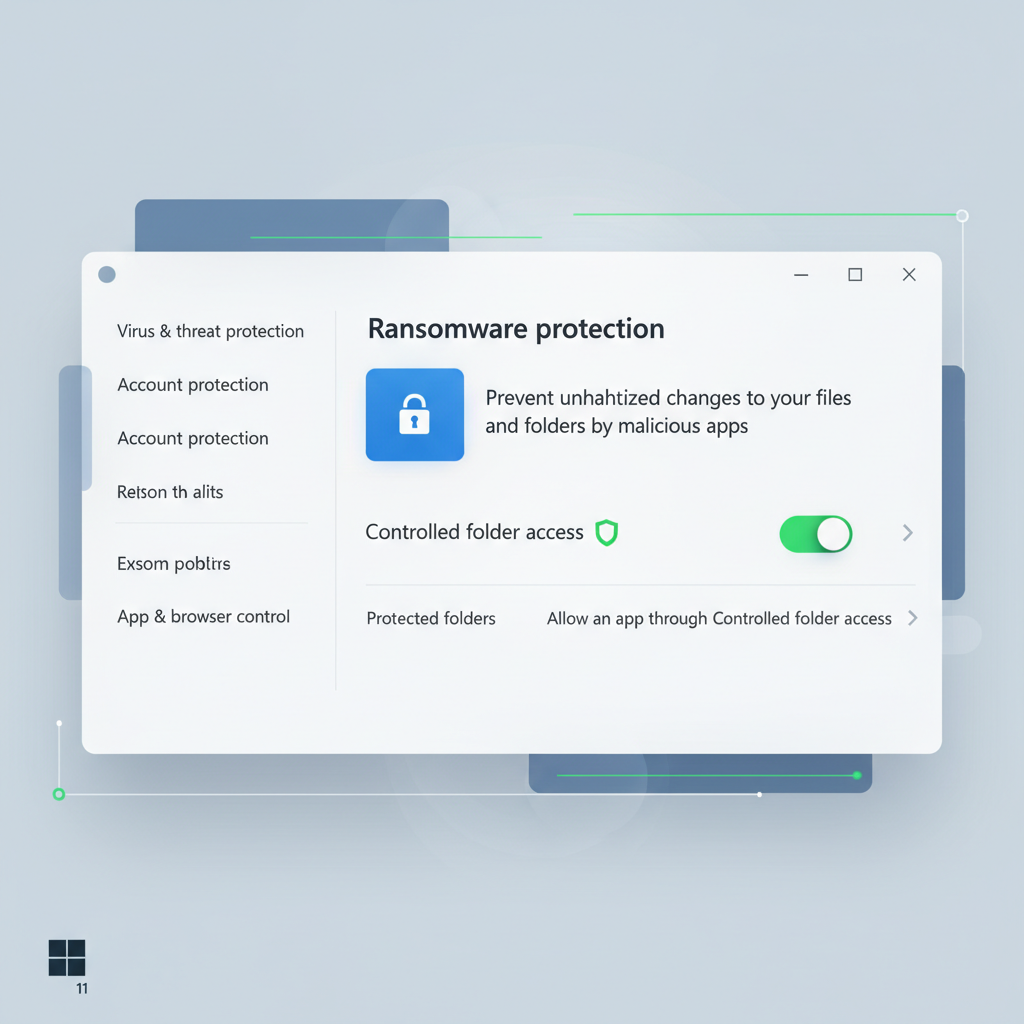
According to Microsoft, features like controlled folder access can block apps from making changes to protected folders. If Steam updates fail or never launch, this is worth checking.
- Open Windows Security > Virus & threat protection > Ransomware protection
- If Controlled folder access is on, consider adding Steam as an allowed app
- Also review Protection history for blocked actions around the time Steam stopped opening
Firewall and VPN quick checks
- Temporarily disable a VPN and retry (some VPNs block Steam sign-in or updates).
- Confirm Steam is allowed in Windows Defender Firewall for private networks.
- If you’re on a work/school network, restrictions may apply, switching networks can confirm this quickly.
Repair steps that preserve your library (and when to reinstall)
If basic troubleshooting doesn’t help, you can repair Steam without immediately nuking everything. The idea is to keep your steamapps folder intact.
Run Steam bootstrapper and basic repair
- Navigate to your Steam install folder, commonly C:\Program Files (x86)\Steam.
- Double-click SteamService.exe if present, then try launching Steam.
- Right-click steam.exe > Properties > verify it’s not blocked (General tab, if shown).
Reinstall Steam without deleting installed games (common approach)
This often fixes damaged binaries while keeping game files:
- Back up your Steam folder or at least steamapps and userdata.
- Uninstall Steam from Settings > Apps.
- Install Steam again from the official Steam site.
- Point Steam to the same library location after install.
Reality check: depending on how your libraries are split across drives, Steam may still need to “discover” games, or you might have to re-add library folders in Settings.
Decision table: match your symptom to the right fix
If you want the fastest route, use this quick mapping. It’s not perfect, but it matches common Windows 11 scenarios.
| What you see | Likely cause | Try this first |
|---|---|---|
| No window, Steam in Task Manager | Stuck WebHelper or hung process | End Steam tasks, relaunch as admin |
| Blank/black Steam window | GPU acceleration, corrupted web cache | Rename htmlcache/webcache, disable overlays |
| Steam flashes then closes | Overlay/security hook conflict | Disable overlays, check Windows Security history |
| Update loop or can’t update | Permissions, firewall/VPN restrictions | Run as admin, firewall allow rule, try no VPN |
| Only fails on one Windows account | Profile-specific permissions/config | Try a new Windows user profile test |
Practical checklist: do this in order (10–20 minutes)
If you want a clean “playbook,” this is the order that usually prevents wasted effort.
- Step 1: End all Steam processes in Task Manager.
- Step 2: Run Steam as administrator one time.
- Step 3: Temporarily close overlays and monitoring tools.
- Step 4: Rename Steam htmlcache (and webcache if present), then relaunch.
- Step 5: Review Windows Security Protection History for a block entry.
- Step 6: Try without VPN, verify firewall allowance.
- Step 7: If still stuck, reinstall Steam while backing up steamapps.
Key takeaway: if you jump straight to reinstalling, you might fix it, but you also risk wasting time if the real issue is an overlay or a Windows security block.
When you should dig deeper (logs, drivers, or professional help)
If you’ve tried the core steps and Steam still won’t launch, it’s time to stop random clicking and collect clues.
- Check GPU drivers: update from NVIDIA/AMD/Intel, especially if the problem started after a Windows update.
- Try a clean boot: if Steam works in a minimal startup environment, you’ve confirmed a software conflict.
- Look at Steam logs: in the Steam folder, log files can hint at web helper crashes or update failures.
If this is a managed PC (company or school), policies can block app updates and background services. In that case, you may need your IT team, and that’s not you failing, that’s the environment.
According to Microsoft, Windows Event Viewer can help identify application errors and crash modules. If you see repeated crash entries tied to Steam components, consider sharing that detail with a qualified technician rather than guessing.
Conclusion: get Steam launching again with the least drama
Most Windows 11 cases come down to a stuck process, corrupted web cache, or a conflict with overlays and security controls, and the fixes are usually reversible if you take the “end tasks, relaunch, clear cache, check security” path.
Pick one action now: end Steam tasks and rename the htmlcache folder, then try a fresh launch. If that doesn’t change anything, move to overlays and Windows Security history before you reinstall.
If you’re troubleshooting multiple PCs or you want a more repeatable setup, consider writing down what worked, even two lines helps the next time Steam decides to be stubborn.