
how to fix slow charging android phone is usually less about “mystery battery problems” and more about a few practical choke points: the cable, the charging brick, the port, heat, and background power drain.
If you handle it in the right order, you can often spot the culprit in 10–20 minutes, without installing a bunch of “battery saver” apps that create more problems than they solve. The goal is simple: confirm your phone can accept fast charge, then remove whatever is limiting it.
Below is a real-world troubleshooting flow that starts with the most common, cheapest fixes, then moves to the situations where you might need a repair shop or manufacturer support.
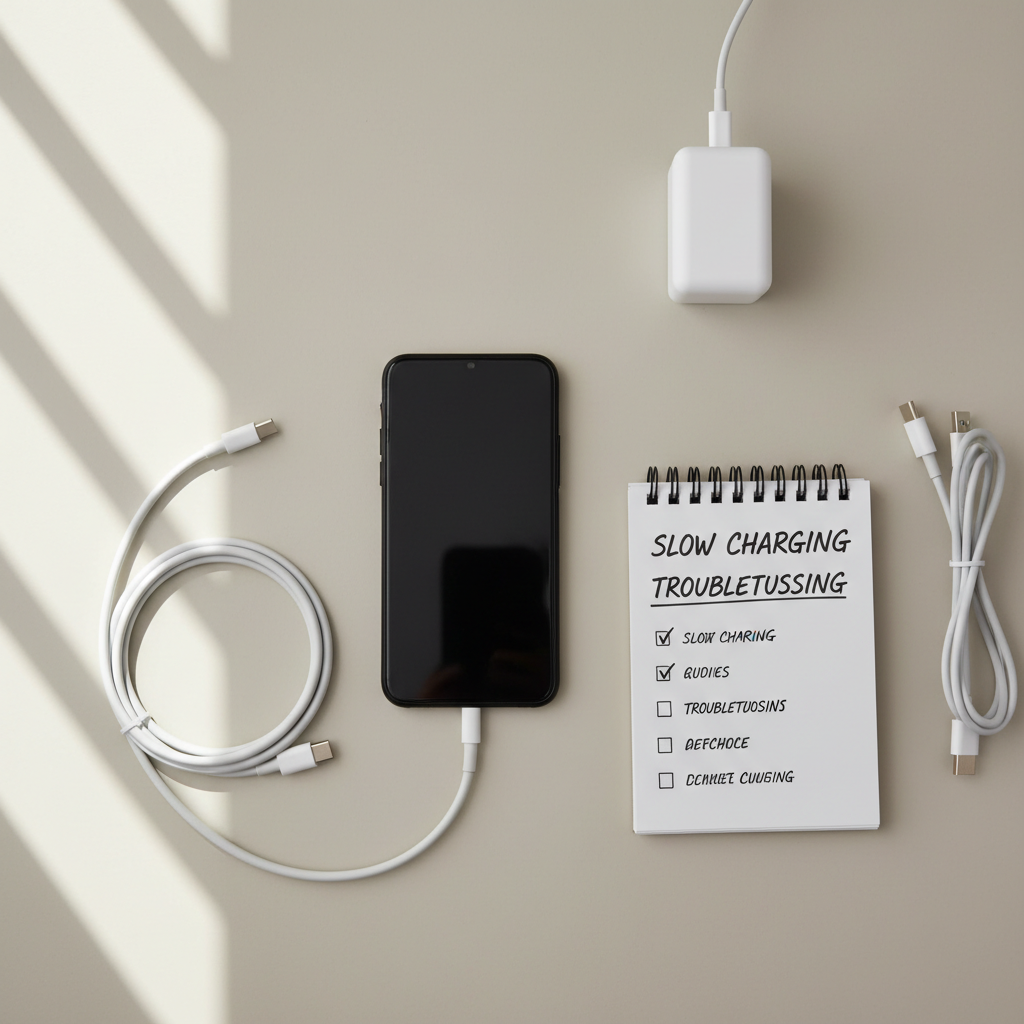
Start here: what “slow charging” actually means
“Slow” can mean different things, and that matters because the fix changes. A phone charging at a steady pace from 20% to 80% is normal, while a phone crawling at 1% every 10 minutes is not.
- Normal behavior: charging slows near 80–100% to reduce battery stress and heat.
- Common confusion: wireless charging often feels slow compared to wired fast charging.
- Real issue signs: the phone gains charge very slowly even at low battery, the cable needs “just the right angle,” or the phone gets unusually hot.
According to Android’s official support guidance (Google), charging speed can drop when the device is hot, when the cable/charger is underpowered, or when the port/cable connection is poor.
Quick self-check: 2 minutes to classify your problem
This checklist helps you stop guessing. You’re trying to identify whether this is a power supply problem, a connection problem, or a phone-side limitation.
- Does the same charger/cable fast-charge another phone? If yes, your phone or port is suspect.
- Does a different known-good charger/cable fix it? If yes, your accessories are the issue.
- Does charging speed improve in Airplane Mode? If yes, drain from apps/signal is a major factor.
- Does the phone charge faster when it’s cool? If yes, heat throttling is likely.
- Do you see “Charging slowly” or no “Fast charging” message? Often points to charger/cable capability mismatch.
Fix the most common cause: cable, adapter, and outlet mismatch
If you want the fastest win, don’t start with settings. Start with the stuff that delivers power. A surprising number of “slow charging” cases are just a worn cable or a weak adapter.
What to do (in the right order)
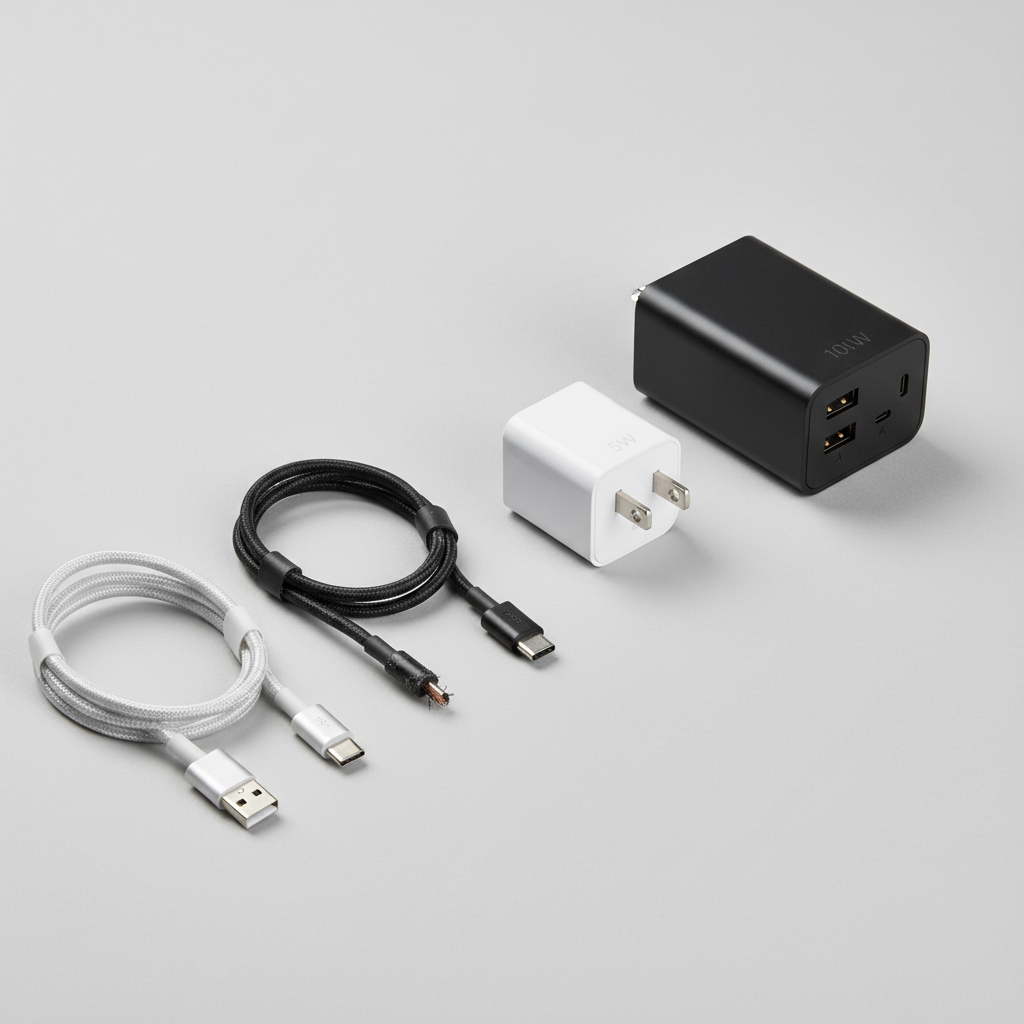
- Swap the cable first. Use a short, reputable USB-C cable (or the correct cable type for your phone). If the old cable only works when bent, retire it.
- Check the adapter wattage. Many older “freebie” bricks are 5W–10W. Many Android phones expect higher wattage for fast charging.
- Try a different wall outlet. Loose outlets, power strips, or shared USB ports in furniture can under-deliver.
- Avoid laptop USB ports for speed testing. They often cap power and make any phone look “slow.”
Fast charging standards: why “any USB-C” isn’t equal
Android phones may use USB Power Delivery (USB-PD), Qualcomm Quick Charge, or brand-specific fast charging. If your charger doesn’t support what your phone negotiates, you still charge, just not quickly.
According to USB-IF (USB Implementers Forum), USB Power Delivery enables devices to negotiate higher power levels, but both the charger and cable must support the needed profile.
Use this table to spot the mismatch
| Symptom | Likely cause | What usually helps |
|---|---|---|
| Charges normally but never shows fast charging | Underpowered adapter or non-PD/QC charger | Use a compatible fast charger from a reputable brand |
| Speed changes when you touch the cable | Damaged cable or loose port connection | Replace cable, inspect/clean port |
| Fast charging works only sometimes | Cable quality, heat throttling, or dirty port | New cable + cool environment + port cleaning |
| Charging is slow only in car | Low-power car adapter | Use a higher-wattage USB-PD car charger |
Clean and inspect the charging port (carefully)
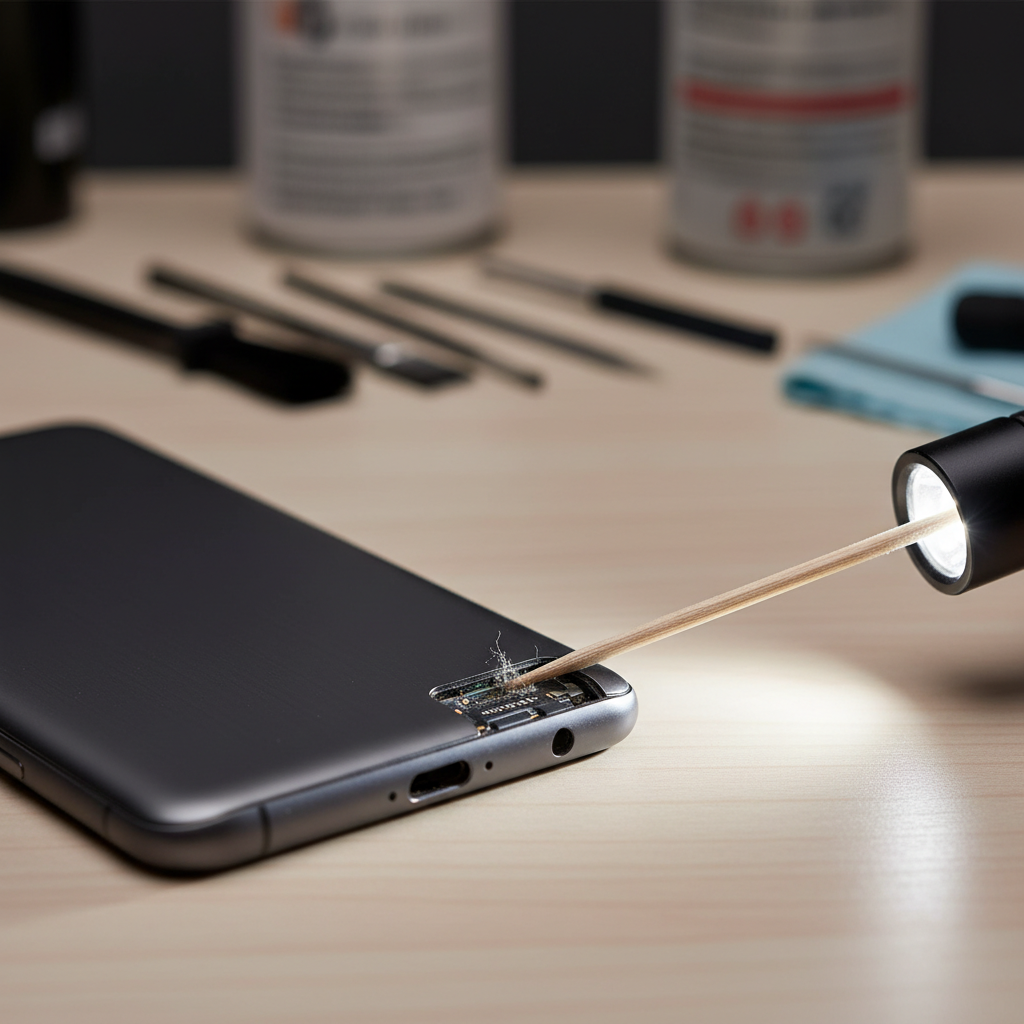
If you’re searching how to fix slow charging android phone and you’ve already swapped chargers, the next most common issue is simple: lint in the port. A tiny mat of pocket dust can prevent a solid connection, so the phone drops to slower charging or disconnects.
Safer cleaning steps
- Power off the phone. This reduces risk if something shorts.
- Use a flashlight and look inside. You’re checking for packed lint or bent pins.
- Use a wooden or plastic toothpick. Gently lift lint out, don’t scrape aggressively.
- Skip metal tools. Paperclips and needles can damage contacts.
- Compressed air: a short burst can help, but avoid blasting moisture into the port.
If you see corrosion, liquid residue, or obviously bent internal parts, stop digging. That’s where DIY can make the repair more expensive.
Reduce power drain while charging (the “it charges, but never catches up” problem)
Sometimes charging hardware is fine, but the phone is consuming power as fast as it receives it. This shows up a lot when you’re charging from 5% while using navigation, hotspot, camera, or gaming.
High-impact moves that actually change charging speed
- Turn on Airplane Mode for 10 minutes as a test. If speed jumps, weak signal or background radios are eating power.
- Stop high-drain apps. Video calls, GPS navigation, and games are usual suspects.
- Disable hotspot temporarily. It’s a quiet battery killer while charging.
- Use a wall charger, not a computer. This matters more than most people think.
Key takeaway
If the battery percentage rises slowly only while you’re using the phone heavily, that’s often normal behavior, not necessarily a failing battery or broken port.
Heat throttling: when your phone deliberately slows charging
Charging creates heat, and heat triggers protective limits. If your device feels hot, it may reduce input power even with the best charger. According to Apple and Google support guidance, lithium-ion devices commonly slow charging when temperatures rise to protect battery health.
Practical cooling steps
- Remove thick cases while charging. Many cases trap heat.
- Keep it out of direct sun. Car dashboards are brutal.
- Don’t charge under a pillow or blanket. Bad for heat and safety.
- Avoid heavy use while charging. Let it cool and charge first, then use it.
If the phone regularly overheats during basic charging in a cool room, that’s not a “settings” issue anymore, it may be battery aging or hardware trouble, and getting it checked is reasonable.
Software checks that are worth your time (and the ones that aren’t)
Software rarely causes true slow charging by itself, but it can contribute through buggy apps, battery protection settings, or a flaky USB mode.
Do these, skip the gimmicks
- Restart the phone. It clears stuck processes that can keep power draw high.
- Update Android and key apps. Power management bugs do happen.
- Check battery settings. Some phones have “Battery protection” or “Adaptive charging” that slows charging near full.
- Review Battery usage. If one app spikes during charging, uninstall or restrict background activity.
- Avoid “fast charge booster” apps. Many can’t increase charger wattage and may add ads or background load.
If you use a USB connection to a computer, check that the cable supports data and power properly; some cheap cables are power-only and behave inconsistently across devices.
When to seek repair or professional help
There’s a point where troubleshooting turns into risk. If any of the cases below match, it’s usually smarter to stop experimenting and talk to the manufacturer, carrier store, or a reputable repair shop.
- Charging port feels loose and cables wobble noticeably.
- Visible bent pins, corrosion, or burn marks in the port.
- Battery swelling (bulging back, screen lifting). This can be a safety issue, avoid charging and seek service.
- Liquid exposure, even if the phone “seems fine.”
- Multiple known-good chargers all charge slowly, especially after a drop.
For warranty coverage, stick to official support channels. For older devices, a port replacement or battery replacement may be a cost-effective fix, but pricing varies a lot by model and region.
Practical charging workflow (a simple routine that works)
If you want a repeatable way to handle how to fix slow charging android phone, use this routine when the issue shows up again.
- Step 1: Switch to a known-good fast charger and cable.
- Step 2: Test from 10% to 30% without using the phone much.
- Step 3: If still slow, power off and inspect/clean the port.
- Step 4: If it improves in Airplane Mode, focus on drain: signal issues, hotspot, app usage.
- Step 5: If heat is present, cool the device and retest.
Key point: one controlled test beats hours of random tweaks, because you learn which variable changed the result.
Conclusion: get back to fast charging without chasing myths
Most slow-charging situations come down to a tired cable, an underpowered adapter, or a port that can’t make solid contact. Once you confirm your accessories and clear the port, the remaining fixes usually involve reducing heat and power drain, not hunting for magic settings.
If you want one action today, replace the cable with a reputable fast-charge model and inspect the port with a flashlight, those two steps solve a lot of cases quickly. If you see damage, swelling, or overheating that feels abnormal, pause and get professional help rather than forcing it.