
how to fix spotify not playing songs usually comes down to a few repeat offenders: a flaky connection, a stuck playback queue, a bad download, or an app/device setting that quietly blocks audio.
If you’re staring at a track that “plays” but you hear nothing, or songs skip instantly, it’s not just annoying, it also wastes time because Spotify issues can look identical while having totally different causes.
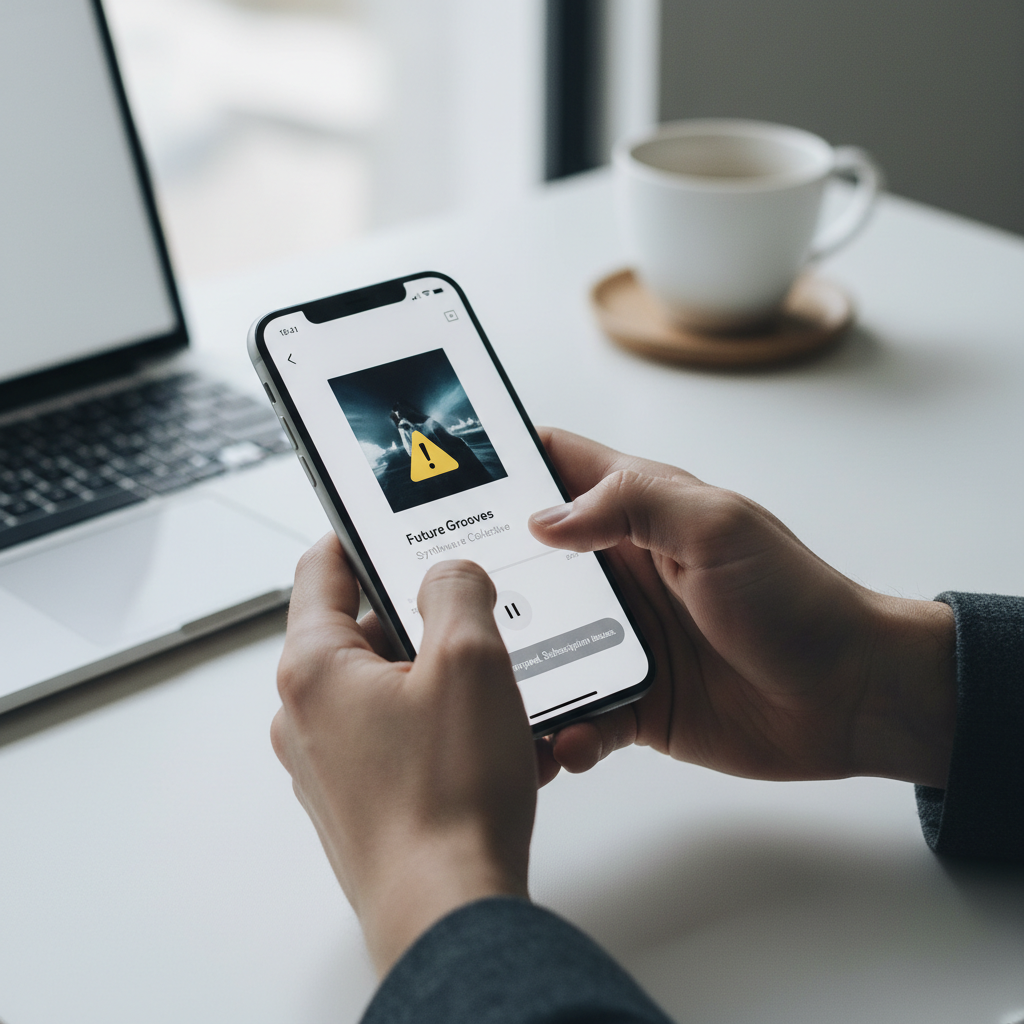
This guide focuses on practical fixes you can try in minutes, plus a clean way to identify whether the problem sits with your phone, your network, Spotify’s servers, or the specific song file. I’ll also call out the few “looks harmless but breaks playback” settings people miss.
Quick diagnosis: what “not playing” actually means
Before you change ten settings, pin down the symptom. These patterns help you choose the right fix faster.
- Song won’t start: Play button does nothing, or it spins forever.
- Songs skip instantly: Track flashes then jumps to the next.
- No sound: Timer moves but audio stays silent.
- Only downloads fail: Online streaming works, offline does not, or vice versa.
- Only on one device: Works on your laptop but not your phone, or the opposite.
Key point: the same error can come from different layers, app, device OS, network, account, or even the current output device.
Most common causes (real-world, not theoretical)
When people search how to fix spotify not playing songs, the fix often lands in one of these buckets:
- Network instability: Wi‑Fi that “works” for web browsing can still struggle with continuous audio streaming, especially on crowded networks.
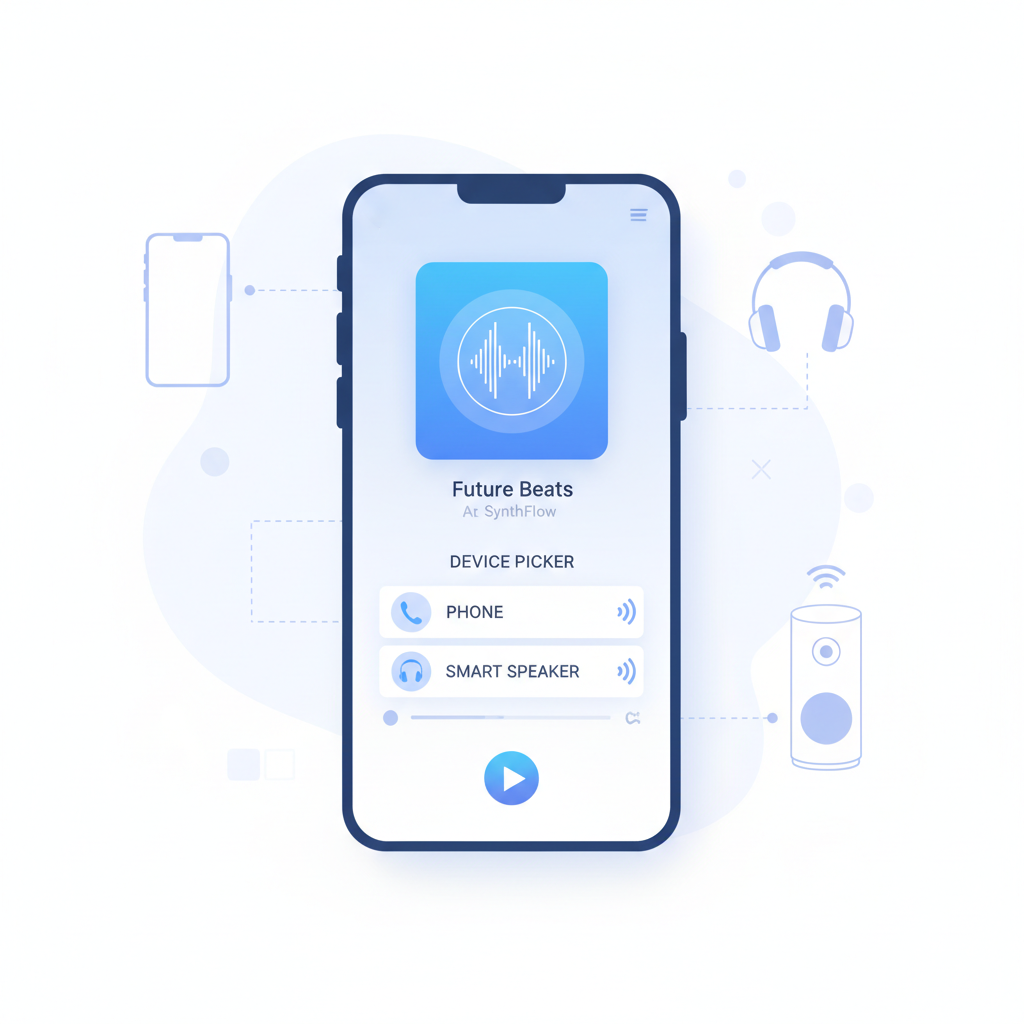
- Wrong playback device: Spotify Connect may be sending audio to a smart speaker, TV, or another room.
- Corrupted cache or downloads: A cache file can go bad after app updates, storage pressure, or partial downloads.
- Outdated app or OS permissions: Background data restrictions, battery optimization, or missing local network permission can block playback.
- Account/session conflicts: Another device takes over the session, or you hit a temporary account sync glitch.
- Audio output issues: Bluetooth codec hiccups, muted volume mixer, or the phone routing audio to “nowhere.”
Fast checklist: 10 things to try before deeper fixes
These are the “90 seconds each” checks that solve a lot of cases.
- Force close Spotify and reopen it.
- Switch networks: Wi‑Fi to cellular (or vice versa), even briefly, to test the path.
- Turn Airplane Mode on/off to reset radios.
- Check the device picker in Spotify and choose “This phone” (or your intended device).
- Disable VPN/proxy temporarily if you use one.
- Test one known-good playlist, not just one album or one podcast episode.
- Disconnect Bluetooth and play through the phone speaker to rule out headphones.
- Raise volume in two places: device volume and in-app volume if applicable.
- Restart your device (it clears more audio routing issues than people expect).
- Check Spotify status for outages.
According to Spotify Support, many playback problems are resolved by restarting the app/device and clearing cache or reinstalling when files become stuck or corrupted.
Step-by-step fixes by scenario
If the quick checklist didn’t work, match your situation below and apply the corresponding steps. This is where most “random” troubleshooting becomes predictable.
Scenario A: Songs won’t start or keep buffering
- Reset your connection: reboot your router if the problem appears on multiple devices, otherwise forget/rejoin Wi‑Fi on the affected device.
- Disable Data Saver in Spotify (if enabled) and test again.
- Try a different DNS on your router/device if your network frequently has streaming issues. This varies by ISP, so treat it as a “maybe.”
- Log out/in to refresh the session token, especially if you switch devices often.
If you’re on a managed network (school/work), it’s also possible streaming endpoints are filtered, in that case cellular data can confirm the diagnosis quickly.
Scenario B: Tracks skip instantly
- Turn off crossfade temporarily and retest, audio processing features can trigger edge cases on some devices.
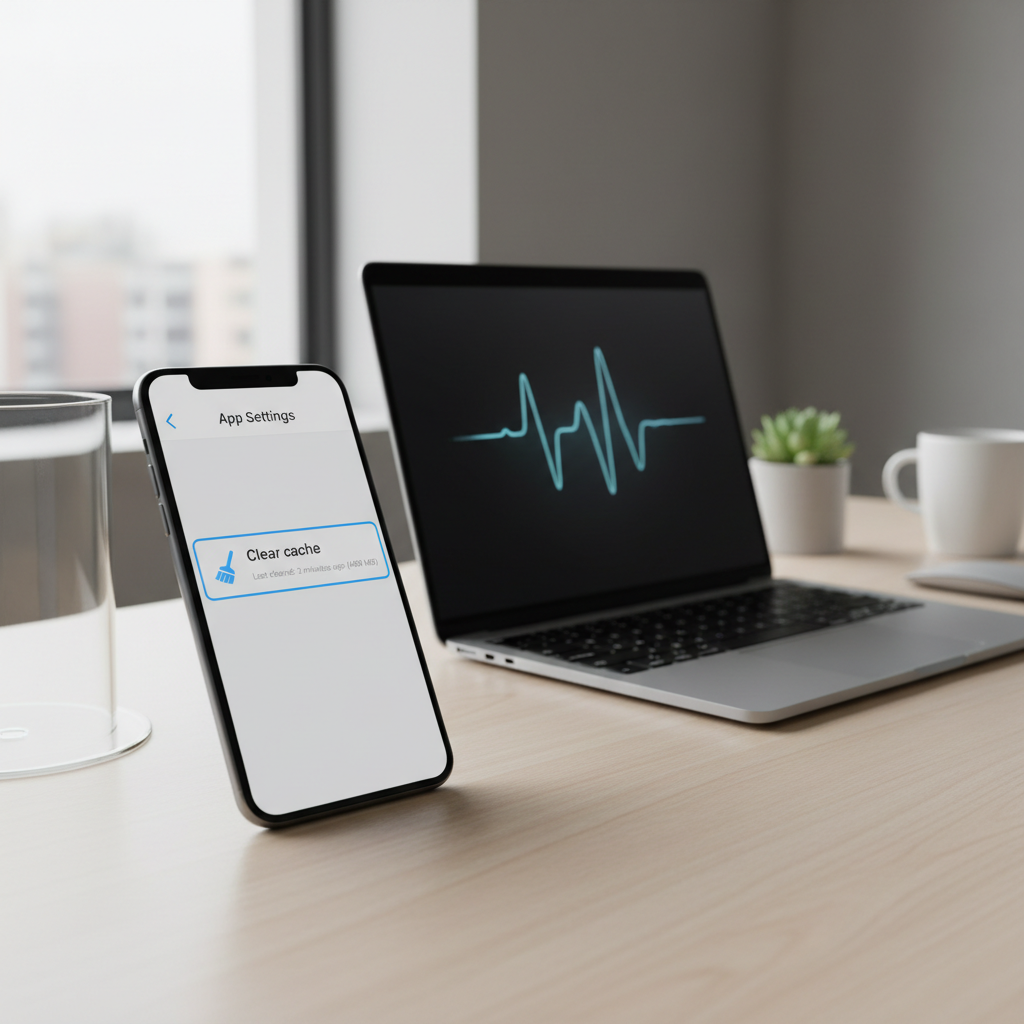
- Clear Spotify cache and reopen the app.
- Remove and re-download the specific playlist/album if this happens only on downloaded content.
- Check storage: very low free space can cause download and playback failures.
Skipping can also happen if the track is unavailable in your region or removed from Spotify, it’s easy to miss because it looks like a player error.
Scenario C: Timer moves but there’s no sound
- Confirm output device inside Spotify Connect, it might be routing to a speaker you used days ago.
- Disable Bluetooth and test on speaker, then re-pair headphones if needed.
- Check iPhone Silent Mode / Focus and Android Do Not Disturb interactions, usually music plays anyway, but some setups or automations can mute output.
- Inspect app volume mixers (Windows volume mixer, macOS output device, car infotainment volume).
Scenario D: Offline downloads won’t play
- Verify Premium status and that you’re logged into the correct account.
- Toggle Offline mode off/on.
- Re-download the affected playlist on stable Wi‑Fi.
- Set download location back to internal storage (some SD card setups are finicky).
Settings that quietly break playback (and how to check them)
These don’t look like “errors,” which is why they waste so much time.
| Setting / Feature | Where it shows up | What to try |
|---|---|---|
| Battery optimization / Low Power Mode | iOS/Android system settings | Allow Spotify to run in background; disable optimization for Spotify for a test |
| Background data restriction | Android app settings | Allow background data, then retest streaming on cellular |
| VPN / security DNS filters | Network settings or security apps | Pause VPN/filter to see if playback resumes |
| Spotify Connect “sticky” device | Spotify device picker | Select “This phone/computer” explicitly |
| Hardware acceleration (desktop) | Spotify desktop settings | Toggle off/on, then restart the desktop app |
Small but important: if playback fails only when your screen turns off, battery and background restrictions are the first suspects.
When cache clearing or reinstalling is the right move
People hesitate because reinstalling feels like “nuking it,” but for stubborn cases it’s the cleanest reset.
- Clear cache when: songs skip, app feels laggy, search loads slowly, or issues started right after an update.
- Reinstall when: cache clearing fails, downloads are stuck, login loops happen, or playback is broken across many playlists.
Before reinstalling, make sure your playlists are saved to your account (most are), and note any download settings you want to restore later. According to Apple Support and Google Help, removing and reinstalling apps is a standard way to clear corrupted app data when normal resets don’t work.
Key takeaways (so you don’t keep chasing the wrong fix)
- If it’s only one device, focus on output routing, permissions, and battery/background limits.
- If it’s every device on your Wi‑Fi, treat it like a network issue first.
- If only downloads fail, re-download on stable Wi‑Fi and check storage.
- If the timer moves with no sound, assume wrong output device until proven otherwise.
- If nothing changes after multiple tweaks, clear cache or reinstall to reset corrupted data.
Conclusion: get Spotify playing again with a simple order of operations
When you’re trying to figure out how to fix spotify not playing songs, the fastest path is usually: confirm the output device, verify the network, then reset the app state via cache clearing or reinstalling. It’s less about clever tricks, more about eliminating layers in the right order.
If you want an easy next step, run the quick checklist once, then pick the scenario that matches your exact symptom, you’ll usually land on the fix without spending your whole evening toggling random settings.
FAQ
- Why is Spotify showing the song playing but there’s no sound?
That pattern often points to audio routing, Spotify Connect sending sound to another device, Bluetooth confusion, or a muted mixer on desktop. Check the device picker and test through your phone speaker. - How do I fix Spotify not playing songs on iPhone?
Start with force closing the app, switching Wi‑Fi/cellular, and confirming the output device. If it fails when the screen locks, review Low Power Mode and background behavior, then clear cache or reinstall if needed. - How do I fix Spotify not playing songs on Android?
Look closely at battery optimization and background data restrictions, they’re common on Android. Then clear cache, verify storage space, and re-download offline content if downloads are involved. - Why does Spotify skip every song instantly?
Corrupted cache or downloads are common culprits, but it can also be unavailable tracks. Test a different playlist, clear cache, and re-download the affected content. - Does clearing cache delete my playlists?
Usually no, playlists live in your Spotify account. Clearing cache mainly removes temporary files, you may need to re-download offline music afterward. - Is it a Spotify outage or just me?
If multiple devices and networks show the same issue, it may be a service-side problem. If it’s only your device or your Wi‑Fi, it’s more likely local. Checking Spotify’s official status/support channels helps confirm. - Why won’t Spotify play on Wi‑Fi but works on cellular?
That often suggests a router, ISP, DNS, or network filtering issue. Restart the router, forget/rejoin Wi‑Fi, and test without VPN or security filters.
If you’re still stuck after these steps, especially if playback fails across devices and networks, it may be faster to contact Spotify Support with your device model, OS version, and a short description of what happens when you press play, they can spot account or regional availability issues that you can’t fix locally.