
how to fix mouse lag windows 11 usually comes down to one of three buckets: the mouse connection itself, Windows settings and drivers, or system load causing input delay.
If your cursor feels “floaty,” jumps in tiny bursts, or pauses for a split second, it’s not just annoying, it also makes basic work harder and can look like a bigger PC problem than it really is. The good news, most cases are diagnosable in under 20 minutes if you test in a clean order.
What tends to waste time is trying random “performance tweaks” before you confirm whether the lag is wired vs. wireless, app-specific vs. system-wide, or tied to a single USB port. This guide keeps it practical: a quick self-check, then targeted fixes, and only then the deeper stuff.
Quick diagnosis: what kind of mouse lag are you seeing?
Before changing settings, get clarity. Mouse lag can mean different things, and each points to different fixes.
- Stutter/jitter: cursor moves in tiny hops, often wireless interference, polling/USB issues, or sensor tracking problems.
- Delay: cursor follows your hand a fraction later, often system load, driver problems, or gaming overlays.
- Freezes: cursor stops for 1–3 seconds, often USB power saving, Bluetooth dropouts, or a busy background process.
- Only in one app/game: likely graphics settings, V-Sync/frame pacing, or app-specific input hooks.
Fast test: try the mouse on another PC, or try a different mouse on your Windows 11 PC. This single swap often tells you whether you should focus on Windows or hardware.
Common causes (real-world) and what they usually look like
Most “fix mouse lag” advice is a list, but in practice you want the likely culprits first.
- Wireless interference or weak signal: Bluetooth mice lag more when the PC is under the desk, near Wi‑Fi routers, or surrounded by USB 3.0 devices.
- USB port or hub issues: cheap hubs, front-panel ports, or loose ports can cause stutter that feels like software.
- Driver conflicts: vendor utilities, old HID drivers, or chipset/USB controller drivers can create intermittent input delay.
- Power management: Windows may put USB/Bluetooth devices to sleep, leading to periodic freezes.
- High CPU/GPU/DPC latency: heavy background tasks, buggy audio/network drivers, or overlays can delay input processing.
According to Microsoft, using the latest Windows updates and device drivers can address many hardware compatibility and performance issues, especially after feature updates.
Self-check checklist (10 minutes, no guessing)
Run through this in order and jot the results, it saves you from looping back.
- Wired vs. wireless: if wireless, test with a cable mouse (or plug in your wireless receiver) to compare.
- Different surface: try a mouse pad, avoid glossy glass, and clean the sensor window.
- Different USB port: move the receiver/mouse to a rear USB port directly on the motherboard.
- Remove the hub: bypass USB hubs/docks temporarily.
- Safe-ish environment: reboot, then test before opening heavy apps, game launchers, or 20 browser tabs.
- App-specific test: does it lag on the desktop too, or only in one game/Adobe app/remote desktop?
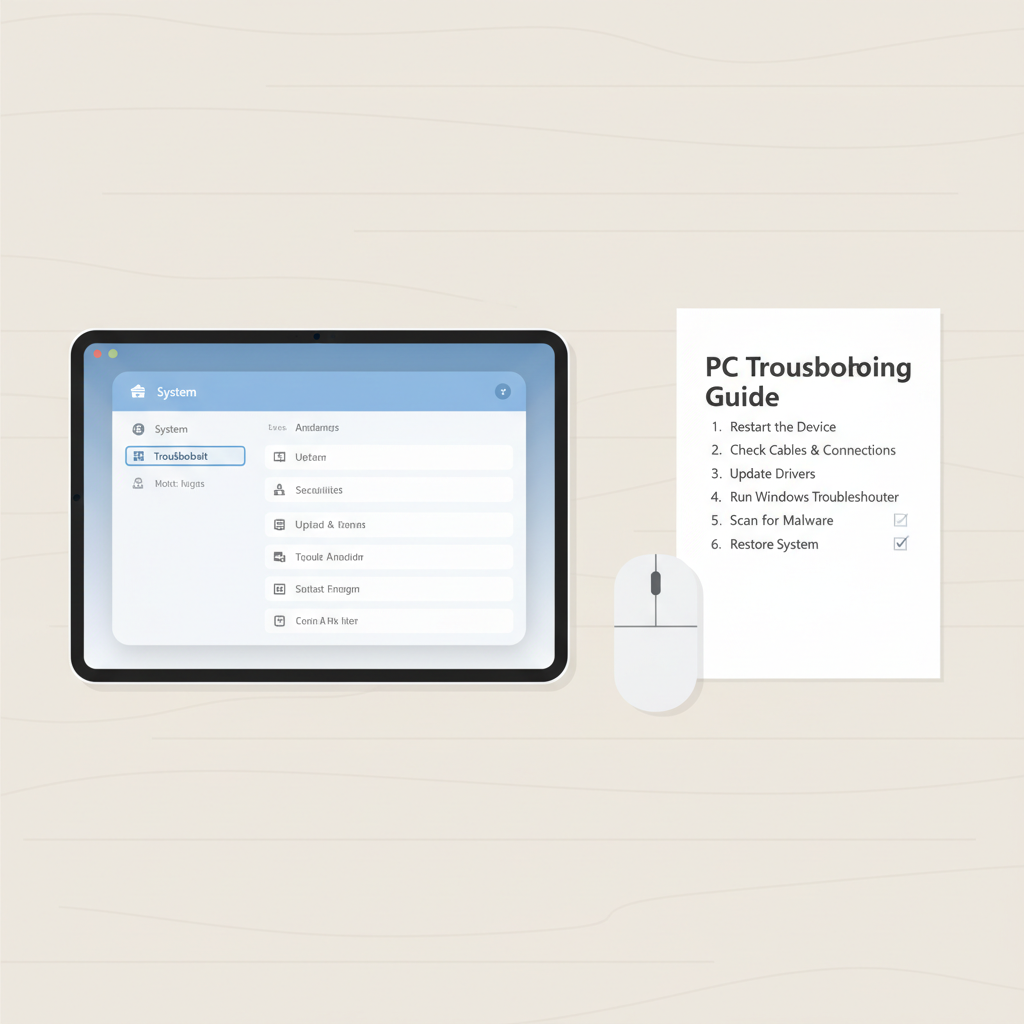
If you discover it’s only laggy in one app, skip ahead to the section on gaming and app-specific fixes. If it’s everywhere, keep going with system-level steps.
Fixes that work most often (Windows settings + quick hardware wins)
1) Disable USB selective suspend and aggressive power saving
Periodic freezes every few minutes often trace back to power management.
- Open Control Panel → Power Options → Change plan settings → Change advanced power settings.
- Expand USB settings → USB selective suspend setting → set to Disabled (at least for testing).
Also check: Device Manager → Universal Serial Bus controllers → for each USB Root Hub, open Properties → Power Management and uncheck “Allow the computer to turn off this device to save power” if available.
2) Turn off Enhance pointer precision (for inconsistent feel)
This is Windows mouse acceleration. Some people like it, but if you feel weird micro-slips or inconsistent movement, it’s worth testing off.
- Settings → Bluetooth & devices → Mouse → Additional mouse settings.
- Pointer Options → uncheck Enhance pointer precision.
3) Update Bluetooth, chipset, and mouse drivers (in the right order)
For how to fix mouse lag windows 11, driver updates can matter, but “update everything” can also introduce new bugs. Keep it controlled.
- Run Windows Update and install pending updates, including optional driver updates if they match your hardware.
- Update chipset/USB controller drivers from your PC or motherboard manufacturer (often more relevant than the mouse driver).
- If Bluetooth mouse, update Bluetooth adapter driver from the PC maker (Intel/Realtek/Qualcomm variants behave differently).
According to Intel, installing the correct wireless Bluetooth driver for your adapter can resolve connectivity and performance problems on Windows systems.
4) Re-pair Bluetooth devices and reduce interference
If you’re on Bluetooth and see random stutters, treat it like a radio problem.
- Settings → Bluetooth & devices → remove the mouse, then pair again.
- Move the PC/receiver closer, ideally line-of-sight, especially for desktops under metal desks.
- Prefer a 2.4GHz USB dongle (if your mouse supports it) for steadier performance than Bluetooth in many setups.
- Keep the receiver away from USB 3.0 devices and cables if possible, they can add interference.
Table: symptoms → likely cause → what to try first
Use this to avoid over-tweaking and focus on the highest-probability fix.
| What you feel | Likely cause | Best first move |
|---|---|---|
| Lag spikes every few minutes | USB/Bluetooth power saving | Disable USB selective suspend, check hub power settings |
| Small stutters, worse farther away | Wireless interference | Rear USB port, reposition receiver, re-pair Bluetooth |
| Only in one game | Frame pacing/V-Sync/overlay | Cap FPS, toggle V-Sync, disable overlays for testing |
| Only on one USB port/hub | Port/hub instability | Bypass hub, switch to motherboard rear port |
| Whole system feels “heavy” | CPU/RAM pressure or driver latency | Task Manager check, clean boot test |
Gaming and high-refresh displays: fixes that people miss
If the desktop feels fine but games feel delayed, you’re often fighting frame timing, not the mouse sensor.
- Match refresh rate: Settings → System → Display → Advanced display, confirm you’re actually on 120/144/165Hz if your monitor supports it.
- Test V-Sync and frame caps: toggling V-Sync or using a sane FPS cap can reduce input jitter on some systems, even if it sounds counterintuitive.
- Disable overlays temporarily: Xbox Game Bar, Discord overlay, GeForce Experience overlay, and recording tools can add latency in some setups.
- Mouse polling rate: if your mouse software lets you choose 125/500/1000Hz, test 500Hz if you suspect CPU load or USB instability.
According to NVIDIA, display settings like V-Sync and frame rate limits can affect perceived input latency, so it’s normal that “smooth” and “responsive” sometimes trade off.
When it’s system load or driver latency (the “nothing helps” cases)
If you’ve tried ports, power settings, and driver updates, yet the cursor still pauses under load, look for a background cause.
Check Task Manager for spikes
- Press Ctrl + Shift + Esc, sort by CPU and Memory.
- If lag happens during spikes from a specific app, close it and retest, then update or reinstall that app.
Try a clean boot (to isolate third-party services)
This is a diagnostic step, not a permanent lifestyle.
- Open System Configuration (msconfig) → Services → check Hide all Microsoft services → Disable all.
- Startup tab → open Task Manager → disable non-essential startup items.
- Reboot and test mouse behavior, then re-enable items in small batches to find the trigger.
According to Microsoft, clean boot troubleshooting helps identify conflicts caused by non-Microsoft services and startup programs.
Key takeaways and a practical action plan
If you want a simple path, follow this order and you’ll usually land the fix without endless tweaking:
- Confirm scope: lag everywhere vs. only one app, wired vs. wireless.
- Eliminate easy hardware issues: surface, sensor cleaning, rear USB port, no hub.
- Fix power saving: USB selective suspend and device power management toggles.
- Update the right drivers: chipset/USB and Bluetooth before mouse utilities.
- For gaming: refresh rate, overlays, V-Sync/FPS cap, polling rate tests.
If you’re still stuck, it may be time to test with a known-good wired mouse for a full day and, if the issue persists, consider getting help from a qualified technician, especially if you suspect a failing USB controller, motherboard issue, or unstable power delivery.
Next step: do the 10-minute checklist, then apply only the fixes that match what you observed, you’ll get to a stable cursor faster and with fewer side effects.