
If you’re searching how to fix discord not opening windows, the fastest path is usually to confirm Discord isn’t stuck in the background, then clear corrupted cache and rule out Windows permission or network blockers.
This problem matters because Discord can “fail silently” on Windows, no error box, no splash screen, just nothing, which makes people waste time reinstalling when the real culprit is a background process, a bad update, or a broken local cache.
Below I’ll walk through checks that usually work in real-world support situations: quick kill-and-relaunch fixes, cache cleanup, update repair, Windows settings that block startup, and the few cases where you actually need a reinstall.
Quick checks that solve a lot of “nothing happens” launches
Before you change settings, do the two-minute stuff. It’s boring, but it fixes a surprising number of cases where Discord is “open,” just not visible.
- Wait 30–60 seconds after clicking Discord, some Windows installs load Electron apps slowly after updates.
- Check the system tray, Discord may be minimized, right-click the icon and choose Open.
- Restart Windows, especially if you recently installed updates or drivers.
- Try launching as Administrator, right-click Discord → Run as administrator.
If you still can’t get a window, move on to the background process check, that’s where many people get unstuck.
Force-close Discord and relaunch (the “stuck background process” fix)
A common reason Discord won’t open is that the process is running but the window never renders, you click the shortcut again and nothing changes.
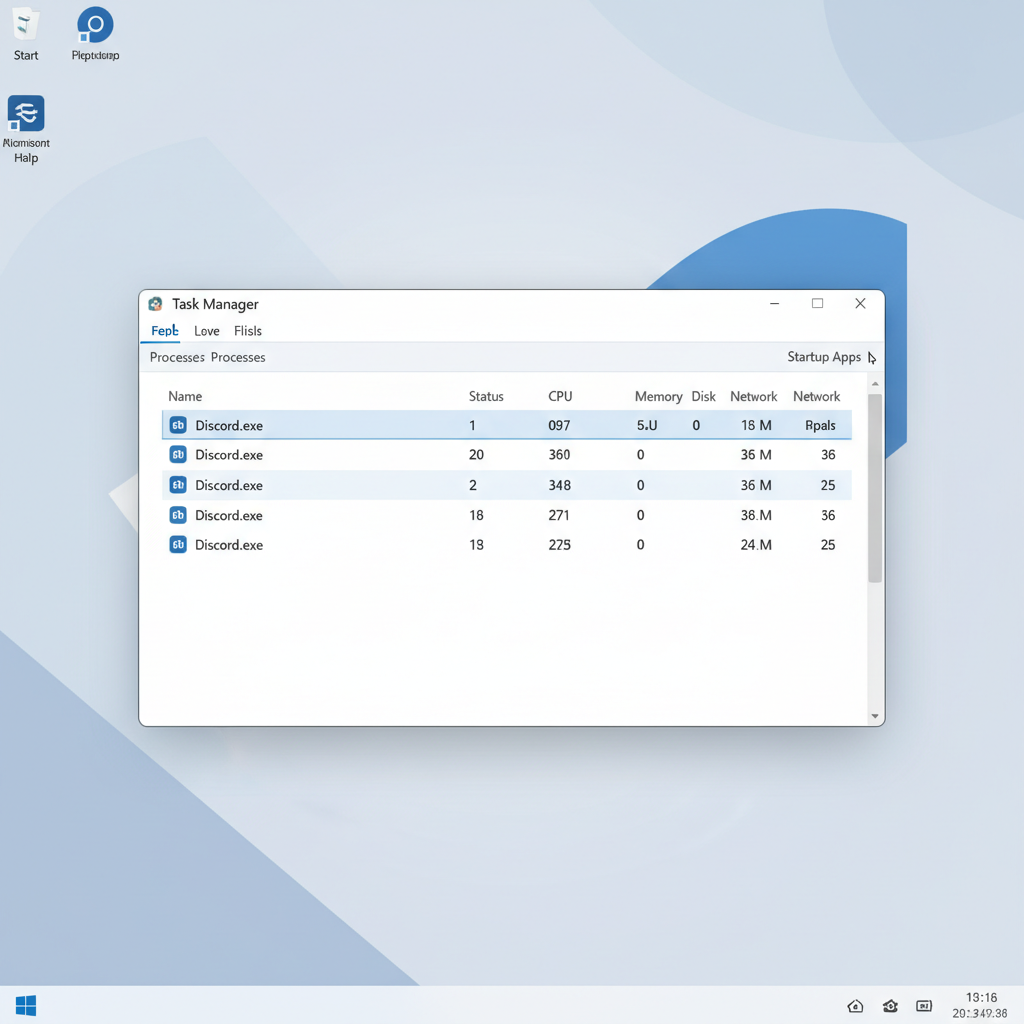
Task Manager method
- Press Ctrl + Shift + Esc to open Task Manager
- Find Discord (and related items like Discord Updater if shown)
- Select it → End task
- Open Discord again from Start Menu (not a pinned shortcut, if possible)
Command line method (when Task Manager won’t cooperate)
Open Command Prompt as admin, then run:
- taskkill /F /IM Discord.exe
If this fixes the issue once but the problem returns, cache corruption or a bad auto-start setting is often the next thing to address.
Clear Discord cache (most common “keeps failing” cause)
When people ask how to fix discord not opening windows, cache cleanup is usually the best “high success, low risk” step. Discord stores local data in AppData, and if those files get corrupted, the app can hang at launch.
Important: quit Discord fully before deleting anything, otherwise files may reappear or fail to delete.
Steps
- Force-close Discord (use the Task Manager step above)
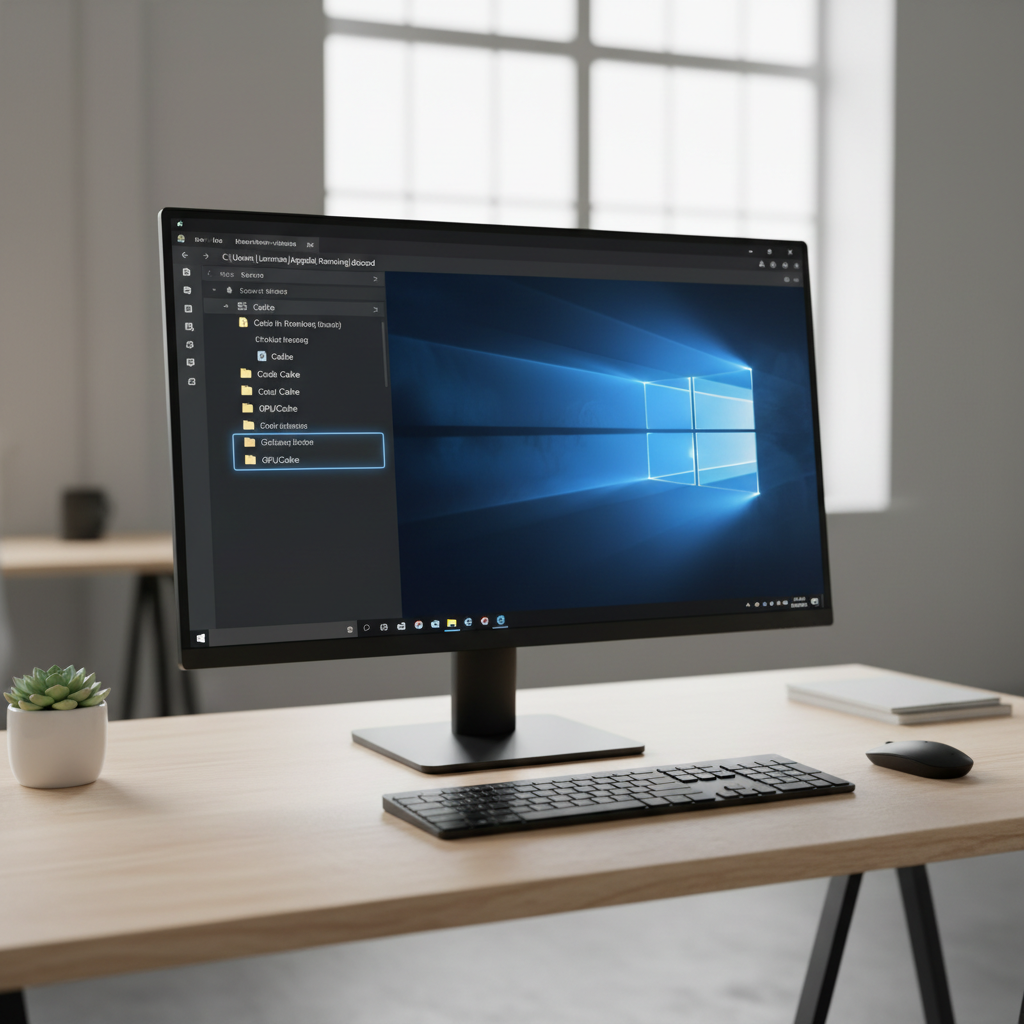
- Press Win + R, paste %appdata%, press Enter
- Open the Discord folder
- Delete these folders if present: Cache, Code Cache, GPUCache
- Go back, then press Win + R again, paste %localappdata%
- Delete Discord (or at least the same cache folders inside it, if you prefer a lighter touch)
- Launch Discord and let it rebuild local files
In many cases this resolves the “spins then disappears” behavior immediately. If it does not, the next suspect is an update loop or installer damage.
Repair update loops and installer issues
Discord on Windows uses an updater, and sometimes it gets stuck downloading or applying an update. You might see a brief “Checking for updates” screen, or nothing at all.
Try launching the updater directly
- Press Win + R
- Paste: %localappdata%\Discord\Update.exe
- Press Enter, then try Discord again
Confirm Windows time and TLS basics
Update checks can fail when Windows date/time is wrong, or when network security policies block connections. Make sure automatic time sync is enabled in Windows Settings, and test your connection on another app.
According to Microsoft support guidance, incorrect system time can cause secure connections and app sign-in to fail, which can indirectly break update and login flows.
If you’re in a managed environment (work/school PC), network policy may block Discord domains, and local fixes won’t fully solve it.
Check Windows settings that block Discord from opening
Sometimes Discord is fine, but Windows settings prevent it from showing up properly, especially after permissions or graphics changes.
Compatibility mode and fullscreen optimizations
- Right-click Discord shortcut → Open file location
- Right-click Discord.exe → Properties → Compatibility
- Turn off Compatibility mode unless you intentionally use it
- Optionally check Disable fullscreen optimizations (helps certain GPU setups)
Graphics driver and hardware acceleration conflicts
Hardware acceleration can crash or black-screen on some driver combinations. If Discord opens only sometimes, or opens to a blank/white screen, this is worth testing.
- If you can open Discord: User Settings → Advanced → toggle Hardware Acceleration
- If you cannot open Discord at all: clearing cache often resets enough to relaunch, then you can toggle it
According to Microsoft, keeping graphics drivers updated can resolve app rendering issues and crashes, though the exact fix depends on the GPU vendor.
Network and security software: the “it opens on another Wi‑Fi” clue
If Discord won’t open on your home network but works on mobile hotspot, you’re likely dealing with DNS, firewall rules, or security software filtering.
Practical checks
- Disable VPN/proxy temporarily and retest
- Switch DNS (for example to a well-known public DNS) and reboot, if your ISP DNS is flaky
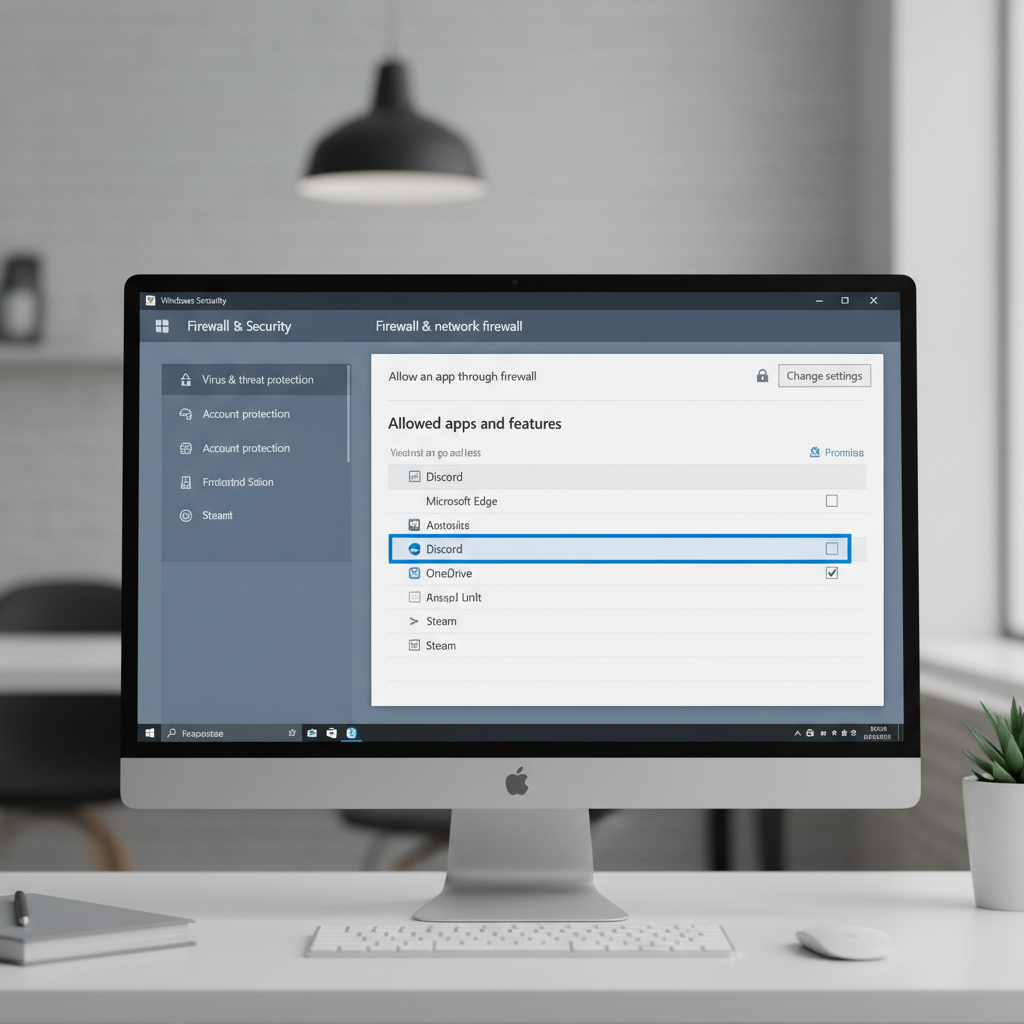
- Windows Security → Firewall & network protection → Allow an app through firewall, verify Discord is allowed on your current network type
- Third-party antivirus: look for web filtering, SSL inspection, or “app control” features that may block Discord
According to CISA general security recommendations, keeping security tools enabled is important, so if disabling protections “fixes” Discord, the better move is to add a targeted allow rule rather than leaving protections off.
Decision table: what to try based on symptoms
If you want a quick way to decide, use this table and start with the highest-probability fix for your symptom.
| What you see | Most likely cause | What to try first |
|---|---|---|
| No window, no error | Stuck background process | End task in Task Manager, relaunch |
| Spins then disappears | Corrupted cache or updater loop | Clear Cache/Code Cache/GPUCache |
| White/blank screen | Rendering or GPU acceleration conflict | Clear cache, then disable hardware acceleration |
| Works on hotspot, not on Wi‑Fi | Firewall/DNS/VPN/security filtering | Disable VPN, check firewall allow rules |
| Only fails after Windows update | Permissions/driver/compatibility mismatch | Update GPU driver, check Compatibility settings |
When a clean reinstall is worth it (and how to do it without leaving junk)
Reinstalling works when the updater or installation folder is damaged, but it’s most effective after removing leftover AppData folders. Otherwise you can reinstall the same broken state.
Clean reinstall steps
- Settings → Apps → Installed apps → Discord → Uninstall
- Delete Discord folders in %appdata% and %localappdata% (as described earlier)
- Restart PC
- Download Discord again from the official site, install, then sign in
If your organization manages software installs, you may need IT to approve the installer or unblock domains, otherwise you’ll keep hitting the same wall.
Key takeaways (so you don’t keep looping)
- Kill the background process before you assume Discord is broken.
- Cache cleanup fixes a lot of Windows launch failures with minimal risk.
- If Discord works on other networks, focus on firewall, DNS, VPN, security filters, not reinstalling.
- Do a clean reinstall only after removing leftover AppData folders.
Conclusion
Most “Discord not opening” cases on Windows come down to a stuck process, a corrupted cache, or something on the network/security side blocking startup. Try the fast force-close step, then clear cache, and only then move toward update repair or a clean reinstall.
If you want one action to take right now, open Task Manager and end Discord, then clear the Cache and GPUCache folders, that combination covers a huge chunk of real failures without much risk.