
how to fix wifi keeps disconnecting on laptop usually comes down to three buckets: weak signal, flaky drivers/settings on the laptop, or a router/modem issue that only shows up under load.
If you fix the wrong bucket, you waste an hour and the Wi‑Fi still drops the moment you join a Zoom call or start a download, so this guide focuses on quick checks that separate “laptop problem” from “network problem” before you change a bunch of settings.
One more thing, “disconnecting” can mean different behaviors: Wi‑Fi icon stays connected but internet stops, the network disappears, or it reconnects every few minutes. Those clues matter, and I’ll point out what each symptom usually suggests.
Start with a fast diagnosis: laptop vs. router vs. ISP
Before you “fix” anything, spend 3 minutes confirming where the failure likely lives. This avoids the classic loop of reinstalling drivers when the router is the real culprit.
- Only your laptop disconnects, phone/TV stay fine: usually Wi‑Fi adapter driver, power settings, or a laptop-specific interference issue.
- All devices drop together: router/modem instability or ISP line problem is more likely.
- Wi‑Fi stays connected but internet dies: DNS issues, router WAN problems, captive portal, or ISP hiccups.
- It happens only in one room: signal strength, channel congestion, or building materials blocking the signal.
Quick test: move the laptop within 6–10 feet of the router for 5–10 minutes. If the disconnects vanish, you’re probably fighting signal quality, not software.
Common causes (and what they look like in real life)
Most “random” disconnects are repeatable once you know the trigger. Here are patterns that show up a lot in U.S. homes and offices.
- Power saving is putting the Wi‑Fi adapter to sleep: often happens on battery, or right after waking from sleep.
- Old or buggy Wi‑Fi drivers: frequent reconnects after Windows updates, or instability only on 5 GHz.
- Band steering / roaming quirks (2.4 GHz vs 5 GHz): your laptop hops bands and drops sessions, especially with mesh systems.
- Channel congestion: apartment buildings, dense neighborhoods; speed is “fine” but stability is not.
- Router firmware or overheating: drops start after heavy use, streaming, gaming, or long uptime.
- VPN/security software filtering: internet dies while Wi‑Fi stays “connected.”
According to FCC consumer guidance on home broadband, Wi‑Fi performance and reliability can be strongly affected by distance, obstacles, and interference from nearby networks and devices, so physical placement and channels matter more than people expect.
Self-check list: pinpoint your situation in 5 minutes
Use this checklist to decide which fixes to try first. You don’t need to do all of them.
- Does it disconnect only on battery?
- Does it happen only on one network (home Wi‑Fi, but not hotspot)?
- Does it happen only on 5 GHz (or only on 2.4 GHz)?
- Does the Wi‑Fi network name disappear or just “No internet”?
- Do drops correlate with sleep/wake or closing the lid?
- Do other devices drop at the same time?
Fixes on the laptop (Windows 11/10): highest impact first
These steps address the most common laptop-side reasons people search how to fix wifi keeps disconnecting on laptop, especially when other devices look stable.
1) Disable Wi‑Fi adapter power saving
This is boring, but it solves a surprising amount of “disconnects when idle” and “disconnects on battery” behavior.
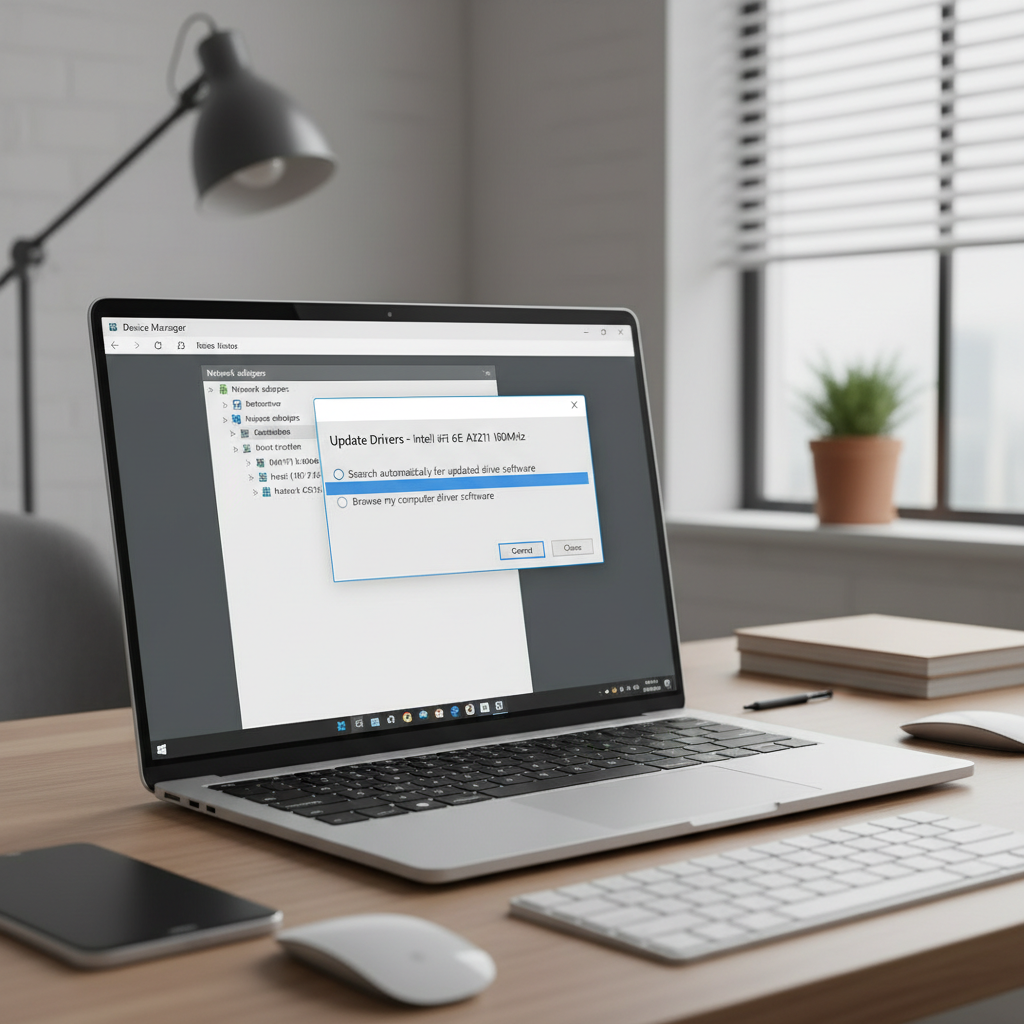
- Device Manager → Network adapters → your Wi‑Fi adapter → Properties
- Power Management tab → uncheck Allow the computer to turn off this device to save power
Also check: Control Panel → Power Options → Change plan settings → Advanced → Wireless Adapter Settings → set to Maximum Performance (if available).
2) Update (or roll back) the Wi‑Fi driver
Driver problems cut both ways: sometimes you need the latest version, sometimes the newest one introduces instability on certain chipsets.
- Update via your laptop maker support page (Dell/HP/Lenovo/ASUS), not just generic sources.
- If problems started right after an update, try Driver → Roll Back Driver (if the button is available).
Practical tip: note your adapter model (Intel AX200/AX210, Realtek, Qualcomm) so you can match the right driver.
3) Reset the network stack (Winsock/IP) the clean way
If you get “connected, no internet,” or it breaks after switching networks, a reset can help without guessing which setting is wrong.
- Windows Settings → Network & Internet → Advanced network settings → Network reset
- Reboot after the reset, then re-join your Wi‑Fi
This does remove saved networks and VPN adapters in many cases, so plan for re-entering passwords.
4) Try forcing a single band (2.4 GHz or 5 GHz)
If your router uses one SSID for both bands, band steering can be a trouble spot. An easy test is to split SSIDs (e.g., HomeWifi-2G and HomeWifi-5G) or temporarily force the laptop to prefer one band.
- If you’re far from the router: 2.4 GHz tends to be more stable.
- If you’re close and congested: 5 GHz often performs better, though range is shorter.
On some adapters you can set “Preferred Band” in Device Manager → adapter → Advanced, but availability varies by chipset.
Router and Wi‑Fi environment fixes (when multiple devices drop)
When you’ve confirmed it’s not just one laptop, your best return is usually router hygiene: placement, firmware, and channel behavior.
1) Reboot, then update firmware
- Power cycle modem and router (unplug 30–60 seconds).
- Log into the router admin page/app and check for firmware updates.
If disconnects happen after days of uptime, a reboot “fix” often points to memory leaks or overheating, which firmware updates sometimes improve.
2) Improve placement and reduce interference
- Put the router higher and more central, not inside cabinets.
- Keep it away from microwaves, cordless phone bases, and thick walls.
- If you use mesh, ensure nodes have decent backhaul signal; weak node links can feel like random drops.
According to NIST guidance on securing home networks, placing and maintaining your router appropriately, along with updating firmware, is part of keeping a more reliable and safer network.
3) Change channels (especially on 2.4 GHz)
In crowded areas, “Auto” channel selection is not always kind. If you’re on 2.4 GHz, channels 1, 6, or 11 are common stable choices in the U.S. Many routers let you change this in Wi‑Fi settings.
If you’re not sure, change one setting at a time, then test for 15–30 minutes under the conditions that usually trigger drops.

Troubleshooting table: symptom → likely cause → what to try
If you want the “tell me what to do” version, this is it. Use the symptom column to choose a short path.
| What you see | Likely cause | Try this first |
|---|---|---|
| Drops mostly on battery | Adapter power saving | Disable device power management, set wireless to max performance |
| Wi‑Fi connected, no internet | DNS/VPN/router WAN hiccup | Disable VPN temporarily, network reset, reboot router/modem |
| Network disappears briefly | Driver instability or weak signal | Update/roll back driver, test close to router, try 2.4 GHz |
| All devices drop together | Router firmware/overheating/ISP | Firmware update, improve ventilation, check modem logs/status |
| Drops during gaming/streaming | Congestion or router under load | Switch to 5 GHz, change channels, QoS settings if available |
Common mistakes that waste time
- Changing five settings at once, then not knowing what helped. Keep a simple test loop: change one thing, test, repeat.
- Assuming “full bars” means stable. Signal strength and interference are different problems.
- Trusting only Windows Update for drivers. Vendor drivers can be more stable for certain laptop models.
- Ignoring the router location. A router behind a TV or inside a cabinet can create “random” dropouts that are actually predictable.
- Overusing Wi‑Fi extenders without backhaul planning. Cheap repeaters can cut throughput and add instability.
When it’s time to escalate (or replace hardware)
If you’ve worked through the laptop-side fixes and basic router steps but the drops continue, the issue may be outside normal DIY territory.
- If multiple devices drop even after firmware updates and channel changes, ask your ISP to check the line and modem provisioning.
- If your laptop drops on every network including a phone hotspot, the Wi‑Fi card may be failing; a repair shop can confirm, or you can test with a known-good USB Wi‑Fi adapter.
- If you need reliable connectivity for work calls, a USB-to-Ethernet adapter plus a cable run is often the fastest “make it stable now” workaround.
For complex home setups, especially mesh plus smart devices plus VPN, a local network technician can help map interference and tune settings without guesswork.
Key takeaways (quick recap)
- Identify the bucket first: laptop-only vs whole network vs ISP.
- On Windows laptops, power management and drivers cause a lot of recurring disconnects.
- On the network side, firmware, placement, and channels are usually the highest-impact moves.
- If you’re still stuck, test with a hotspot or USB Wi‑Fi adapter to confirm whether hardware is involved.
If you want one action today, disable Wi‑Fi adapter power saving, then test close to the router for 10 minutes, it quickly tells you whether you’re chasing software or signal.
FAQ
- Why does my laptop keep disconnecting from Wi‑Fi but my phone doesn’t?
That pattern often points to laptop-specific settings like adapter power saving, a driver issue, or the laptop choosing a less stable band. Start with power management and the driver, then test 2.4 GHz vs 5 GHz. - How do I fix wifi keeps disconnecting on laptop after sleep?
Sleep/wake problems are commonly tied to power settings and driver behavior. Turn off the adapter’s “allow computer to turn off this device” option, and update the Wi‑Fi driver from the laptop manufacturer. - Is it better to use 2.4 GHz or 5 GHz to stop disconnects?
It depends on distance and congestion. 2.4 GHz usually holds up better through walls, while 5 GHz can be steadier in crowded areas when you’re closer to the router. Testing each for 15–30 minutes is the practical way to decide. - Can a VPN cause Wi‑Fi to drop?
A VPN usually doesn’t drop the Wi‑Fi radio itself, but it can make it look like the internet disconnects. If Wi‑Fi stays connected but browsing fails, pause the VPN and retest. - Should I reset my network settings on Windows?
If you see “connected, no internet,” or problems after switching networks, a network reset can clear corrupted configurations. Just expect to re-enter Wi‑Fi passwords and reconnect VPN tools afterward. - How do I know if my router is the problem?
If multiple devices drop together, or stability improves right after a reboot but degrades over time, the router/modem path is more suspect. Firmware updates, ventilation, and channel adjustments are good next steps. - When should I replace my Wi‑Fi adapter or laptop card?
If the laptop disconnects on every network including a hotspot, and drivers/power settings don’t help, hardware failure becomes more plausible. Testing with a USB Wi‑Fi adapter is a low-effort way to confirm.
If you’re troubleshooting how to fix wifi keeps disconnecting on laptop for work or school and you want a more “set it and forget it” result, consider documenting your symptoms, running the quick bucket test, and then deciding whether a router upgrade, mesh tuning, or a wired fallback makes the most sense for your space.