
how to fix touch screen not working on tablet usually comes down to one of three things: the screen is blocked by something simple, the software is stuck, or the digitizer hardware is failing, and you can narrow it down faster than most people think.
If your tablet won’t register taps, swipes, or only responds in certain areas, don’t jump straight to “it’s broken.” A surprising number of touch issues come from cases, screen protectors, moisture, or a single app that has locked up the interface.
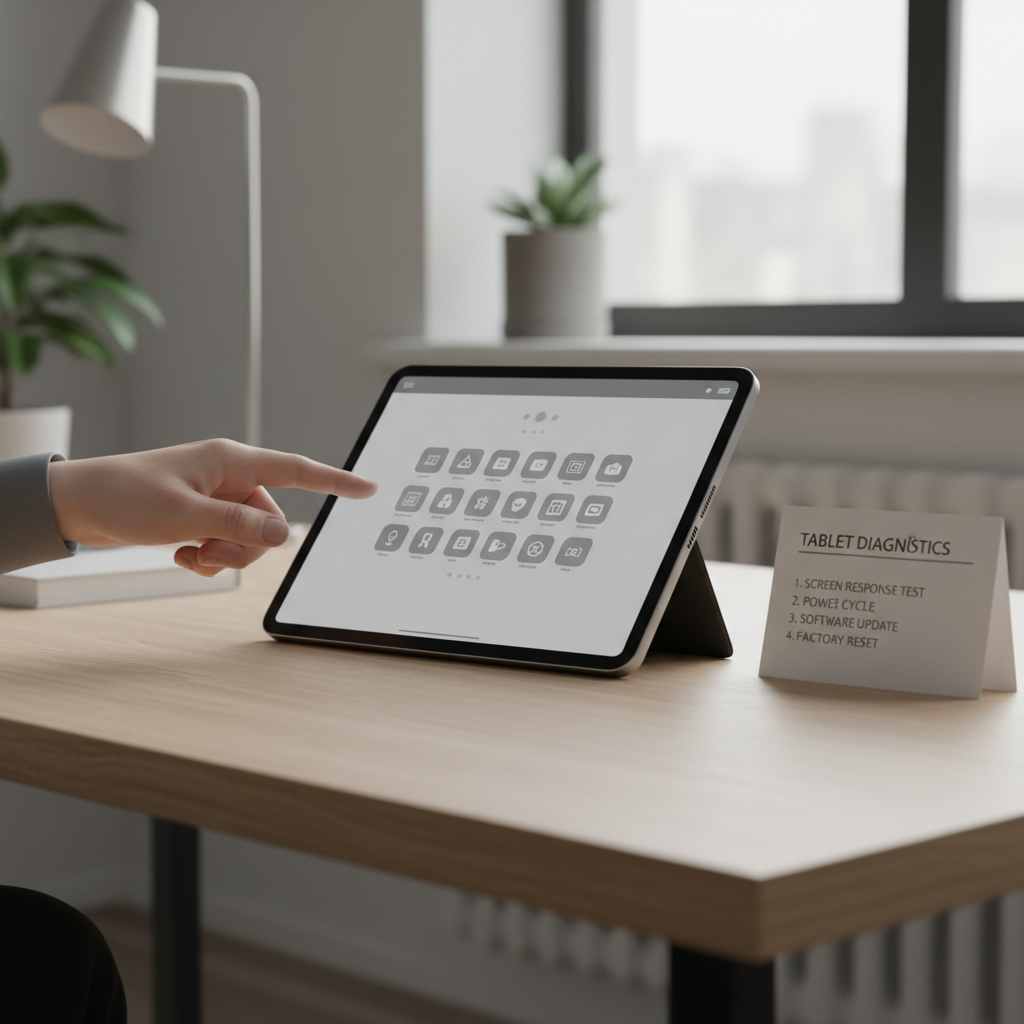
This guide walks through quick checks, safer resets, and the moments when it’s smarter to stop and get repair help, especially if you see swelling, cracks, or liquid damage. I’ll also include a small table so you can match symptoms to likely causes.
Quick triage: confirm what “not working” really means
Before you start changing settings, spend one minute defining the failure. It prevents wasted steps, and it helps you decide whether you’re dealing with software or hardware.
- No touch response anywhere: often a freeze, accessory interference, or a deeper hardware issue.
- Touch works sometimes: frequently an app problem, low memory, overheating, or a worn screen protector.
- Only part of the screen responds: common with cracks, pressure damage, or digitizer failure.
- Ghost touches (random taps): can be moisture, charging/cable noise, or a damaged digitizer.
Key point: if you can use a mouse/keyboard with your tablet, you can still back up data and run updates even when touch is unusable.
Rule out the simple physical causes (the fixes people skip)
When people search how to fix touch screen not working on tablet, they often start with resets. In real life, basic physical factors cause plenty of “dead screen” moments.
1) Remove anything that sits on top of the screen
- Take off the case if it slightly overlaps the display edge.
- Remove the screen protector, especially if it’s cracked, lifting, or thick.
- Wipe the screen with a microfiber cloth, no harsh cleaners.
2) Check for moisture, lotion, and temperature issues
- Dry hands and screen, then test again.
- If the tablet feels hot, let it cool for 10–20 minutes.
- If you suspect liquid exposure, power off and let it dry, many cases should be evaluated by a repair shop to avoid corrosion.
3) Try a different charger and outlet
Cheap chargers, damaged cables, or noisy power can sometimes trigger ghost touches or poor touch response.
- Use the original charger if available, or a reputable replacement.
- Test while unplugged vs plugged in, note any difference.
Restart and forced reboot: the fastest safe software reset
If the tablet is responsive in other ways (sound, notifications, screen changes) but touch won’t work, a restart is still the first software move. It clears stuck processes without deleting data.
Try a normal restart from the power menu if you can access it, otherwise use a forced reboot method for your model. Many Android tablets use a Power + Volume Down hold, while some use Power + Volume Up. iPads have model-specific combinations.
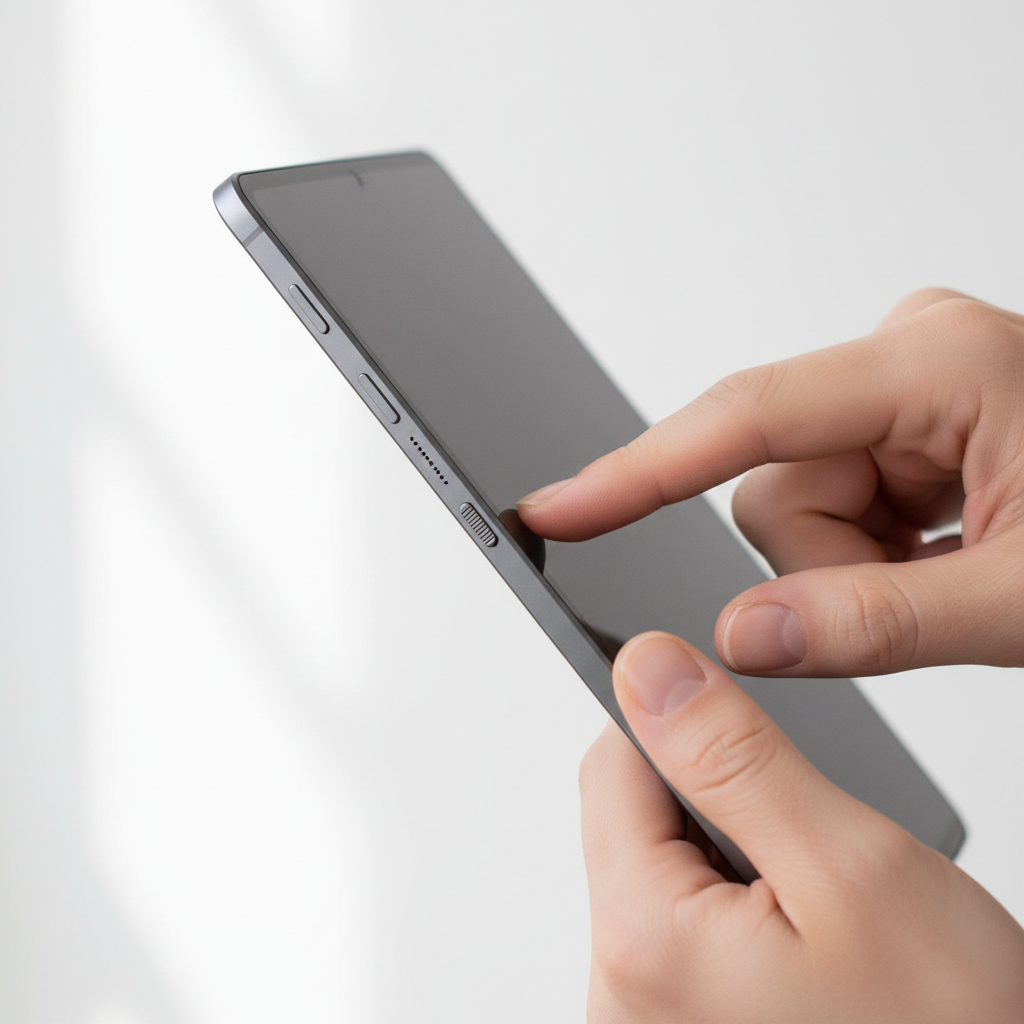
According to Apple Support, restarting or force restarting is a common first step when an iPad becomes unresponsive, including touch input issues.
According to Android Help (Google), restarting and checking for system updates are standard troubleshooting steps when device functions stop responding.
Use this symptom-to-cause table to aim your next step
This is the practical shortcut: match what you see to what you do next.
| What you notice | Likely cause | What to try next |
|---|---|---|
| Screen looks normal, but touch is dead everywhere | System freeze, accessory interference, digitizer failure | Remove case/protector, forced reboot, test with USB mouse |
| Touch works on home screen but not in one app | App crash, corrupted cache, compatibility issue | Force close app, update app, clear cache, reinstall |
| Only top/bottom/edge won’t respond | Physical damage, lifted screen, digitizer line failure | Remove protector, check for swelling, consider repair |
| Random taps/typing by itself | Moisture, charger noise, damaged digitizer | Clean/dry, test unplugged, switch charger, run diagnostics |
| Touch delay after updates | Buggy firmware, overloaded storage/RAM | Install patch, free storage, restart, safe mode test |
Fix app and system issues (without wiping your tablet)
If you’re still asking how to fix touch screen not working on tablet after a reboot, the next most common culprit is software conflict, especially after updates, new launchers, accessibility tools, or heavy apps.
1) Update the OS and the problem apps
- Install pending system updates, then restart.
- Update the specific app where touch fails, or uninstall and reinstall it.
According to Microsoft Support, keeping devices updated is a core troubleshooting step for input and performance issues on Windows-based tablets.
2) Free up storage and reduce background load
- Leave some free storage, low storage can slow system services that handle touch input.
- Close heavy apps, remove widgets that constantly refresh.
3) Boot into Safe Mode (Android) or test without third-party apps
Safe Mode loads the system without most third-party apps. If touch suddenly works, you’ve proven it’s a software conflict, not a broken panel.
- In Safe Mode, uninstall recent apps, especially launchers, screen filters, automation tools, or “touch booster” apps.
- Restart normally and test again.
4) Accessibility and display features to double-check
- Turn off screen overlays that change touch behavior, like some blue light filters from third-party apps.
- Check magnification gestures or AssistiveTouch-style features, they can feel like touch is “off” when it’s actually remapped.
When touch is unusable: use external input to back up and troubleshoot
When the screen can’t accept taps, you still have options. This is also the safer move if you suspect hardware trouble and want data protected before anything else.
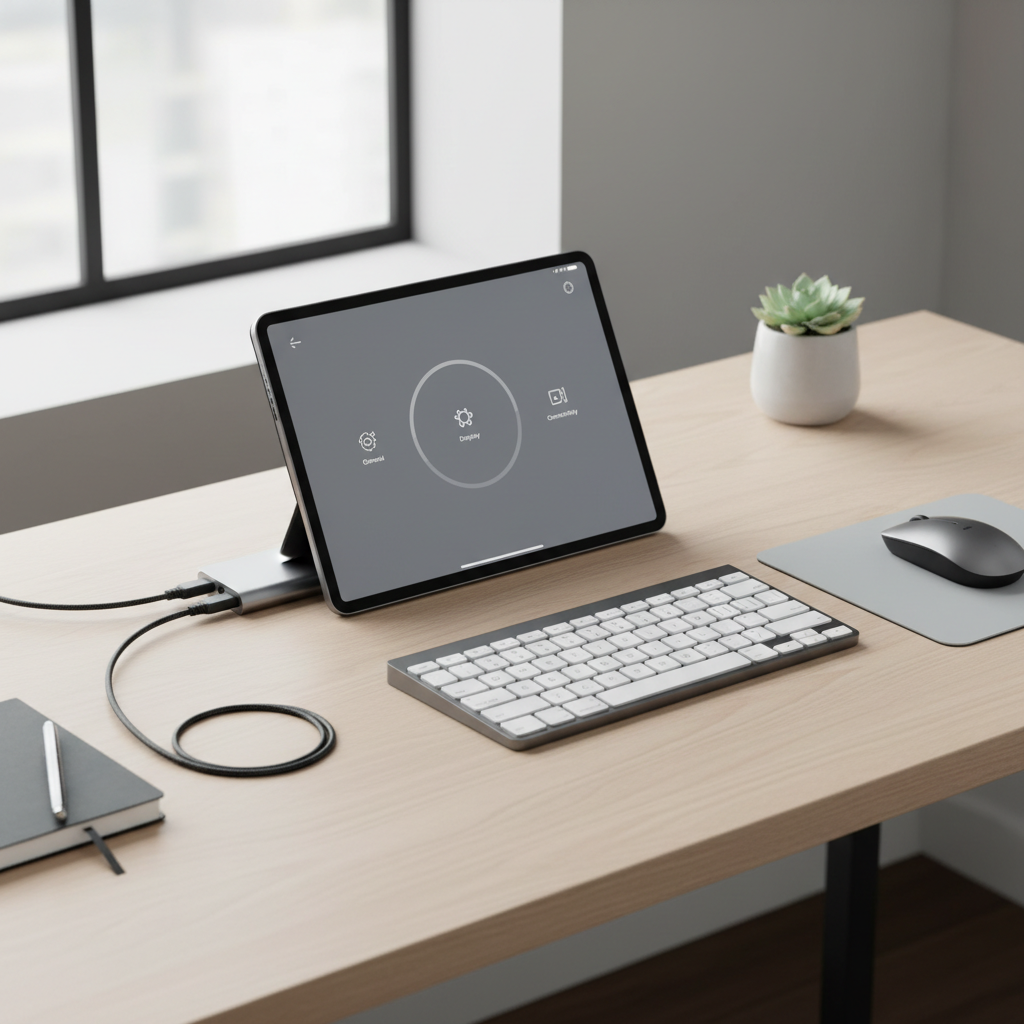
- Android tablets: try a USB-C hub and a mouse via OTG, then navigate Settings to update, back up, or reset.
- iPad: many models support Bluetooth mice/keyboards, or wired accessories via an adapter.
- Windows tablets: connect a USB or Bluetooth mouse, then run Windows Update and device diagnostics.
Once you have input, back up photos and files to cloud storage or a computer. If a factory reset becomes necessary, you’ll be glad you did.
Factory reset and repair: the decision point
A factory reset can fix deep software corruption, but it also wipes local data. It makes sense when touch fails across the system and you’ve already tried updates, safe mode checks, and forced reboots.
Before you reset
- Back up what you can using external input or cloud sync.
- Write down account logins, make sure you can pass activation locks after reset.
After you reset, how to interpret the result
- Touch works: set up slowly, reinstall apps in batches so you can spot the app that triggered the issue.
- Touch still fails: that strongly suggests hardware, most commonly a digitizer, connector, or screen assembly problem.
Situations where you should pause and get professional help
- Visible cracks, lifted glass, or dead zones that stay in the same spot.
- Battery swelling, screen bulge, or heat that feels unusual, this can be a safety issue.
- Liquid exposure, even if the tablet “works,” corrosion can show up later.
- Under warranty or covered by device protection, self-repair can complicate claims.
If you’re unsure, a manufacturer support channel or a reputable repair shop can run diagnostics and quote a screen replacement, and in many cases they can also advise on data recovery options.
Practical step-by-step: a clean troubleshooting order you can follow
If you want a simple path that avoids looping, here’s the order that tends to waste the least time.
- Remove case and protector, clean and dry the screen.
- Test unplugged, then with a different charger and cable.
- Normal restart, then forced reboot.
- Update OS and affected apps, restart again.
- Android: Safe Mode test, remove suspicious apps, reboot.
- Connect mouse/keyboard, back up data, then consider factory reset.
- If touch still fails, book repair or warranty service.
Conclusion: how to fix touch screen not working on tablet is usually a process of elimination, and the fastest wins come from removing physical blockers, rebooting correctly, then proving whether the problem follows software or hardware. Start simple, protect your data early, and don’t force risky DIY steps when you see swelling or damage.
If you want one action today, do this: test touch unplugged after removing the case and protector, then do a forced reboot. If nothing changes, connect a mouse to back up your files and plan the next move with less stress.
FAQ
Why is my tablet screen on but not responding to touch?
It’s often a frozen system process, an app stuck on top, or interference from a case/protector. If it happens everywhere, try a forced reboot and test without accessories to separate software from hardware.
How do I fix touch screen not working on tablet after an update?
Install any follow-up patches, restart, and free some storage. If you’re on Android, Safe Mode is a good reality check: if touch behaves there, a third-party app or overlay is the usual cause.
Can a screen protector stop touch from working?
Yes, especially thicker protectors, cracked ones, or protectors that lift near an edge. If your touch issues started right after applying one, removing it is a clean test.
What does it mean if only part of the touch screen works?
Dead zones that stay in the same location often point to digitizer or physical damage, even if the glass looks fine. In that case, software troubleshooting may not change much, and a repair estimate becomes the practical next step.
Why does my tablet register random touches when charging?
This can happen with low-quality chargers, damaged cables, or poor grounding. Try a different charger and outlet, and test touch while unplugged to see if the behavior disappears.
Will a factory reset fix an unresponsive touch screen?
It can, when the root issue is software corruption. If touch still fails right after the reset, before installing apps, the odds shift toward hardware, and it’s reasonable to contact support or a repair shop.
How can I use my tablet if the touch screen is broken?
You may be able to connect a mouse and keyboard using a USB-C hub or OTG adapter, or pair Bluetooth accessories. That’s also the easiest way to back up data before repair.
If you’re stuck in the “touch is dead and I can’t even navigate settings” situation, a small USB-C hub plus a basic mouse is often the most painless workaround, it gives you control long enough to back up files, run updates, and decide whether reset or repair makes more sense.