
Top free online calculators for students are useful when you need a reliable result fast, but you also want to see the steps, check units, and avoid tiny input errors that wreck homework or lab work.
What trips most people up is not “doing math,” it’s picking the wrong tool for the job, a graphing calculator for a symbolic integral, or a unit converter that silently rounds, then you end up chasing a mismatch for 20 minutes.
This guide narrows the field to a handful of free, browser-based calculators that work well for common U.S. middle school through college use, plus a quick checklist to choose the right one for math and physics, and a few habits that keep calculators from becoming a crutch.

What “top” really means for student calculators
Free calculators vary a lot, so “top” here means practical: accurate enough for coursework, clear enough to learn from, and stable on a typical school laptop or phone browser.
- Step-by-step visibility: Not every problem needs it, but it helps when you’re stuck or checking work.
- Symbolic vs numeric: Some tools manipulate expressions, others just compute numbers, mixing them up causes confusion.
- Graphs and tables: Helpful for functions, motion, or quick sanity checks.
- Units and constants: Physics work gets messy fast without unit discipline.
- Export/share: Copying a clean solution or graph into notes saves time.
Also, many “free” tools are ad-supported, which is fine, but you want something that doesn’t bury the input box under pop-ups or hide core features behind a paywall right when you need them.
Quick comparison table: best free online options
Below is a down-to-earth shortlist that covers most math and physics needs without installing anything. Availability and exact features can change, so treat this as a starting point, not a forever guarantee.
| Tool | Best for | Strengths | Watch-outs |
|---|---|---|---|
| Desmos Graphing Calculator | Algebra, precalc, calculus graphs | Fast graphing, sliders, tables, clean UI | Less focused on symbolic step-by-step |
| GeoGebra | Geometry + graphing + CAS (varies by app) | Great visuals, geometry tools, multiple modes | Interface can feel busy at first |
| Wolfram|Alpha (free tier) | Symbolic math, quick physics queries | Strong knowledge engine, broad coverage | Step-by-step often limited without Pro |
| Symbolab (free tier) | Algebra/calculus practice | Often shows steps and checks transformations | Some step detail may be restricted |
| Omni Calculator | Applied calculations (units, stats, physics formulas) | Many niche calculators, easy inputs | Not a full symbolic math system |
Math calculators that actually help you learn (not just spit answers)
If your main goal is homework accuracy plus understanding, you want tools that show transformations clearly, especially for algebra and calculus where one sign error can cascade.
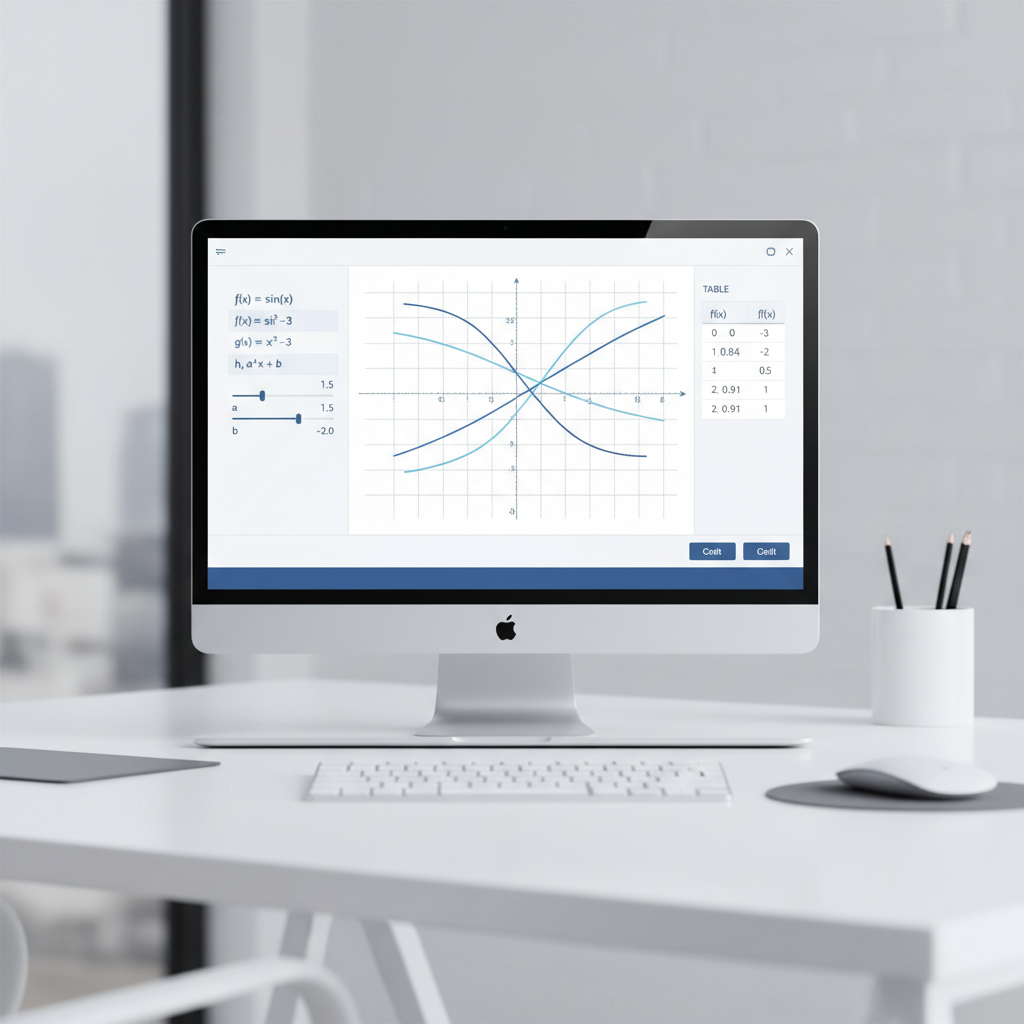
Desmos: best “visual thinking” calculator
Desmos shines when you need to see behavior: intercepts, asymptotes, parameter changes, or whether your derivative “looks right.” It’s also one of the least cluttered options, which matters when you’re tired.
- Use sliders to explore parameters like a, b, c in quadratics or damping terms in models.
- Plot data points and add regression quickly for labs or stats units.
- Do a quick reasonableness check by graphing both sides of an equation.
GeoGebra: strong for geometry and multiple representations
GeoGebra is great when your class blends algebra and geometry, or when you need constructions, angles, loci, and then want to connect that to a graph. Many students overlook it until they hit trig or analytic geometry, then it suddenly clicks.
- Build geometric constructions, then measure and verify relationships.
- Switch views to connect an equation to a shape or motion path.
Wolfram|Alpha and Symbolab: when you need symbolic horsepower
For factoring, derivatives, integrals, limits, and simplification, symbolic engines help. The free tiers are often enough for checking results, but step-by-step depth varies, and sometimes you get just the final form.
- Use them to verify an answer you already attempted, then compare forms.
- If your result differs, try rewriting both expressions (common denominator, trig identities) before assuming you’re wrong.
Physics calculators: units, constants, and “sanity checks”
Physics is where calculators can either save you or quietly sabotage you. Most wrong answers come from units, sign conventions, or using a formula outside its conditions, not from arithmetic.
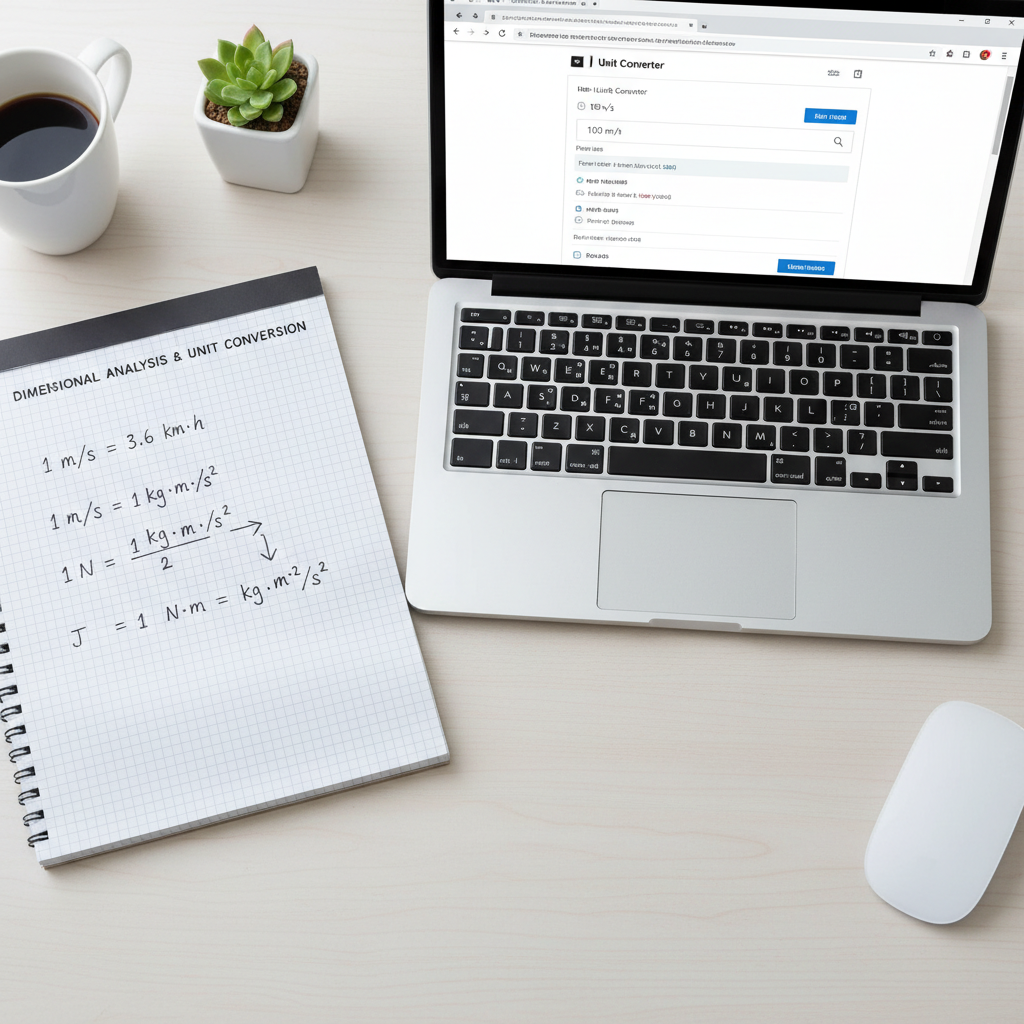
Unit handling and conversions
A solid habit is to convert everything to a consistent system before you calculate, then convert once at the end. Many online tools help with conversions, but you still need to watch significant figures and rounding.
- Write units next to every value you type, even if the calculator doesn’t require it.
- Check whether your final unit makes physical sense, like meters per second vs meters per second squared.
Specialized formula calculators (like Omni Calculator)
Applied calculators are convenient for common topics: kinematics, projectile motion, density, Ohm’s law, ideal gas law, and basic statistics. They’re most useful when you already know which formula applies and just want to avoid algebra mistakes.
- Use these for quick verification after you set up the problem manually.
- Be careful with hidden assumptions, like constant acceleration or neglecting air resistance.
Constants and reference values
Physics problems often require constants, and it’s easy to grab a value with the wrong units or precision. According to NIST (National Institute of Standards and Technology), CODATA-recommended constants provide standardized reference values used across science and engineering contexts.
If your class provides a constants sheet, follow it, even if an online calculator uses a slightly different value, because grading often matches the sheet.
A quick self-check: which calculator should you use right now?
When you’re staring at a problem and unsure which tool to open, this small decision tree saves time. It also helps you avoid overusing a symbolic engine when a graph would make the answer obvious.
- Need a graph, intercepts, max/min, or behavior? Use Desmos or GeoGebra.
- Need simplify/factor/derivative/integral? Try Wolfram|Alpha or Symbolab, then compare forms.
- Need geometry constructions or trig visualization? GeoGebra tends to feel more natural.
- Need unit-heavy applied physics? Use a specialized physics calculator, but keep your own unit notes.
- Need confidence fast before turning in? Use two different tools to cross-check, especially for physics.
That last point matters: top free online calculators for students work best as a pair, one for reasoning and one for verification.
Practical workflow: get correct answers without losing understanding
This is the part students rarely get told explicitly: calculators are most powerful when you use them after you’ve done a little thinking, not before.
Step 1: Set up the problem in plain English
Before typing anything, write what you’re solving for and what you’re given. In physics, add a sign convention and units. This one minute prevents most “I don’t know why it’s wrong” spirals.
Step 2: Do a rough estimate
A back-of-the-envelope estimate keeps you from accepting nonsense. If you compute a falling time of 200 seconds for a dropped phone, something went sideways.
Step 3: Calculate, then verify using a second method
- Graph to confirm roots or intersections.
- Plug your solution back into the original equation.
- Check dimensions in physics, units should reduce correctly.
Step 4: Save clean work for later
Take a screenshot of the graph, copy the symbolic steps you understood, and write one sentence about the key idea. You’ll thank yourself before exams.
Common mistakes (and how to avoid them)
These show up constantly, even among strong students, because they feel “too small to matter” until they ruin a whole page of work.
- Parentheses errors: Type fractions with clear grouping, especially negatives and exponents.
- Degree vs radian mode: Trig problems go off the rails instantly if the mode is wrong.
- Overtrusting step-by-step: Some tools simplify into an equivalent form that looks unfamiliar, not incorrect.
- Ignoring domain restrictions: Extraneous solutions appear after squaring both sides or manipulating logs.
- Unit mixing in physics: Inches with meters, grams with kilograms, or using g = 9.8 without matching units.
Key takeaways
- Use graphing tools for understanding and quick checks, not just pretty pictures.
- Use symbolic tools to verify algebra and calculus, but don’t assume the first form you see is the only correct one.
- For physics, units win, keep them visible, and cross-check with dimensional analysis.
- Two-tool verification is a simple way to reduce careless errors before submission.
Conclusion: pick one “daily driver,” then add one verifier
Top free online calculators for students are not about finding one magic website, they’re about building a small toolkit you trust. For many people, a graphing tool like Desmos becomes the daily driver, and a symbolic engine becomes the verifier when homework gets algebra-heavy.
If you want a simple next step, choose one graphing calculator to learn well this week, then add one symbolic option for cross-checking, your accuracy will usually improve without adding study time.
FAQ
- What are the top free online calculators for students who struggle with calculus?
Start with a symbolic engine to check derivatives and integrals, then use a graphing calculator to see whether the result behaves correctly. That combo catches a lot of sign and domain mistakes. - Is Desmos enough for physics homework?
For graphing relationships and checking trends, yes. For unit-driven plug-and-chug problems, you may still want a specialized physics calculator or a unit conversion tool alongside it. - Why does my answer look different from the calculator’s “simplified” form?
Equivalent expressions can look different, especially with factoring, trig identities, or rationalization. Try plugging in a few test values or graph both forms to confirm they match. - How do I avoid degree vs radian errors online?
Make it a ritual: before any trig input, check the mode. If the tool doesn’t show it clearly, do a quick test like sin(90) and see whether it returns 1. - Can online calculators be wrong?
They can mislead through input mistakes, rounding, or assumptions, and sometimes you hit limitations in free tiers. When the stakes matter, verify with a second tool or consult your instructor’s preferred method. - Which free calculator is best for SAT/ACT-style practice?
A graphing calculator helps for function behavior and quick checks, while a basic scientific calculator mindset helps you avoid overreliance. For test rules, follow the official calculator policy for your exam. - How should I cite calculator use in a lab report?
Many classes just want transparency. List the tool name and what you used it for, like unit conversion or regression, and keep your own reasoning in the report body.
If you’re juggling multiple classes and just want a smoother workflow, it can help to bookmark two go-to tools, one for graphing and one for symbolic checks, then keep a simple unit/notation checklist in your notes so you spend less time fighting formatting and more time learning.