
top free data backup tools for windows can cover a lot of real-world needs, but only if you match the tool to your backup goal: full system recovery, simple file history, disk imaging, or cloud sync.
If you’ve ever had a Windows update go sideways, a laptop SSD die without warning, or ransomware lock your files, you already know why “I’ll back up later” turns into stress fast. Backup software is boring right up until the moment it becomes the most important app on your PC.
This guide keeps it practical: which free tools are actually worth installing in 2026, what each one does well, and where the “free” plan usually hits a wall. You’ll also get a quick self-check, a setup path you can copy, and a few gotchas that waste people’s time.

What “free backup tools” usually mean (and what they don’t)
People lump a few different categories into “backup,” then wonder why recovery feels messy. Here’s the clean way to think about it.
- File backup: copies selected folders and files. Great for documents, photos, and everyday work.
- Image backup (disk imaging): creates a restorable snapshot of a whole drive, including Windows and apps. Best when you want fast disaster recovery.
- Sync: keeps a folder mirrored to another location. Useful, but it can also sync mistakes or deletions.
- Built-in Windows protections: decent basics, but not always enough for full recovery plans.
Also, many “free” tools are genuinely free for home use, but may limit advanced scheduling, encryption, incremental imaging, or cloud destinations. That’s not a deal-breaker, it just changes expectations.
Quick comparison table: top picks for Windows in 2026
If you just want a shortlist before you read the details, this table gets you 80% of the way there.
| Tool | Best for | Backup type | Strength | Typical free-plan limit |
|---|---|---|---|---|
| Windows File History | Everyday documents | File versioning | Built-in, easy restore | Needs external drive, not full system imaging |
| Windows Backup (Windows 11) | Basic settings + folders | Cloud-ish + device | Simple, Microsoft account flow | Often tied to OneDrive storage limits |
| Macrium Reflect Free (if available) | System recovery | Disk imaging | Reliable imaging workflow | Free editions may be discontinued or limited by version |
| Veeam Agent for Microsoft Windows Free | Full machine backups | Image + file | Strong restore options | More “IT-like” setup than consumer apps |
| Duplicati | Encrypted offsite backups | File backup | Many destinations, encryption | Can require more tuning, occasional troubleshooting |
| Cobian Backup (community forks) | Local scheduled copies | File backup | Simple scheduled tasks | Project status varies, verify maintenance/security |
| Free cloud sync (OneDrive/Google Drive) | Working files | Sync | Convenience, sharing | Not true backup, storage caps, sync mistakes propagate |
Key point: if your priority is “PC won’t boot, I need everything back,” you want imaging. If your priority is “I accidentally overwrote a file,” you want versioning.
Why backups fail in real life (even with good software)
Most backup failures aren’t about the tool, they’re about the plan.
- No offsite copy: external drives help, but theft, fire, or power events can take both PC and drive.
- Backups not scheduled: manual backups depend on memory, and memory loses.
- No test restore: a backup you never validated is a hope, not a strategy.
- Wrong scope: people back up photos but forget browser profiles, password vaults, or project directories.
- Sync mistaken as backup: sync is convenient, but ransomware or deletions can replicate quickly.
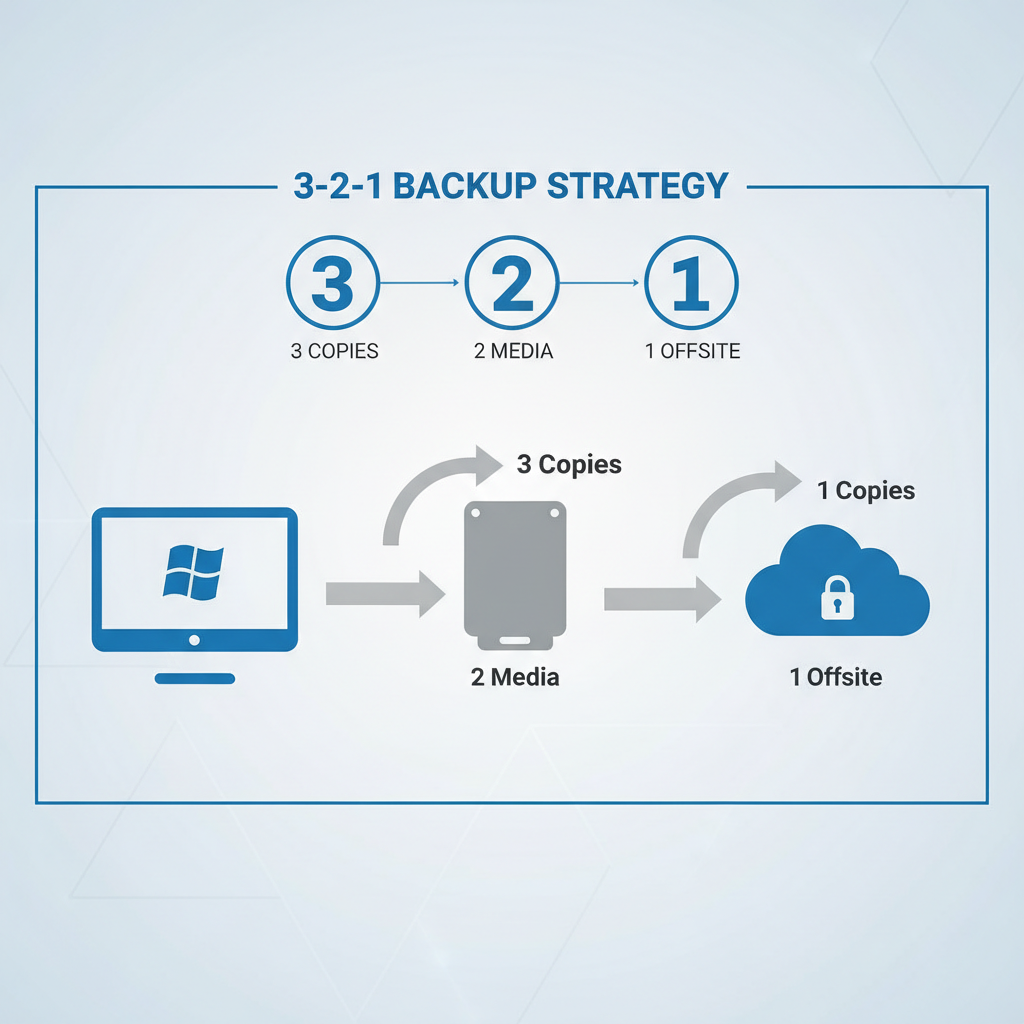
According to NIST, the 3-2-1 concept is a common best practice in backup planning: multiple copies, different media, with at least one copy offsite. You don’t have to be perfect, but aiming toward that pattern prevents most “everything is gone” moments.
Self-check: which backup setup fits you?
Answer these quickly, no overthinking. Your “yes” answers point to the right tool category.
- Do you need bare-metal recovery? (PC dies, you want to restore to a new drive) → imaging tools.
- Do you mainly fear accidental edits/deletes? → file versioning (File History) plus an offsite copy.
- Do you move between multiple PCs? → cloud sync for active files, plus periodic offline backup.
- Do you handle sensitive client data? → encryption + clear retention policy, consider professional advice for compliance.
- Is your internet slow or capped? → local backups first, then smaller offsite backups for critical folders.
If you’re stuck between two options, that’s normal. A lot of people end up with a simple combo: one imaging tool monthly, one file backup daily.
Tool-by-tool notes: what to use, and when
Windows File History (built-in)
For many households, this is the easiest “set it and forget it” answer. It keeps versions of files in common libraries and can restore older copies without drama.
- Use it when: you want easy recovery from accidental changes and deletions.
- Skip it when: you need full system restore after a drive failure.
- Editor tip: point it to an external drive that stays plugged in most days, and check the included folders so you don’t miss key project directories.
Windows Backup (Windows 11)
Microsoft’s newer backup experience can be convenient for settings and some folder syncing, especially if you already live in the Microsoft account ecosystem. The friction point is usually storage.
- Use it when: you want a simple baseline and already have OneDrive space.
- Watch for: what counts against cloud storage, and what is not actually captured.
Veeam Agent for Microsoft Windows Free
Veeam’s free agent often feels more “IT,” but that’s also why many people trust it for full-machine backups. It can do image-based backups and supports solid recovery workflows.
- Use it when: you want a serious image backup without paying, and you’re okay spending a bit more time configuring.
- Watch for: storage location planning and retention settings so your backup drive doesn’t fill silently.
Duplicati (encrypted, flexible destinations)
Duplicati is popular for encrypted file-level backups to many destinations, including various cloud and network targets. It’s a good fit when offsite matters and you want control.
- Use it when: you need encrypted offsite backups of important folders.
- Watch for: keeping the app updated, and validating backups since cloud and permissions issues happen.
Macrium Reflect Free (availability varies)
Macrium has a strong reputation for imaging, but free editions and licensing change over time. If you already have a legitimate free version in use, it may still be a solid choice.
- Use it when: you want a clean imaging UX and you can confirm the version is supported for your needs.
- Watch for: end-of-life timelines and whether your free edition still receives security fixes.
Cobian Backup (and similar lightweight schedulers)
Lightweight file backup schedulers can be great for local copies to another drive or NAS. The main caution is project maintenance status, since some tools live on as community forks.
- Use it when: you want straightforward scheduled copying, especially on a home network.
- Watch for: where you download it, update frequency, and whether it fits your threat model.
Practical setup: a simple 3-2-1 plan most people can keep up
This is the part that matters more than brand names. If you want something realistic for a Windows PC, try this.
Step 1: Pick one “local fast restore” method
- Option A: enable File History to an external SSD/HDD for daily versioning.
- Option B: schedule weekly image backups with Veeam Agent or an imaging tool you trust.
If your PC holds both “irreplaceable files” and “annoying to reinstall apps,” mixing A and B is common, but start with one so you actually stick to it.
Step 2: Add one offsite copy for the stuff you can’t lose
- Use encrypted file backups (Duplicati) to a cloud target, or
- Use a second drive stored elsewhere and rotate monthly, if cloud is not practical.
Keep the scope tight: tax docs, family photos, creative work, work product. Offsite doesn’t need to include every Steam game install.
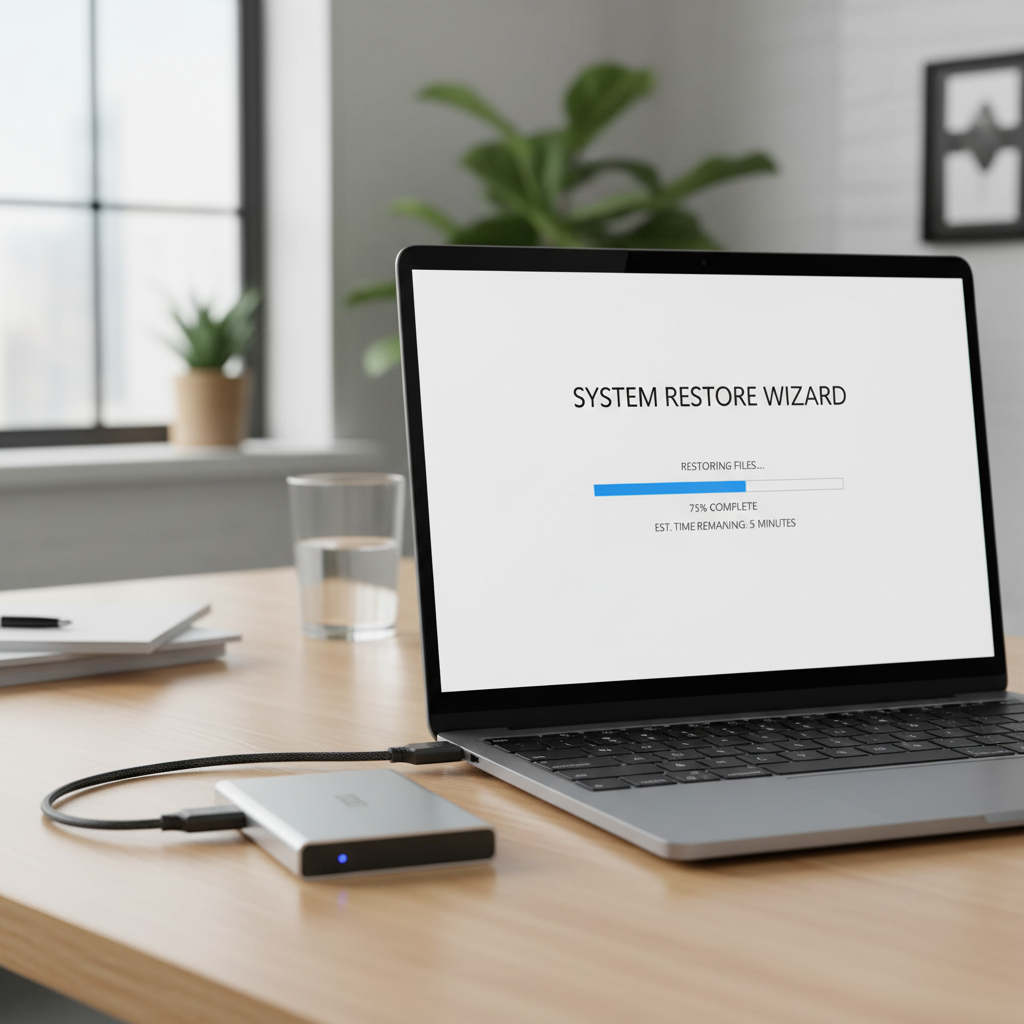
Step 3: Test one restore now, not “someday”
- Restore a single file from File History.
- Mount an image backup and verify you can browse files.
- Create rescue media if your imaging tool supports it, and confirm it boots.
According to CISA, keeping reliable backups is a key part of resilience against ransomware. The backup is only “reliable” when you’ve proven you can restore from it.
Common mistakes to avoid (these waste the most time)
- Backing up to the same physical drive: partitioning a single disk is not a backup when the disk fails.
- Leaving the backup drive always connected: convenient, yes, but it can also be hit by ransomware. Consider disconnecting after scheduled jobs or using versioned backups.
- Forgetting app data: exports for password managers, browser bookmarks, and critical app settings are often separate from “Documents.”
- No retention policy: keeping infinite versions sounds good until the drive fills and the job stops.
- Not noticing silent failures: enable email/desktop notifications where possible, and check logs monthly.
When it’s worth getting professional help
If you run a small business, handle regulated data, or you’ve already had a breach or ransomware incident, “free tool + best effort” may not be enough. In those cases, talking to a managed IT provider or security consultant can be a practical investment, especially for backup encryption policies, access controls, and incident response planning.
Also consider help if you need to back up servers, complex NAS setups, or you’re unsure how to protect backup credentials. Misconfigurations here can turn backups into another attack surface.
Conclusion: choose boring, consistent, and testable
The best picks from any list of top free data backup tools for windows are the ones you’ll actually run every day or every week, and the ones you can restore from without guessing. If you do nothing else, set up one local backup and one offsite copy for your most important folders, then test a restore this week.
If you want a simple next move, pick File History for quick wins, add an encrypted offsite backup for your critical data, and put a recurring reminder on your calendar to verify restores.
FAQ
What are the top free data backup tools for windows if I only have an external drive?
Windows File History is usually the easiest start for file versioning, and Veeam Agent Free can handle image backups if you want full recovery. The right choice depends on whether you care more about restoring individual files or rebuilding the whole PC.
Is OneDrive or Google Drive a real backup for Windows?
They’re great for syncing and convenience, but many situations still need a separate backup, because deletions and corrupted files can sync across devices. If you rely on sync, add versioning and an offline copy for important folders.
How often should I run backups on a home Windows PC?
Daily file backups work well for active documents and photos, while weekly or monthly imaging is common for system recovery. If you create content or handle work files, more frequent backups reduce the “lost week” risk.
Should I choose disk imaging or file backup?
Disk imaging helps when Windows won’t boot or a drive fails, file backup helps when you need older versions or quick restores of specific folders. Many people use both, but starting with one solid method beats a complicated plan you abandon.
How do I know my backup is actually working?
Don’t rely on “it says completed.” Restore a test file, verify you can open it, and occasionally confirm your recovery media boots if you use imaging. That small test catches most surprises early.
Do free backup tools include encryption?
Some do, especially file-backup tools aimed at cloud destinations, but coverage varies by product and version. If encryption matters for your situation, confirm what is encrypted, where keys are stored, and whether you can recover if you forget a password.
What’s the safest way to protect backups from ransomware?
Keep at least one backup copy offline or otherwise isolated, use versioning/immutability features when available, and avoid leaving backup drives permanently connected if your risk is higher. If you’re protecting business systems, it may be worth consulting a professional for a hardened setup.
If you’re trying to pick between two free tools and you’d rather not guess, it often helps to list your “must restore” items, your budget for storage, and how much time you’ll realistically spend maintaining backups, then build a simple plan around that.