
how to fix slow boot time on windows pc usually comes down to three things: too many startup tasks, storage or driver bottlenecks, or Windows spending extra time repairing something in the background.
If your PC takes minutes to reach the desktop, it’s not just annoying, it also hints at issues that can snowball into freezes, failed updates, or sudden crashes later.
This guide helps you separate “normal aging” from fixable causes, run quick checks, and apply changes in an order that avoids breaking things, because blindly disabling services often creates new problems.
What usually makes Windows boot slow (real-world causes)
Slow boot rarely has one single “magic” cause, it’s often a pile-up of small delays that add up.
- Too many startup apps: chat apps, game launchers, cloud sync, printer tools, VPNs. Each adds seconds, and some wait on network.
- HDD instead of SSD: on older PCs, Windows boot on a hard drive can feel painfully slow, especially after years of updates.
- Driver or firmware issues: a flaky storage driver, outdated BIOS/UEFI, or bad USB device can stall POST or Windows loading.
- Windows update or repair loops: background servicing can make “every boot” feel slower for a week.
- Disk space pressure: low free space can slow updates, paging, and logon tasks.
- Malware or unwanted software: not always “a virus,” sometimes it’s adware that injects itself into startup.
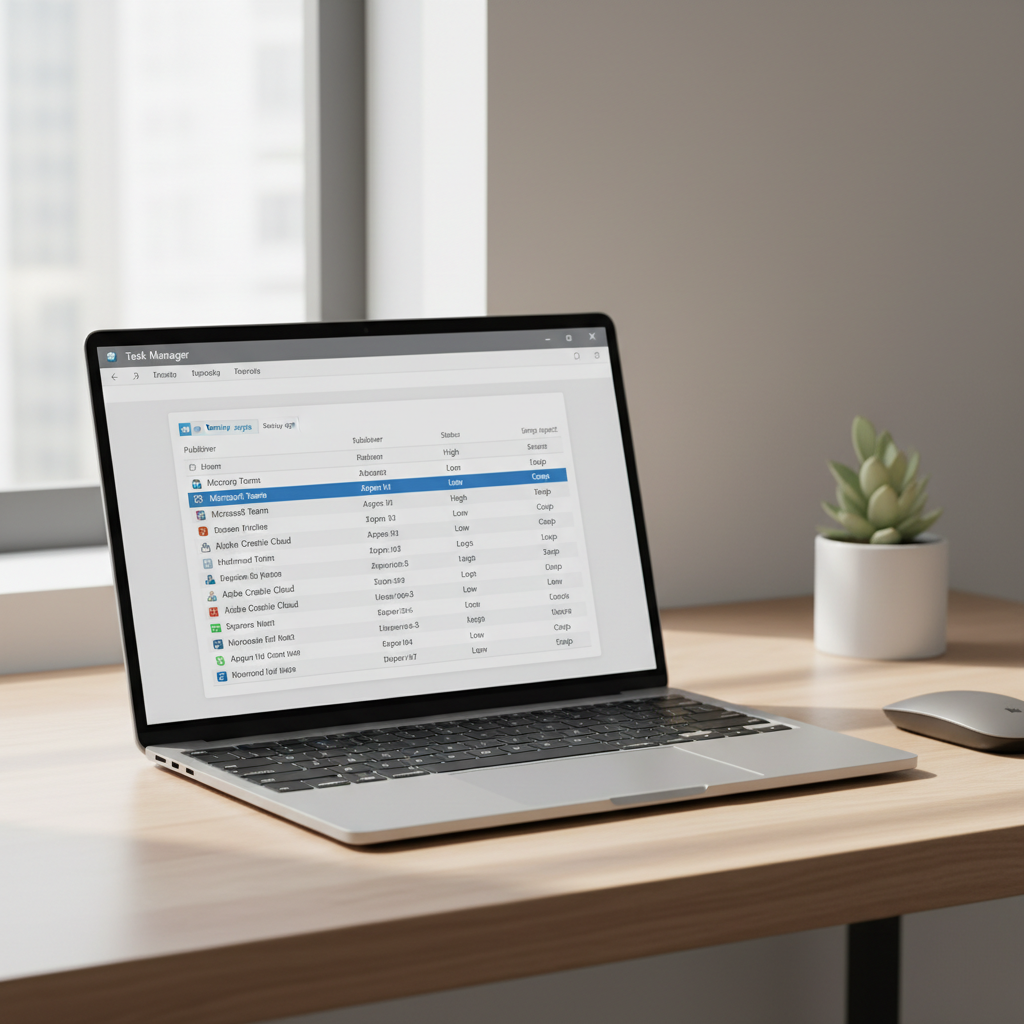
According to Microsoft, Task Manager can help identify apps with high startup impact and control which apps launch automatically at sign-in.
Quick self-check: which slow-boot type are you dealing with?
Before changing settings, figure out where the delay happens, this prevents wasted effort.
Where do you lose time?
- Before the Windows logo (manufacturer screen, spinning dots never appear): more likely BIOS/UEFI, attached devices, or hardware detection.
- At the Windows logo (dots spin forever): often drivers, disk issues, updates, or corrupted system files.
- Desktop appears but PC is “stuck” (taskbar loads slow, apps auto-open): usually startup apps, sync tools, or security software scanning.
A 2-minute checklist
- Do you hear the drive “grinding” heavily during boot (common with HDD)?
- Is free disk space under 15–20%?
- Did slow boot start after a driver/update install?
- Do you see many apps auto-launching (Teams, Discord, Steam, OneDrive, Adobe, etc.)?
- Does boot improve in Safe Mode (strong hint it’s software/driver)?
Fast wins: reduce startup load (the fix most people actually need)
If you want how to fix slow boot time on windows pc with minimal risk, start here. You’re not uninstalling anything, just stopping auto-launch.
Use Task Manager (Windows 10/11)
- Press Ctrl + Shift + Esc → open Startup tab
- Sort by Startup impact
- Right-click → Disable anything you don’t need at every boot (game launchers and helper apps are common culprits)
Keep essentials enabled: your trackpad/keyboard utilities (for laptops), audio drivers, and your security software if you rely on it.
Trim background sign-in tasks
- Settings → Apps → Startup (Windows 11) to double-check what’s toggled on
- Inside apps like Teams/Discord/OneDrive, turn off “Open at login” if you don’t need it
Storage and health checks (when boot is slow at the Windows logo)
If the spinning dots stage drags, focus on disk health and system integrity. This is where slow boot can signal deeper trouble.
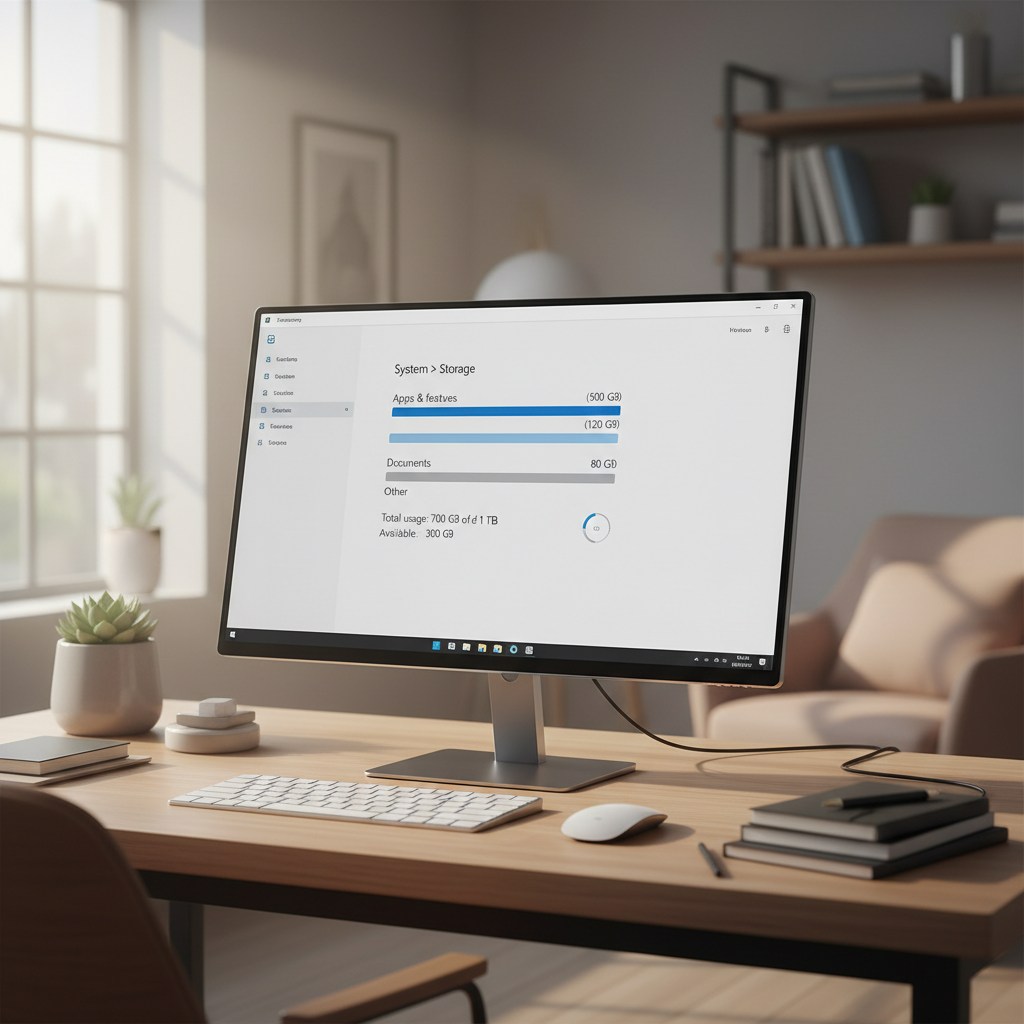
Make sure you have breathing room on C:
- Settings → System → Storage
- Aim for 15–25% free space when possible, Windows updates and paging behave better
Run built-in repairs (safe, reversible in most cases)
- Open Command Prompt as admin
- Run: sfc /scannow
- Then run: DISM /Online /Cleanup-Image /RestoreHealth
According to Microsoft, SFC and DISM are standard tools for detecting and repairing corrupted system files and Windows images.
Check your drive type and consider an SSD upgrade
- Task Manager → Performance → Disk, look for SSD vs HDD
- If it’s HDD, an SSD is often the single biggest boot-time improvement, assuming the rest of the PC is stable
Driver, BIOS/UEFI, and device delays (when it’s slow before Windows even loads)
If it lingers on the manufacturer logo, your PC might be spending time detecting devices or initializing firmware features.
Unplug and isolate
- Disconnect non-essential USB devices (external drives, docks, printers)
- Reboot and see if boot time improves, if yes, re-add devices one by one
Update the right things (carefully)
- Update chipset/storage drivers from your PC maker (Dell/HP/Lenovo) when applicable
- Consider BIOS/UEFI updates only if you’re comfortable, read release notes and follow vendor instructions, power loss mid-update can brick a system
Look for Fast Startup conflicts
Windows Fast Startup can help some systems, but it can also create weird hangs on others, especially after driver changes.
- Control Panel → Power Options → Choose what the power buttons do
- Try toggling Turn on fast startup off for a week and compare boot behavior

A practical step-by-step plan (do this in order)
If you’re stuck choosing what to try first, this order tends to fix the most cases with the least risk.
| Step | What you do | Why it helps | Risk level |
|---|---|---|---|
| 1 | Disable high-impact startup apps | Reduces logon workload immediately | Low |
| 2 | Free up disk space, restart | Improves paging and update tasks | Low |
| 3 | Run SFC + DISM | Repairs corrupted system components | Low |
| 4 | Check for driver issues, update essentials | Fixes stalls at Windows logo | Medium |
| 5 | Test peripherals, toggle Fast Startup | Removes firmware/device delays | Medium |
| 6 | Move Windows to SSD (if on HDD) | Biggest boot improvement for older PCs | Medium |
Common mistakes that waste time (or make boot worse)
- Disabling random services after watching a “speed up Windows” video, this often breaks printing, updates, or networking.
- Installing multiple antivirus tools, they can stack startup scans and fight each other.
- Chasing registry cleaners as a boot fix, many cases see little benefit, and some tools remove useful entries.
- Ignoring disk health warnings, if the drive is failing, you can’t optimize your way out of it.
Key takeaways: if your desktop loads fast but the PC feels “heavy” for 2–3 minutes, focus on startup apps and background sync; if it’s slow before you can even type your password, look at firmware, devices, and drivers.
When it’s time to get professional help (or at least back up first)
Some slow-boot situations are less “tweakable” and more “something is failing.” If you see these signs, back up important files and consider a technician.
- Boot time keeps increasing week by week with no clear reason
- Frequent blue screens, freezing during the Windows logo, or automatic repair loops
- SMART warnings from your drive tool, clicking noises from an HDD
- BitLocker prompts or repeated “preparing automatic repair” messages
If you suspect hardware trouble, avoid repeated forced shutdowns, they can worsen file system corruption.
Getting how to fix slow boot time on windows pc right sometimes means accepting a simple answer: if you’re on an old HDD or a borderline failing drive, upgrading or replacing storage often beats endless settings changes.
Pick one improvement today: disable three high-impact startup apps, clear space on C:, and measure boot time for a few days, that alone solves a surprising number of “slow boot” complaints.
FAQ
How do I measure boot time in Windows without extra software?
In many setups you can use Task Manager → Performance → CPU and look for “Last BIOS time,” but that only reflects firmware time, not full Windows startup. For a simple approach, time from power button to usable desktop a few times and compare after each change.
Does upgrading RAM fix slow boot time?
Sometimes, but it depends. RAM helps if your PC is paging heavily during sign-in, but if you boot from an HDD, storage is usually the bigger factor for startup speed.
Is it safe to disable startup apps?
Usually yes, as long as you leave drivers and security software alone. If something stops working, you can re-enable the app in Task Manager and reboot.
Why is my Windows 11 PC slow only after I log in?
That pattern points to startup items, cloud sync, and background scans. Check Startup impact, then look at apps that begin indexing, syncing, or updating right after sign-in.
Should I turn off Fast Startup?
It can help or hurt depending on hardware and drivers. If you notice weird hangs or slowdowns after updates, testing with Fast Startup off for several days is a reasonable troubleshooting step.
Can malware cause slow boot even if I have antivirus?
Yes, it can, though it’s not the most common cause. If boot slowdown appears with new pop-ups, browser changes, or unknown startup entries, run a reputable scan and remove suspicious software.
How to fix slow boot time on windows pc if I already have an SSD?
With an SSD, slow boot is more likely from startup overload, driver problems, or firmware/device delays. Focus on Startup apps, Windows repairs (SFC/DISM), and driver updates from your PC manufacturer.
When should I reinstall Windows to fix boot time?
Reinstalling can work, but it’s a last resort after you’ve ruled out failing storage and trimmed startup tasks. If you do it, back up files first and make sure you have installers and licenses ready.