
free video players 2026 are still one of those “should be simple” downloads that can turn annoying fast, stuttering playback, missing codecs, weird audio sync, or an installer that tries to sneak in extras.
If you just want your movies, recordings, or screen captures to play smoothly on a Windows PC, the right player matters more than most people expect, especially if you deal with 4K/HEVC files, subtitles, or multiple audio tracks.
This guide narrows the field to a few trusted options, then helps you pick based on what you actually watch, local files, streaming URLs, casting, or a lightweight player for an older laptop.
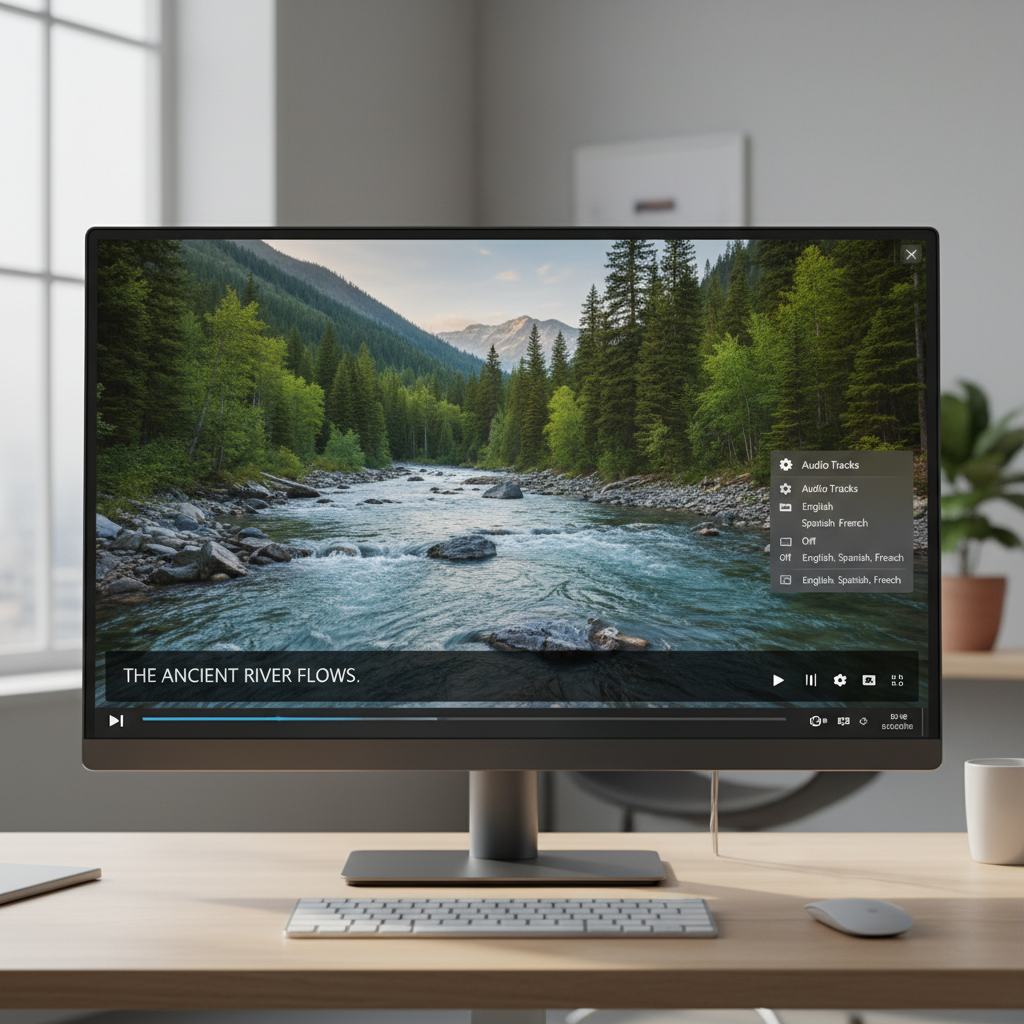
Quick picks: best free video players for PC in 2026
If you want the shortest path to a good choice, start here. These apps have long track records, broad format support, and active maintenance in most cases, though specific features can change by version.
- VLC Media Player: best “plays almost anything” option, solid subtitles, streaming, and no-nonsense interface.
- MPV: minimal UI, excellent playback quality, great for power users who like configs and scripts.
- PotPlayer: feature-rich with lots of tweaks, great controls for audio/subtitle handling, but pay attention during install screens.
- MPC-HC / MPC-BE (community builds): lightweight, classic Windows feel, good for older PCs when paired with modern decoders.
- Kodi: best if you want a living-room style library UI and media center workflow, not just a simple player window.
Key takeaway: there is no single “best” player, there’s the best one for your files, your hardware, and how much you like tweaking settings.
Comparison table: what to choose based on your needs
Use this as a fast filter before you download anything. Think of it as “fit,” not a permanent ranking.
| Player | Best for | Strengths | Watch-outs |
|---|---|---|---|
| VLC | Most people | Wide codec support, stable, easy subtitles, streams | UI feels dated to some, fewer advanced playback scripts than MPV |
| MPV | Quality + control | Excellent rendering, powerful configs, lightweight | Not very beginner-friendly, fewer built-in “buttons” |
| PotPlayer | Feature lovers | Deep settings, great subtitle/audio tools, smooth playback | Installer choices matter, lots of toggles can overwhelm |
| MPC-HC / MPC-BE | Older PCs | Lightweight, simple, classic shortcuts | Rely on correct builds/decoders, fewer “modern” library features |
| Kodi | Media library setup | Beautiful 10-foot UI, metadata, add-ons | Setup takes time, can be overkill for casual playback |
Why video players still fail in 2026 (and how to spot the cause)
Most playback problems are less about the player “being bad” and more about codecs, hardware decoding, and how the file was encoded. The same MP4 can behave completely differently depending on whether it’s H.264, HEVC, or AV1.
- Codec mismatch: the file uses a codec your setup can’t decode smoothly (common with HEVC/10-bit/AV1 on older PCs).
- Hardware acceleration issues: GPU decoding helps, but driver quirks can cause green screens, tearing, or crashes.
- Subtitle complexity: image-based subtitles or heavy ASS styling can spike CPU usage.
- Variable frame rate recordings: phone videos and screen recordings sometimes drift out of sync.
- Bad container or corrupted file: “plays in one app but not another” often points here.
According to Microsoft Support, keeping Windows and graphics drivers updated can help address video playback issues tied to compatibility and performance. That advice is boring, but in practice it solves a surprising number of stutters and crashes.
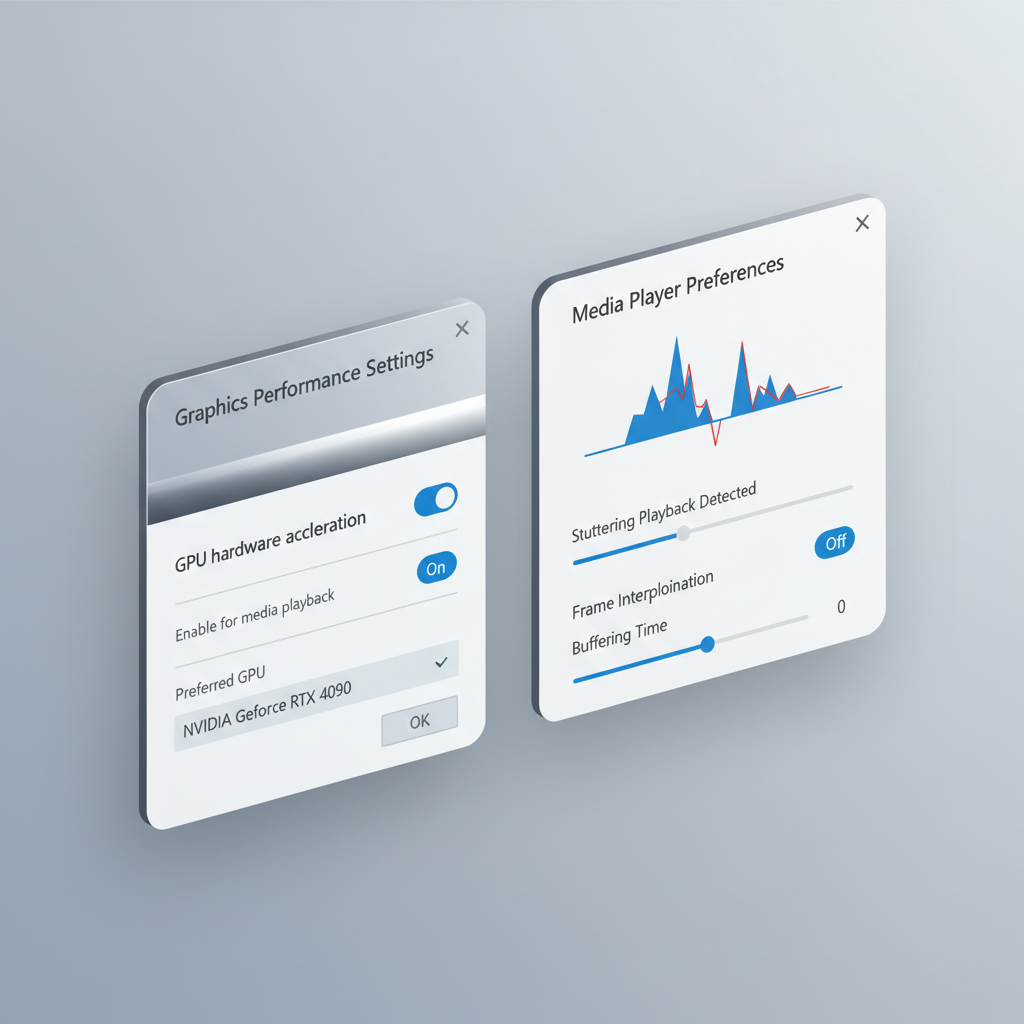
A quick self-check: which type of viewer are you?
Before you chase “the best” app, pin down your real use case. It saves time, and it keeps you from installing three players that all do the same thing.
- I just open random files (downloads, cameras, phone videos): VLC is usually the least friction.
- I watch high-bitrate 4K (HEVC, HDR, large MKVs): MPV or PotPlayer, then tune hardware decoding.
- I need subtitles constantly (anime, foreign films, hearing support): VLC and PotPlayer tend to feel easiest day-to-day.
- I’m on an older laptop: MPC-HC/MPC-BE often feel snappier, plus you can lower post-processing.
- I want a Netflix-like library for local files: Kodi fits better than a traditional player window.
Reality check: if your PC can’t decode a format smoothly, switching apps may help a bit, but turning on the right hardware decoding option usually helps more.
Setup steps that make any free player feel “better”
This part is the unglamorous win. Many people test a player for 30 seconds, hate it, and move on, when one setting would have fixed the issue.
1) Turn on hardware decoding, then verify it actually works
In VLC, MPV, and PotPlayer you can enable GPU decoding, but the label varies by app and GPU brand. If playback becomes worse, roll it back and update drivers.
- Test with one known tough file (4K HEVC or AV1).
- Watch CPU usage: if CPU stays high, hardware decode might be off or unsupported.
- If you see artifacts, try a different decode mode rather than abandoning the player.
2) Fix audio delay and subtitle timing the sane way
Most players let you shift audio or subtitle timing live. Do that first. If the file is consistently off across devices, it may be an encoding issue, and remuxing or re-encoding might be the real fix.
3) Use the right output renderer (when you see tearing)
On Windows, switching video output modules or renderers can reduce tearing or weird color behavior. This is especially relevant on multi-monitor setups with mixed refresh rates.
According to NVIDIA Support, keeping drivers current and confirming video settings align with your display capabilities can prevent playback and display anomalies. If you use AMD or Intel graphics, their official support pages provide similar guidance.
Common mistakes (that waste time or add risk)
When people search for free video players 2026, they often end up on download portals that bundle installers or wrap the original app. That’s where problems start.
- Downloading from “mirror” sites: you may get extra installers, outdated versions, or unwanted offers. Prefer official sites or reputable app stores.
- Assuming MP4 means “easy”: MP4 is a container, not a codec. An MP4 can be HEVC or AV1 and still choke older machines.
- Over-tuning settings: cranking sharpening, interpolation, and post-processing can create stutter that looks like a codec problem.
- Ignoring subtitles as a performance factor: styled subtitles can cause frame drops on low-end CPUs.
Small safety note: if a player asks for admin permissions during install without a clear reason, pause and re-check the source. In many cases you can install without elevated privileges.

When you should consider extra help (or a different approach)
Sometimes the “player” isn’t the problem. If you hit the scenarios below, you may save hours by changing your approach.
- Consistent stutter on modern files: you might be CPU/GPU limited for HEVC 10-bit or AV1, consider converting to H.264 for that device.
- Color looks wrong on HDR videos: HDR tone mapping depends on the player, GPU, and display settings. If accuracy matters, it can take careful setup.
- You need enterprise-safe installs: IT-managed environments may require vetted packages and controlled update methods.
- Accessibility requirements: if you rely on specific subtitle rendering, screen reader compatibility, or audio enhancements, it can be worth consulting accessibility resources or an IT professional.
For file corruption or container issues, tools like remuxers can help, but if you’re dealing with important footage, asking a video professional is often the safer move than repeatedly re-encoding and losing quality.
Conclusion: a practical way to pick your 2026 player
If you want the simplest answer, start with VLC, then only switch if you have a specific reason. If you care about maximum playback control and clean rendering, MPV is hard to beat once you get comfortable. If you like knobs and presets, PotPlayer can feel great, just be careful about where you download it and what you accept during setup.
Action steps that actually work: pick one player, test it with your hardest file, enable hardware decoding, then fine-tune subtitles and output only if you see a real problem. That approach beats hopping between apps every time.
FAQ
- What are the safest free video players 2026 for Windows?
VLC and MPV are commonly considered safe choices when downloaded from their official sites, mainly because they avoid bundled installers and have transparent update practices. - Why does my 4K MP4 stutter even on a decent PC?
It’s often the codec inside the MP4, for example HEVC 10-bit or high-bitrate content. Turning on hardware decoding and updating GPU drivers usually helps, but older GPUs may still struggle. - Is VLC still good in 2026?
For many users, yes. It remains a reliable “opens almost anything” tool, especially for mixed file types and quick subtitle use, even if the interface feels less modern. - Which player is best for subtitles and multiple audio tracks?
VLC and PotPlayer are typically the easiest for day-to-day switching and syncing. MPV can do it well too, but it may require more setup depending on your preferences. - Do I need a codec pack to play most videos?
Usually no. Many modern players include built-in decoders. Codec packs can introduce conflicts, so they’re generally a last resort unless you know exactly what you’re solving. - How do I stop audio out-of-sync issues?
Use the player’s audio delay hotkeys first. If the same file is always off, the recording may be variable frame rate or poorly muxed, and remuxing or re-encoding may be the real fix. - What’s the best lightweight option for an older Windows laptop?
MPC-HC or MPC-BE community builds are often a good fit. Pair them with sensible rendering settings and avoid heavy post-processing to keep playback smooth.
If you’re trying to standardize playback across multiple PCs, or you want a “set it once and forget it” setup for a family member, a short checklist and a clean install source list can save a lot of back-and-forth troubleshooting.