
how to disable cortana on windows 11 permanently is usually about two things: you don’t want the assistant launching at all, and you don’t want it running in the background or showing up in search-related experiences.
On Windows 11, Cortana is much less central than it was on Windows 10, but it can still exist as an app (and it can still keep permissions, startup behavior, and background access that people would rather turn off). If you’re trying to reduce distractions, tighten privacy, or just simplify your PC, it’s worth doing properly instead of toggling random switches.
This guide walks through the options that actually “stick” in real life, including uninstalling Cortana where available, disabling startup/background behavior, and using Group Policy or Registry edits when your edition allows it. I’ll also flag the trade-offs, because “permanently” can mean different things depending on Windows updates and your device setup.
What “permanently disabling Cortana” really means on Windows 11
Before touching settings, it helps to define success. On Windows 11, a “permanent” Cortana shutdown typically means one of these outcomes:
- Removed: Cortana is uninstalled, so it can’t run unless reinstalled.
- Neutralized: The app remains installed but can’t auto-start and has no meaningful permissions.
- Blocked by policy: Windows is instructed (via policy/registry) not to allow Cortana features, which tends to survive user-level changes.
Also worth saying out loud: Windows updates can reintroduce apps or reset defaults in some cases, especially in managed environments or after major feature updates. So “permanent” is best treated as “stable and low-maintenance,” not “impossible to ever see again.”
Quick decision table: pick the right method for your Windows 11 edition
If you want the most direct path, use this table to choose a method based on your edition and comfort level.
| Goal | Best method | Windows 11 edition | Risk level |
|---|---|---|---|
| Remove Cortana entirely | Uninstall app (Settings or PowerShell) | Home / Pro / Enterprise | Low |
| Stop it from running at login | Disable Startup + Background permissions | Home / Pro / Enterprise | Low |
| Enforce “no Cortana” across users | Group Policy (when available) | Pro / Enterprise | Medium |
| Policy-like enforcement on Home | Registry edit (careful) | Home (and others) | Medium |
Key takeaway: If uninstalling is available and works for you, it’s usually the cleanest “set it and forget it” answer.
Method 1 (recommended): Uninstall Cortana in Windows 11
In many Windows 11 setups, Cortana is just an app. If it’s installed, removing it is straightforward.
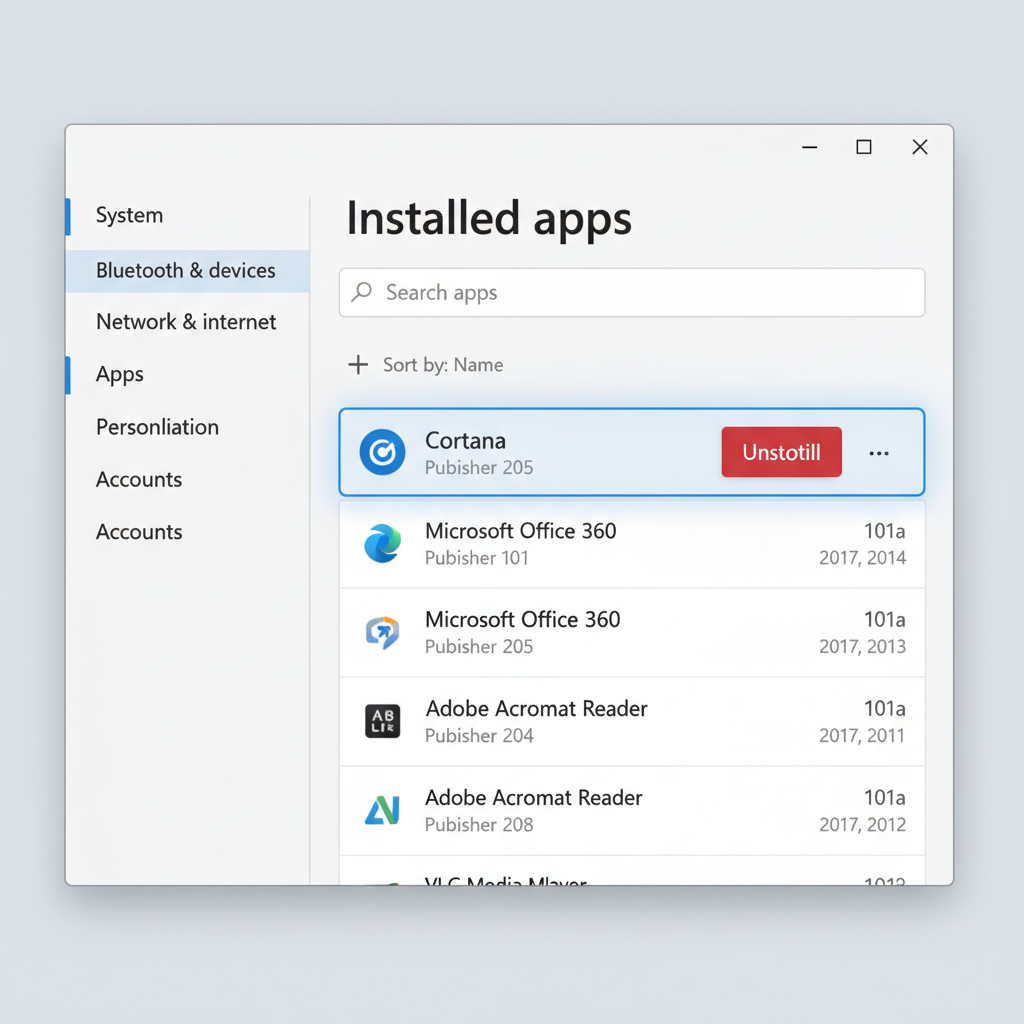
Uninstall from Settings
- Open Settings → Apps → Installed apps.
- Search for Cortana.
- Select the three-dot menu → Uninstall.
If you don’t see Cortana listed, it may already be removed or not included on that build.
Uninstall with PowerShell (useful if the uninstall button is missing)
This is a common workaround when the UI is restricted. Use Windows Terminal or PowerShell with admin rights.
- Right-click Start → Terminal (Admin) or Windows PowerShell (Admin)
- Run:
Command:
Get-AppxPackage -AllUsers *Microsoft.549981C3F5F10* | Remove-AppxPackage
Names can vary by build, so if that package string doesn’t match, you may need to list packages and locate Cortana’s entry. If you’re on a work device, admin policy may block removal.
According to Microsoft Support documentation on Windows app management, removing built-in apps may be limited by organization policy and can differ between device editions and configurations.
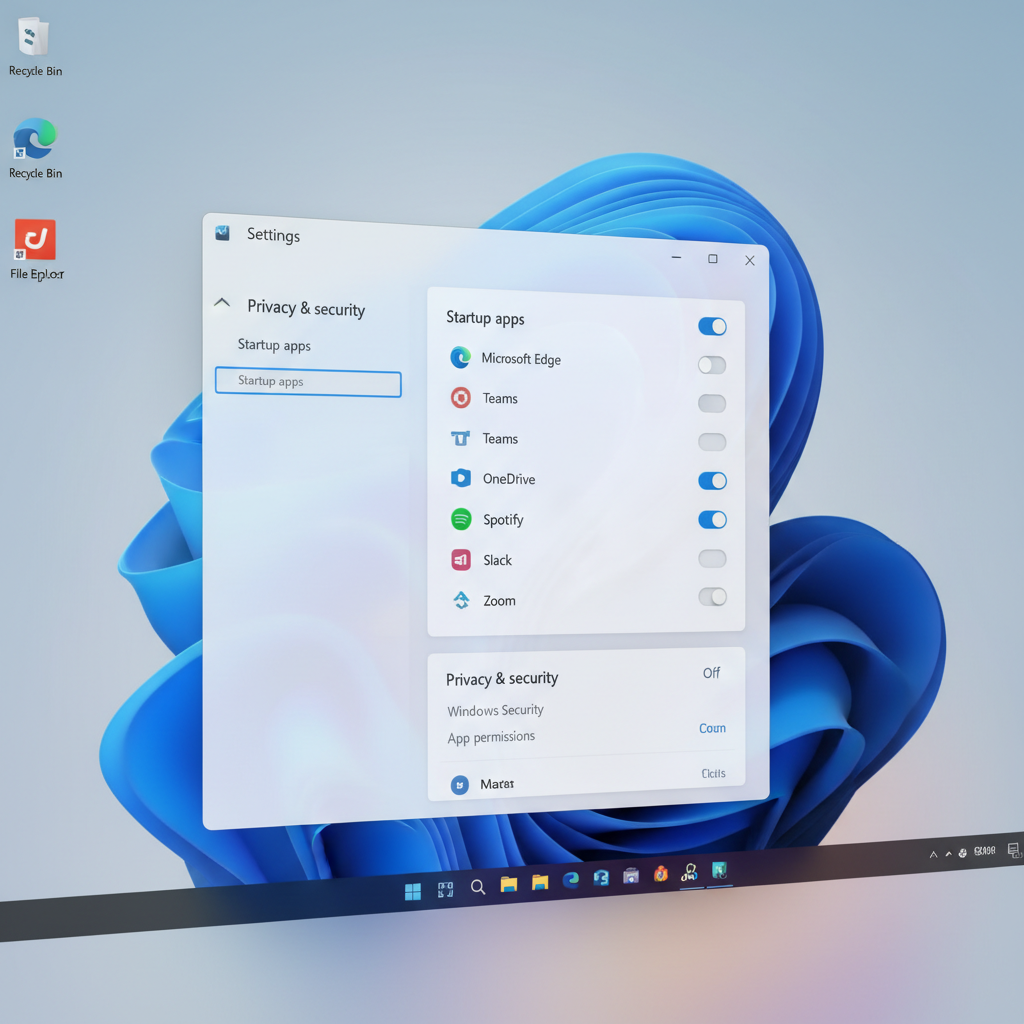
Method 2: Disable Cortana startup and background access (when you can’t uninstall)
If uninstalling feels too aggressive, or it’s blocked, you can still get close to the same outcome by stopping launch triggers.
Turn off startup
- Open Settings → Apps → Startup.
- Find Cortana and switch it Off (if present).
Limit background permissions
- Go to Settings → Apps → Installed apps.
- Select Cortana → Advanced options (if available).
- Look for background permissions and set it to Never or the most restrictive option shown.
Not every Windows 11 build exposes the same toggles. When options are missing, it typically means the app is already constrained, removed, or controlled by policy.
Method 3 (Windows 11 Pro/Enterprise): Disable Cortana via Group Policy
If you’re managing multiple accounts on one PC, or you want the setting to survive user changes, Group Policy is the “grown-up” approach.
Note: Group Policy Editor is usually available on Windows 11 Pro and above.
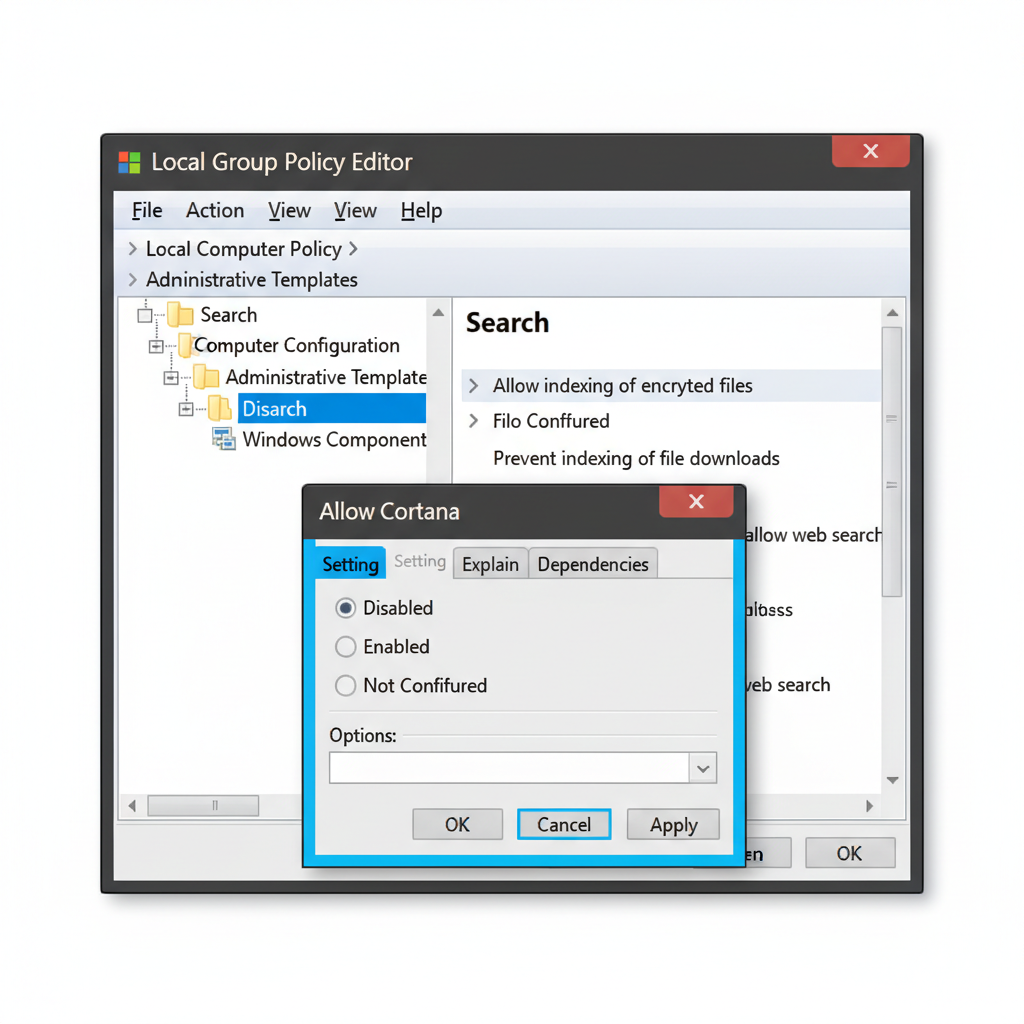
- Press Win + R, type gpedit.msc, press Enter
- Go to: Computer Configuration → Administrative Templates → Windows Components → Search
- Find Allow Cortana and set it to Disabled
Restart your PC after changing policy. In many environments, that’s the difference between “seems off” and “stays off.”
Method 4 (Windows 11 Home): Disable Cortana with a Registry key (careful but effective)
Windows 11 Home often lacks Group Policy, so Registry is the usual alternative. This can be reliable, but you should be cautious because Registry mistakes can cause odd system behavior.
Before you start: Back up the Registry or create a System Restore point.
Steps
- Press Win + R, type regedit, press Enter
- Navigate to: HKEY_LOCAL_MACHINE\SOFTWARE\Policies\Microsoft\Windows\Windows Search
- If Windows Search doesn’t exist, create the key
- Create a new DWORD (32-bit) value named AllowCortana
- Set AllowCortana to 0
- Restart
According to Microsoft Learn guidance on Windows policy and configuration, policy-backed Registry keys under the Policies path can override user-level preferences, which is why this method often “sticks.”
Self-check: How to tell Cortana is actually disabled (and not just hidden)
If your goal is how to disable cortana on windows 11 permanently, you’ll want to confirm behavior, not just a missing icon.
- Installed apps: Cortana does not appear, or it appears but cannot run
- Startup apps: No Cortana entry enabled
- Task Manager: You don’t see Cortana starting after sign-in (give it a minute)
- Search behavior: Windows Search still works, but no Cortana prompts
- Work/School device: Company policies remain intact, and you don’t see settings reverting
If something keeps returning after updates, that’s a hint you need the policy-based route (Group Policy on Pro, Registry on Home) or to confirm the app is truly removed.
Common mistakes and “gotchas” that waste time
- Confusing Cortana with Windows Search: Disabling the assistant should not break the search box, but heavy-handed tweaks can. If search breaks, roll back and use a lighter method.
- Only hiding the taskbar icon: That’s cosmetic, it doesn’t stop background activity.
- Assuming one toggle equals permanent: User-level toggles can revert after feature updates or profile resets.
- Editing the Registry without a backup: It’s not dramatic until it is. A restore point saves headaches.
- Managed devices: If this is a corporate laptop, “permanently” may require IT approval, not just local changes.
When you should ask IT or a professional (and when you shouldn’t)
If your Windows 11 device is connected to a workplace or school account, policy can reapply settings automatically. In that case, it’s usually smarter to ask IT what’s allowed rather than fighting a system that will revert overnight.
Also consider extra help if you rely on accessibility features, dictation, or voice controls and you’re not sure what’s tied together on your build. Disabling assistant components can sometimes change voice-related workflows, depending on apps you use. If you’re unsure, a quick consult with IT support or a trusted technician is the safer move.
Practical “do this now” checklist
- If Cortana is installed: uninstall it from Settings
- If uninstall is blocked: disable Startup and restrict background permissions
- If you want it to persist across accounts: use Group Policy (Pro/Enterprise)
- If you’re on Home and want enforcement: use the Registry policy key carefully
- Reboot and verify via Task Manager and Installed apps
Conclusion: The most reliable way to achieve how to disable cortana on windows 11 permanently is to uninstall the app when possible, and fall back to policy-based controls when Windows or your organization keeps bringing it back. Pick the least invasive method that meets your goal, then verify with a quick post-reboot check.
If you want a small next step, do the uninstall or startup/background step today, then decide later if you really need the Registry or Group Policy route, most people don’t.
FAQ
Why can’t I find Cortana on Windows 11?
Many Windows 11 builds don’t ship with Cortana enabled by default, and some don’t include it at all. If it’s not in Installed apps, there may be nothing to disable.
Will disabling Cortana break Windows Search?
Usually no, because Cortana and Windows Search are separate experiences on Windows 11. Problems tend to happen when people apply aggressive “debloat” scripts or change unrelated search policies without knowing what they affect.
How do I disable Cortana on Windows 11 permanently without uninstalling?
If you can’t or don’t want to uninstall, disable startup and background permissions first. If it still returns, use Group Policy on Pro/Enterprise or a policy-style Registry key on Home.
Is it safe to edit the Registry to disable Cortana?
It can be safe when you follow a known path and back up first, but Registry edits always carry some risk. If this is a work device or you’re not comfortable recovering from mistakes, asking IT or a technician is a reasonable call.
Can Windows updates re-enable Cortana after I disable it?
It’s not common in every setup, but feature updates and policy refreshes can change app availability or reset certain preferences. That’s why policy-based methods tend to be more durable than simple toggles.
How do I reinstall Cortana if I change my mind?
In many cases, you can reinstall from the Microsoft Store if it’s available in your region and edition. On managed devices, reinstall may be restricted by organization policy.
What if my company laptop blocks uninstalling Cortana?
That usually means your organization manages apps centrally. Your best bet is to request a change through IT, since local workarounds can be overwritten by device management tools.
If you’re trying to clean up a Windows 11 machine beyond Cortana, or you want a more hands-off way to apply consistent settings across multiple PCs, it may be easier to use a standard IT checklist or a lightweight device management tool, especially if updates keep undoing your preferences.