
Phone security settings are the fastest way to reduce everyday risk, because most phone break-ins happen through weak locks, outdated software, or overly broad app access, not Hollywood-style hacking.
If you have ever lost a phone, clicked a sketchy link, or wondered why an app wants your contacts and microphone, you are already thinking about the right problem, your phone holds your identity, money, and private conversations.
This guide focuses on practical adjustments you can make in 20–40 minutes, with a quick checklist first, then step-by-step changes for locks, updates, permissions, account security, and recovery options.
Start here: a quick self-check (2 minutes)
You do not need to change everything at once, but you do need to know where you stand. If you hit 3 or more “No” answers, prioritize the fixes in the next sections.
- Screen lock: Do you use a passcode longer than 4 digits, or biometrics plus a strong passcode?
- Updates: Is your operating system set to update automatically?
- Account security: Is 2-step verification on for your Apple ID or Google Account?
- App permissions: Do you review camera, mic, location, and contacts access every few months?
- Find My: Is “Find My iPhone” or “Find My Device” enabled?
- Backups: Do you have a recent encrypted backup (cloud or computer)?
- Lock screen privacy: Are sensitive notifications hidden on the lock screen?
Key takeaway: Most protection comes from a strong lock, current software, and tight app access, then recovery and monitoring as a backstop.
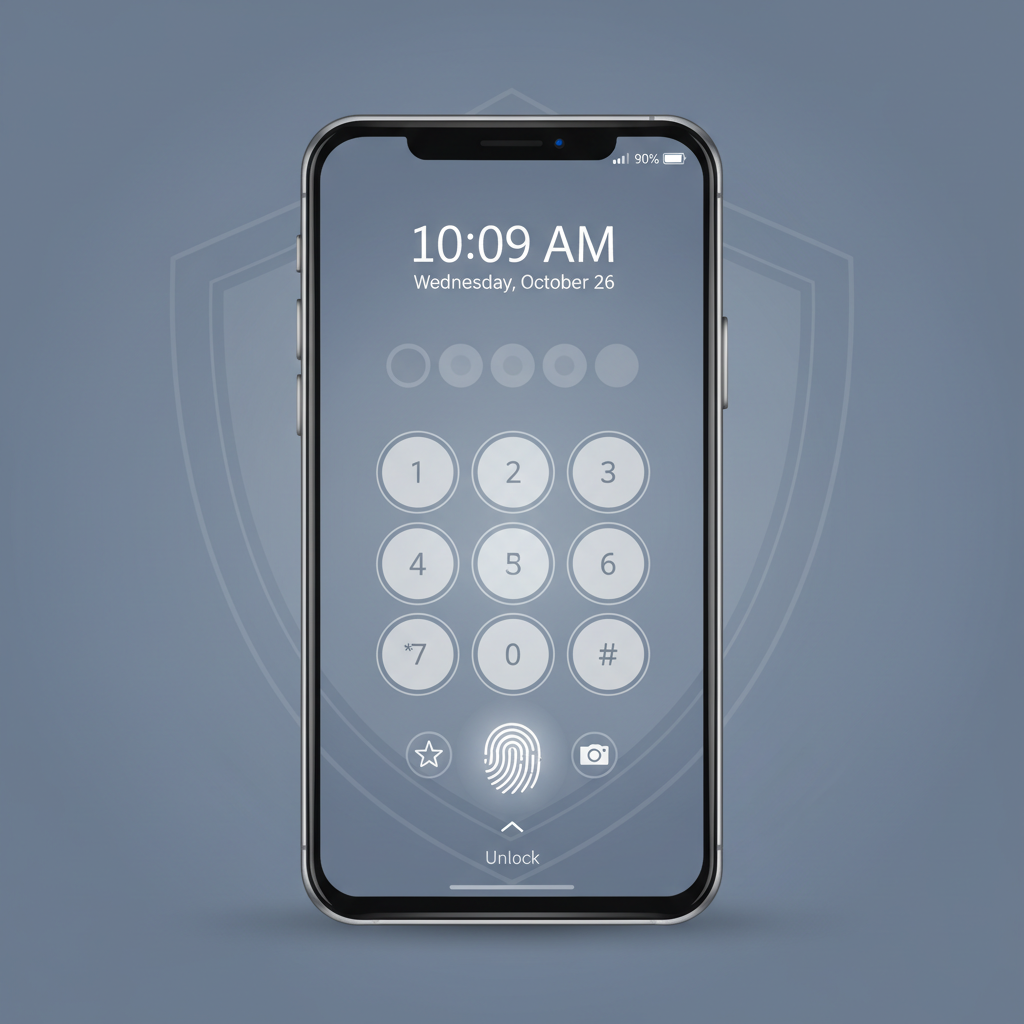
Lock screen and passcode: your first real line of defense
If you only fix one thing, fix this. A thief does not need to “hack” anything if your lock screen is easy to guess, or if your lock screen leaks one-time codes through notifications.
What to adjust (iPhone and Android)
- Use a longer passcode: Prefer 6+ digits, or an alphanumeric passcode.
- Disable “simple” patterns: On Android, avoid easy swipe patterns that leave smudge trails.
- Auto-lock quickly: 30 seconds to 1 minute is a sensible range for most people.
- Lock screen privacy: Hide message previews and authentication codes when locked.
Small changes that matter more than they look
- Turn off lock screen access to voice assistants for unlocking tasks if you do not use it.
- Limit lock screen widgets that expose calendar details, email snippets, or smart home controls.
- Set SIM PIN (if your carrier supports it) to reduce SIM-swap style risk.
Software updates: the boring setting that blocks real attacks
Updates feel annoying until you need them. Many mobile attacks rely on known vulnerabilities, and patches close those doors. According to CISA, applying security updates is a core step to reduce exposure to known issues.
- Enable automatic OS updates and install them when you have time, ideally on Wi‑Fi and power.
- Update apps regularly, especially browsers, messaging apps, and password managers.
- Avoid end-of-life devices that no longer receive security patches, this is a common hidden risk.
If you use a work phone or handle regulated data, your organization may have requirements, when in doubt, follow IT policy or ask an admin.
App permissions: cut “always on” access down to size
Permission creep is real. You install an app for one thing, later it quietly gains location, microphone, and background refresh access. Tightening phone security settings here often improves battery life too.
What to review first
- Location: choose “While Using” when possible, avoid “Always” unless it is truly needed.
- Microphone and camera: allow only for apps you actively use for calls, meetings, or scanning.
- Contacts and photos: prefer “Selected photos” or limited access rather than full libraries.
- Bluetooth and local network: useful for wearables and smart devices, but easy to over-grant.
A quick decision rule
- If you would feel uncomfortable granting that access to a stranger, set it to Ask Next Time or Never.
- If the app breaks without the permission, decide if the feature is worth the tradeoff, sometimes it is, often it is not.
Also check which apps can run in the background. On both iOS and Android, limiting background activity reduces the chance of quiet tracking and reduces noisy notification spam.
Account security: protect Apple ID/Google, not just the device
A locked phone helps, but attackers often go after the account behind it, because that account can restore backups, reset passwords, and access cloud data.
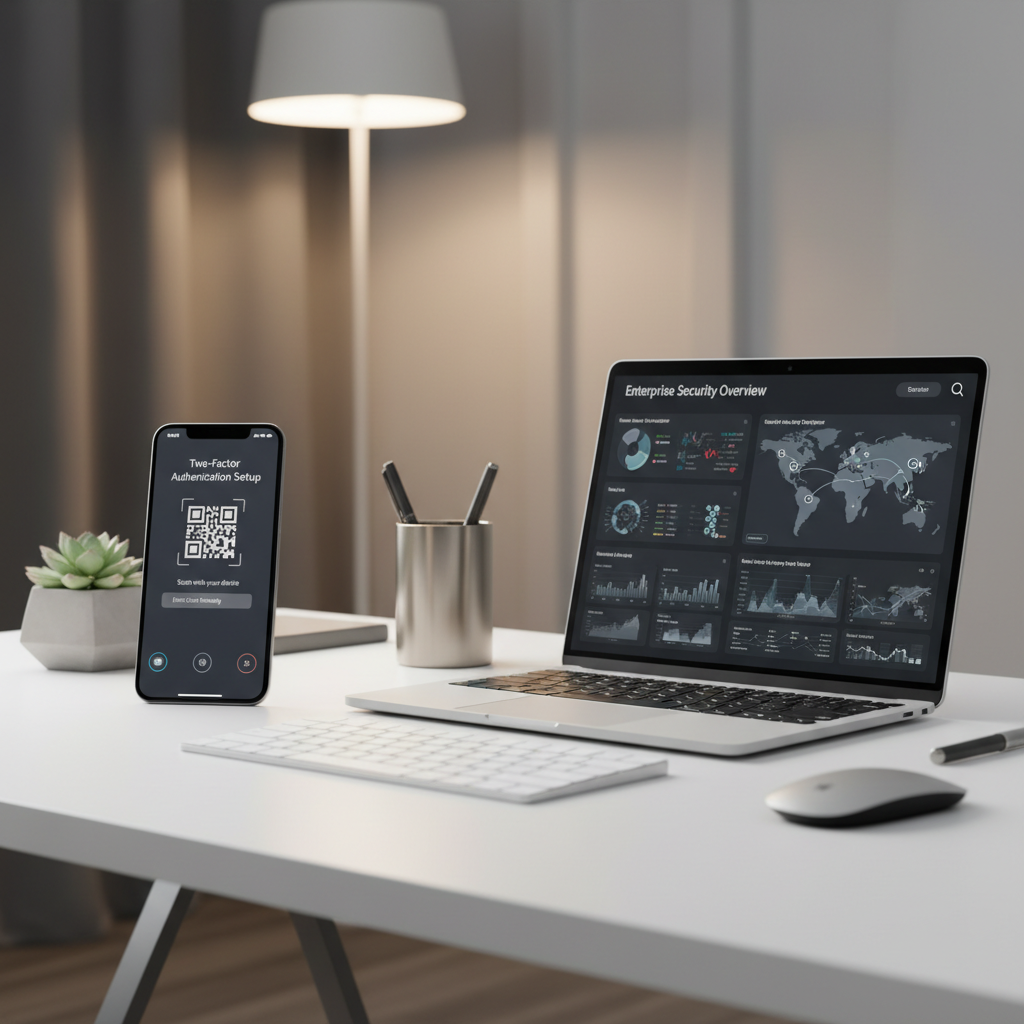
According to NIST, multi-factor authentication improves account security by adding an additional proof beyond a password, which helps even when a password leaks.
- Turn on 2-step verification for your Apple ID or Google Account.
- Use a password manager to create unique passwords for email, banking, and shopping accounts.
- Review account recovery methods: backup codes, trusted phone numbers, and recovery email.
- Check signed-in devices and sign out of anything you do not recognize.
If you use SMS codes for important accounts, consider switching to an authenticator app or passkeys where available, SMS can be weaker in some threat scenarios.
Privacy and tracking controls that are worth toggling
Some privacy settings are about marketing data, others reduce real-world risk like unwanted exposure on public Wi‑Fi or lock screen leaks. These are usually the high-value adjustments most people skip.
- Hide sensitive notifications: show “Sender only” or “When unlocked” for messages and email.
- Ad tracking controls: limit ad personalization where available, it is not a security shield, but it cuts profiling.
- Wi‑Fi and Bluetooth behavior: disable auto-join for unknown networks, turn off Bluetooth when not needed.
- Clipboard and cross-app paste prompts: keep prompts on if your OS offers them.
Public charging is another gray area people worry about. A safer habit is carrying your own charger and using a “charge-only” cable if you are frequently on the road, but risk varies by situation.
Safety net settings: Find My, backups, and what to do if you lose the phone
Recovery settings are where you “win” the bad day. You might never need them, but if you do, you will be glad you spent five minutes.
Turn on recovery features
- Enable Find My (Apple) or Find My Device (Google), and confirm it works.
- Enable remote lock and erase options so you can protect data if the phone is lost.
- Use encrypted backups, iCloud and Google backups can be safe in many cases, but confirm what is included.
Keep this mini plan handy
- Use Find My to mark the device lost, lock it, and display a contact message.
- Change your primary email password, then banking and payment apps.
- Contact your carrier to suspend service if theft is likely.
- File a report if needed, especially for insurance or workplace devices.
Recommended setup by risk level (quick table)
Not everyone needs the same hardening. A parent sharing devices at home, a remote worker with client data, and someone dealing with harassment will make different tradeoffs.
| Risk level | Who it fits | Priority phone security settings |
|---|---|---|
| Everyday | Most users | 6+ digit passcode, auto-updates, review app permissions quarterly, Find My on |
| Elevated | Frequent travelers, heavy online shopping, gig workers | Stronger lock screen privacy, tighten location “Always,” authenticator app, restrict lock screen controls |
| High concern | Journalists, public figures, people facing stalking/harassment | Alphanumeric passcode, minimal lock screen notifications, strict permission rules, device checkups, consider professional guidance |
Common mistakes that quietly undo your settings
- Relying on biometrics only: you still need a strong passcode behind Face ID or fingerprint.
- Ignoring “annoying” update prompts: delaying patches is a common way exposure lingers.
- Granting permissions to fix an app once and never revisiting them.
- Reusing passwords across email and shopping sites, one breach becomes many.
- Lock screen oversharing: one-time codes and message previews can help an attacker reset accounts.
If you are setting up a child’s device or an employee fleet, consider Mobile Device Management options, but configuration depends on your platform and policies.
Conclusion: a simple order of operations that works
Most people get real safety gains by tightening locks, updating software, and trimming permissions, then backing everything up and turning on Find My as insurance. If you do those four, your phone is meaningfully harder to compromise in typical scenarios.
Action steps for today: (1) change your passcode and hide lock screen message previews, (2) enable automatic updates and 2-step verification, then set a calendar reminder to review app permissions in 90 days.
FAQ
- What are the most important phone security settings to change first?
Start with a stronger passcode and faster auto-lock, then enable automatic OS updates and 2-step verification for your Apple ID or Google Account. - Should I use Face ID/fingerprint or a passcode?
Use both. Biometrics add convenience, but a strong passcode is the real fallback when biometrics fail or are unavailable. - How often should I review app permissions?
Every 2–3 months is realistic for most people, and also anytime you install a new app or notice unusual battery drain. - Is public Wi‑Fi unsafe for phones?
It can be riskier, especially for sensitive logins. If you must use it, avoid financial tasks, confirm HTTPS, and consider a reputable VPN, needs vary by threat level. - Do I need antivirus on iPhone or Android?
Many users do not, but Android users who install apps outside the official store may benefit from reputable mobile security tools. Be selective, some “security” apps over-collect data. - What should I do if my phone is stolen and I think accounts are at risk?
Use Find My to lock or erase, contact your carrier, then change passwords starting with your primary email. If money loss is possible, consider calling your bank and documenting steps. - Will tightening phone security settings break my apps?
Sometimes a feature stops working until you re-allow access. Treat that as useful feedback, it shows what the app truly depends on.
If you are trying to lock down a new phone quickly, or you are unsure which phone security settings matter for your situation, it can help to follow a guided checklist and document your choices so you can reapply them after upgrades or resets.